---
title: Couchbase Lite on Java — Installing
description: Couchbase Lite on Java -- a framework for developing offline-first
Java applications for mobile and edge
pubDate: 2026-08-17T09:53:44.266Z
antora:
editUrl: https://github.com/couchbase/docs-couchbase-lite/edit/release/3.1/modules/java/pages/gs-install.adoc
xref: xref:3.1@couchbase-lite:java:gs-install.adoc[]
---
[Consult the llms.txt file for a full list of contents](/llms.txt)
[View original HTML](/couchbase-lite/3.1/java/gs-install.html)
# Couchbase Lite on Java — Installing
> Description — _Couchbase Lite on Java — a framework for developing offline-first Java applications for mobile and edge_
> _Abstract — This content provides instructions that enable you to deploy Couchbase Lite on java_
> Related Content — [Install](gs-install.md) | [Prerequisites](gs-prereqs.md) | [Build and Run](gs-build.md)
## [](#introduction)Introduction
_Couchbase Lite_ on Java 3.1.10\_ enables development and deployment of Couchbase Lite applications to a JVM environment. You can deploy Standalone (Java Desktop/Console) apps or Web Apps (using, for example, Tomcat; including embedded Tomcat deployments).
Quick Steps
For experienced developers, this is all you need to add _Couchbase Lite for Java 3.1.10_ to your application projects.
* Enterprise Edition
* Community Edition
Include the following in your Gradle `build.gradle` or Maven `pom.xml` file, as appropriate:
* The Couchbase Enterprise Edition repository
``
* The Couchbase Lite Enterprise Edition dependency:
`couchbase-lite-java-ee:3.1.10`
1. Include the Couchbase Lite for Java dependency in your Gradle `build.gradle` or Maven `pom.xml` file, as appropriate:
`couchbase-lite-java:3.1.10`
2. For Gradle:
Check you have `mavenCentral()` in `repositories` (or in `settings.gradle`).
Maven automatically checks its own repo for dependencies.
> [!NOTE]
> for Linux, make sure you have followed the [additional steps required](gs-prereqs.md#additional-steps-for-linux).
That's it! You're all set to begin developing powerful Couchbase Lite applications.
Now, try the [Getting Started](gs-build.md) application, which demonstrates use of key CRUD functionality.
## [](#preparing-your-build-environment)Preparing Your Build Environment
This section shows how to set up and use _Couchbase Lite_ on Java to build desktop and web applications using gradle, Maven, Tomcat and Intellij IDEA Community Edition. It assumes a familiarity with these products, however you are free to use your own choice of development tools.
### [](#binaries)Binaries
_Couchbase Lite_ on Java binaries are available for both Community (CE) and Enterprise (EE) editions from the _Maven_ repositories. Alternatively, you can download compressed binaries — see the _Downloaded Binaries_ section in [Prerequisites](gs-prereqs.md)
### [](#prerequisites)Prerequisites
* Planning to sync with a _Couchbase Server_?
You will need to have runnable instances of _Couchbase Server_ and _Sync Gateway_ installed. If you have not already done so see [Prepare Sync Gateway](#sync-gateway::get-started-prepare.adoc)
* Running on Microsoft Windows?
Windows requires C++ runtime installed. Please install the Visual C++ Redistribution package from this link:
* Deploying to Linux?
You need to deploy the Couchbase Lite `support` library, which is available _only_ on the zip download distributable. See the _Additional Steps for Linux_ section in [gs-prereqs.adoc#additional-steps-for-linux](gs-prereqs.md#additional-steps-for-linux).
## [](#standalone-apps)Standalone Apps
### [](#using-gradle)Using Gradle
1. Create a project folder
2. Initialize it for a Gradle Java application
3. Include the content shown in [Example 1](#ex-bgf1) in your app-level `build.gradle` file
4. Open the project folder in Intellij IDEA and import the gradle settings.
> [!TIP]
> If you don't have auto-import set for Gradle projects, then accept the **Import Gradle Project** prompt that is displayed bottom-right of the screen
> Note the Gradle menu at the extreme right of the screen:
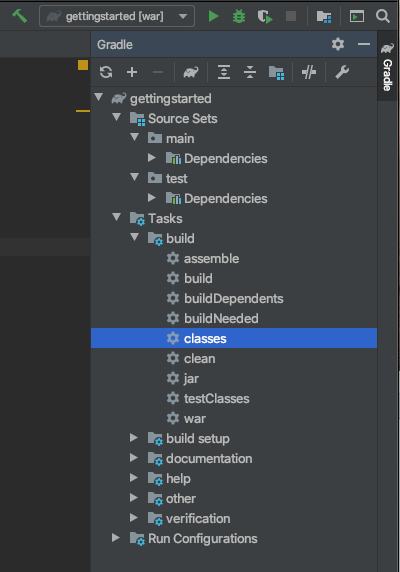
That's it. You're all set to start building your own _Couchbase Lite_ on Java applications — see [Build and Run](gs-build.md) for an example of how to do that.
Example 1\. build.gradle file content
* Enterprise Edition
* Community edition
Compile options
```groovy
// Required only if your project has some Kotlin source code
kotlinOptions { jvmTarget = '1.8' }
// Set minimum JVM level to ensure availability of, for example, lambda expressions
compileOptions {
targetCompatibility 1.8
sourceCompatibility 1.8
// ... other section content as required by user
}
```
Dependencies
```groovy
dependencies {
implementation "com.couchbase.lite:couchbase-lite-java:3.1.10"
// ... other section content as required by user
}
```
Repositories
```groovy
repositories {
maven {url 'https://mobile.maven.couchbase.com/maven2/dev/'}
// ... other section content as required by user
}
```
Compile options
```groovy
// Required only if your project has some Kotlin source code
kotlinOptions { jvmTarget = '1.8' }
// Set minimum JVM level to ensure availability of, for example, lambda expressions
compileOptions {
targetCompatibility 1.8
sourceCompatibility 1.8
// ... other section content as required by user
}
```
Dependencies
```groovy
dependencies {
implementation "com.couchbase.lite:couchbase-lite-java:3.1.10"
// ... other section content as required by user
}
```
### [](#using-maven)Using Maven
1. Include the content shown in [Example 2](#ex-bmf1) in your `pom.xml` file in the root of your project folder
2. That's it — just add your own code
You're all set to start building your own _Couchbase Lite_ on Java applications — see [Build and Run](gs-build.md) for an example of how to do that.
Example 2\. pom.xml file content
* Enterprise Edition
* Community edition
Compile properties
```XML
UTF-8
11
11
```
Dependencies
```XML
com.couchbase.lite
couchbase-lite-java-ee
3.1.10
```
Repositories
```xml
couchbase
https://mobile.maven.couchbase.com/maven2/dev/
// ... any other section content as required by user
```
Compile properties
```XML
UTF-8
11
11
```
Dependencies
```xml
com.couchbase.lite
couchbase-lite-java
3.1.10
// ... any other section content as required by user
```
## [](#web-app-development)Web App Development
This section explains how to set-up a build project to create _Couchbase Lite_ on Java web apps using gradle and Intellij IDEA.
> [!TIP]
> Using Maven
>
> For examples of how to do this using Maven POM files, see —
>
> * [Couchbase Mobile Workshop](https://github.com/couchbaselabs/mobile-travel-sample/tree/master/java/TravelSample)
> * [Mobile Taining To Do App](https://github.com/couchbaselabs/mobile-training-todo/tree/release/lithium/java-ws/server/Todo)
### [](#tomcat)Tomcat
In our examples here we build and deploy web apps using a gradle plugin based on the `com.bmuschko.tomcat` plugin. It provides a simple Tomcat harness that can be used from within Intellij IDEA or the command-line — see [Embedded Tomcat](#lbl-tomcat)
### [](#bmkMultCblJapps)Multiple Web Apps
Each web application has its own \*class loader (WebappX). This loads the classes, jars, and resources found in the application's `WEB-INF/classes` and `WEB-INF/lib` folders, together with any shared jar files from `$CATALINA_BASE/lib` — see [tomcat documentation](https://tomcat.apache.org/tomcat-9.0-doc/class-loader-howto.html) for more.
So, if you are running multiple Couchbase Lite web applications, deploy your _Couchbase Lite_ on Java library `/libs` to `$CATALINA_BASE/lib`. This means you do not need to deploy it in each web app and **minimizes the size of each app**.
> [!NOTE]
> Configuring Couchbase Lite logging functionality will affect the logging of all web applications as the _common class loader_ shares _Couchbase Lite Console, File_ and _Custom logging functionalities_ across all web apps.
For information about building a WAR file see [Deploying a WAR File](#lbl-war)
### [](#prerequisites-2)Prerequisites
* Ensure your build environment matches the runtime Tomcat environment. Specifically, that the Java and Tomcat versions are the same.
* If your Tomcat server runs Linux, declare the _shared libraries_ (`/support`) in the `$CATALINA_HOME/bin/setenv.sh` script file — see: _Additional Steps for Linux_ section in [Prerequisites](gs-prereqs.md).
* Ensure the Couchbase Lite jars (`/lib`) are on the executable path within Tomcat — see: [Multiple Web Apps](#bmkMultCblJapps)
> [!TIP]
> This also means you should declare the dependencies as `providedCompile` to avoid them being bundled into the `WEB-INF/libs` folder
### [](#steps)Steps
1. Create a project folder and initialize it for a Gradle Java application
```bashrc
gradle init
```
2. Create your `build.gradle` file, including the [Example 3](#ex-bgf2) in your app-level build.gradle:
3. Open the project folder in Intellij IDEA and import the gradle settings.
> [!TIP]
> If you don't have auto-import set for Gradle projects, then accept the **Import Gradle Project** prompt that is displayed bottom-right of the screen.
> Note the Gradle menu at the extreme right of the screen:
> image::GradleMenuWebApp.png\[,300\]
If you want to deploy your app to a local tomcat container then see [\[Deploying a WAR file to tomcat\]](#Deploying a WAR file to tomcat)
That's it. You're all set to start building your own _Couchbase Lite_ on Java applications — see [Building a Getting Started App](gs-build.md) for an example of how to do that.
Example 3\. build.gradle file content
* Community
* Enterprise
```groovy
dependencies {
implementation "com.couchbase.lite:couchbase-lite-java:3.1.10"
// ... other section content as required by user
}
```
```groovy
repositories {
maven {url 'https://mobile.maven.couchbase.com/maven2/dev/'}
// ... other section content as required by user
}
dependencies {
implementation "com.couchbase.lite:couchbase-lite-java-ee:3.1.10"
// ... other section content as required by user
}
```
## [](#lbl-tomcat)Embedded Tomcat
The simplest way to build and deploy your _Couchbase Lite_ on Java web app is to use a gradle plugin that provides a simple Tomcat harness.
Our examples are based on the `com.bmuschko.tomcat` plugin — see [com.bmuschko.tomcat on Github](https://github.com/bmuschko/gradle-tomcat-plugin).
Including the plugin in your `build.gradle` file make a number of tomcat tasks available to you. View them using:
```bash
./gradlew tasks
```
This shows that the following web application tasks are now available:
* `tomcatJasper` \- Runs the JSP compiler and turns JSP pages into Java source.
* `tomcatRun` \- Uses your files as and where they are and deploys them to Tomcat.
* `tomcatRunWar` \- Assembles the web app into a war and deploys it to Tomcat.
* `tomcatStop` \- Stops Tomcat.
So, to run the app use:
```bash
./gradlew tomcatRun
```
## [](#lbl-war)Deploying a WAR File
To deploy your web app to a local Tomcat instance you need to generate a WAR file. However, you should note that when creating a war file, if you use the `implementation` dependency type then your _Couchbase Lite_ jar files will be bundled into WEB-INF/lib of the web application. To exclude Couchbase Lite jar files from getting bundled and to use Couchbase Lite in multiple web applications, change the dependency type from **`implementation`** to **`providedCompile`**
1. You can do this using the Gradle command below from within your project folder:
```bashrc
./gradlew war
```
> [!NOTE]
> The generated war file will be at /build/libs.
2. Deploy the war file to Tomcat, by copying it to $CATALINA\_BASE/webapps
> [!TIP]
> You can also use Tomcat's Manager App to deploy the war file — see [Tomcat's Manager App](https://tomcat.apache.org/tomcat-9.0-doc/manager-howto.html) documentation for more detail.
3. To use common class loader approach to load Couchbase Lite libraries, copy all of the Couchbase Lite jar files in $CATALINA\_BASE/lib.
> [!NOTE]
> For linux platform see also — _Using Native Libraries for Linux_ in [Prerequisites](gs-prereqs.md)
## [](#related-content)Related Content
###### [](#)
How to . . .
* [Prerequisites](gs-prereqs.md)
* [Install](gs-install.md)
* [Build and Run](gs-build.md)
###### [](#-2)
Learn more . . .
* [Databases](database.md)
* [Documents](document.md)
* [Blobs](blob.md)
* [Remote Sync Gateway](replication.md)
* [Handling Data Conflicts](conflict.md)
###### [](#-3)
Dive Deeper . . .
[Mobile Forum](https://forums.couchbase.com/c/mobile/14) | [Blog](https://blog.couchbase.com/) | [Tutorials](https://docs.couchbase.com/tutorials/)