---
title: Create a Bucket
description: Full and Cluster Administrators can use Couchbase
Web Console, the CLI, or the REST API to create a bucket.
pubDate: 2026-08-17T09:53:44.266Z
antora:
editUrl: https://github.com/couchbase/docs-server/edit/release/7.2/modules/manage/pages/manage-buckets/create-bucket.adoc
xref: xref:7.2@server:manage:manage-buckets/create-bucket.adoc[]
---
[Consult the llms.txt file for a full list of contents](/llms.txt)
[View original HTML](/server/7.2/manage/manage-buckets/create-bucket.html)
# Create a Bucket
> _Full_ and _Cluster_ Administrators can use Couchbase Web Console, the CLI, or the REST API to create a bucket.
You can create a bucket with the [Couchbase Server UI](#create-bucket-using-couchbase-web-console), [CLI](#create-bucket-with-the-cli) or the [REST API](#create-bucket-with-the-rest-api).
You can create a maximum of 30 buckets per cluster.
## [](#prerequisites)Prerequisites
* You must be a Full or Cluster Administrator.
## [](#create-bucket-using-couchbase-web-console)Create a Bucket with the UI
To create a bucket with the Couchbase UI:
1. Log in to the Couchbase Server Web Console.
2. Go to **Buckets**.
3. Select **Add Bucket**.
The **Add Data Bucket** dialog appears:
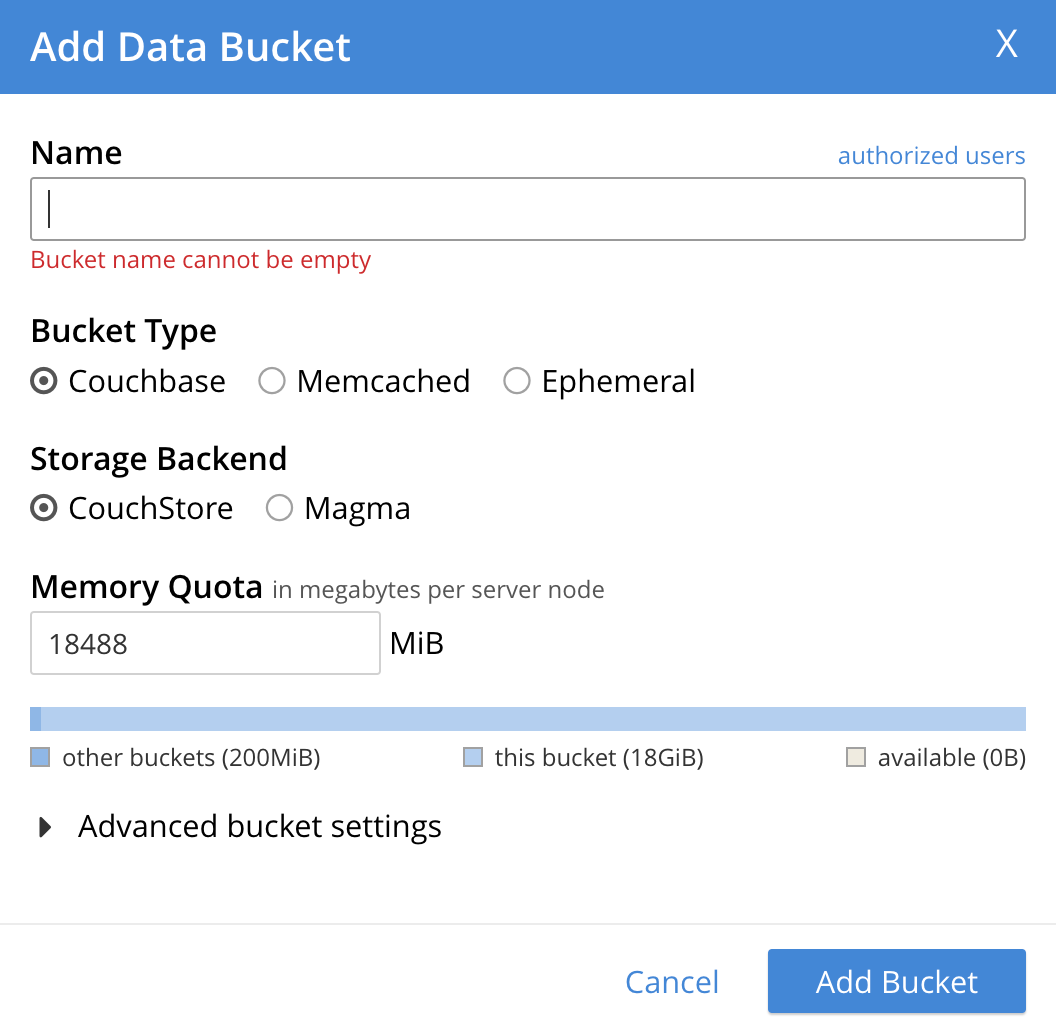
1. In the **Name** field, enter a name for the new bucket.
> [!NOTE]
> A bucket name can be up to 100 characters in length and contain:
>
> * Uppercase and lowercase characters (A-Z and a-z)
> * Digits (0-9)
> * Underscores (\_), periods (.), dashes (-), and percent symbols (%)
2. Choose a **Bucket Type** for the bucket:
* **Couchbase**
* **Memcached**
* **Ephemeral**
For more information about bucket types, see [Buckets](../../learn/buckets-memory-and-storage/buckets.md).
3. Choose a **Storage Backend** for the bucket:
* **Couchstore**
* **Magma**
For more information about the available storage engines, see [Storage Engines](../../learn/buckets-memory-and-storage/storage-engines.md).
4. In the **Memory Quota** field, enter a value in MiB per node for the total RAM available for the bucket. This value can't exceed the total RAM quota for your cluster.
> [!NOTE]
> Your memory quota needs to match the minimum memory resident ratio required by your chosen storage engine. For more information, see [Bucket Memory Quotas](../../learn/buckets-memory-and-storage/memory.md#bucket-memory).
1. Expand **Advanced bucket settings**.
2. Set any advanced settings for your bucket. See [Set Advanced Bucket Settings](#advanced-bucket-settings).
3. Select **Add Bucket**.
The bucket appears on the **Buckets** screen.

You can view the following information for the bucket:
* The number of items the bucket contains.
* The percentage of items in the bucket that are currently resident.
* The number of operations per second being performed on the bucket.
* The amount of RAM the bucket is currently using, compared to its memory quota.
* The amount of disk space used by the bucket.
You can also view the [Documents](../manage-ui/manage-ui.md#console-documents) in the bucket and create [Scopes and Collections](../../learn/data/scopes-and-collections.md).
For information about how to import documents into a bucket, see [Import Documents](../import-documents/import-documents.md).
### [](#advanced-bucket-settings)Set Advanced Bucket Settings
The available advanced settings for your bucket change based on your selected **Bucket Type**:
* [Couchbase Bucket Settings](#couchbase-bucket-settings)
* [Memcached Bucket Settings](#memcached-bucket-settings)
* [Ephemeral Bucket Settings](#ephemeral-bucket-settings)
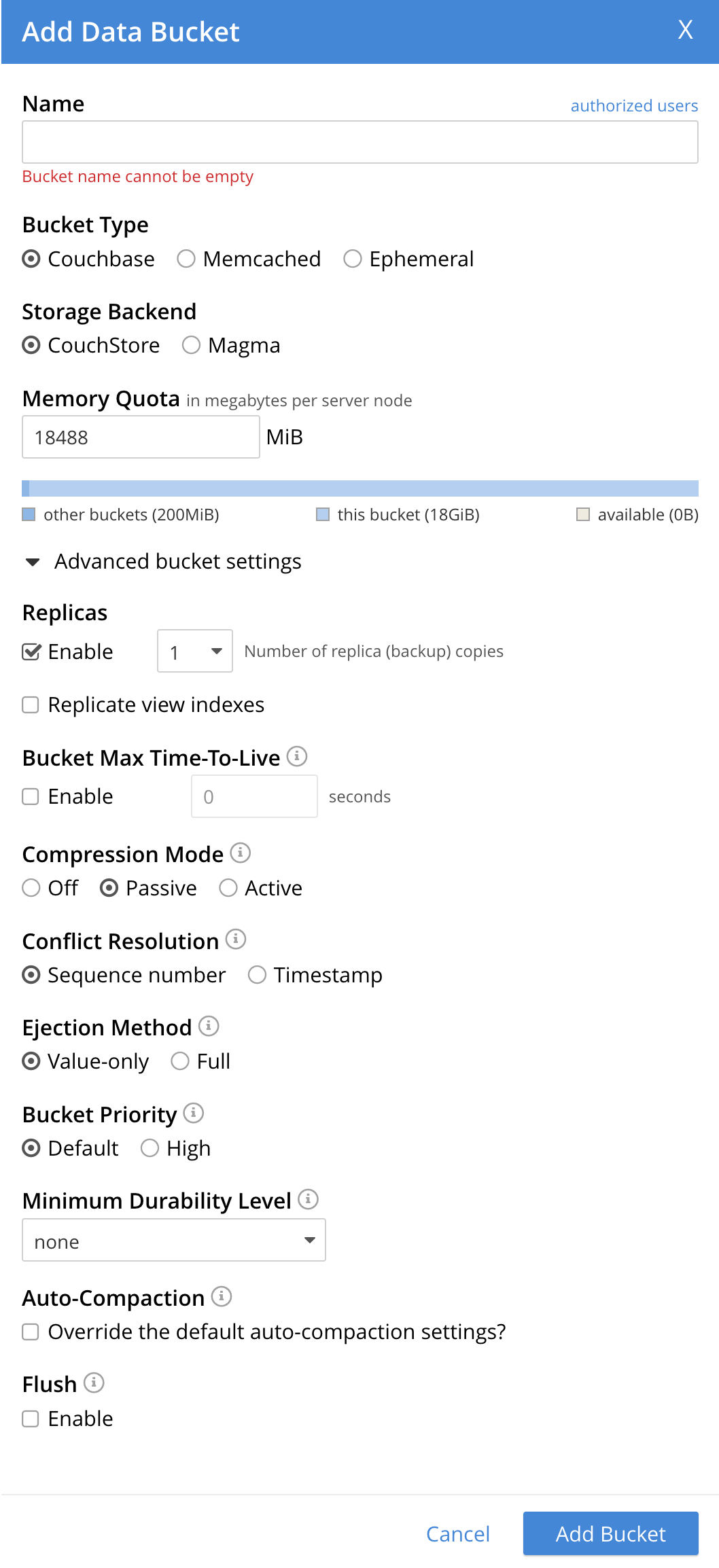
#### [](#couchbase-bucket-settings)Couchbase Bucket Settings
To configure advanced settings for a Couchbase bucket:
1. To enable [replica creation and management](../../learn/clusters-and-availability/intra-cluster-replication.md), under **Replicas**, select the **Enable** checkbox.
1. In the **Number of replica (backup) copies** list, select the number of replicas for the bucket.
2. To replicate view indexes and data from the bucket, select the **Replicate view indexes** checkbox.
2. To set a [document expiration](../../learn/data/expiration.md) for documents in the bucket, under **Bucket Max Time-To-Live**, select the **Enable** checkbox.
1. In the **Seconds** field, enter the maximum time in seconds that a document can exist in the bucket before it's deleted.
> [!TIP]
> The maximum allowed value is 2147483647 seconds (68.096 years). You can only apply this setting to documents created after you change the configuration.
3. Choose a **Compression Mode** for the bucket:
* **Off**
* **Passive**
* **Active**
For more information about the available compression modes, see [Compression](../../learn/buckets-memory-and-storage/compression.md).
4. Choose a **Conflict Resolution** method for Cross Datacenter Replication (XDCR) on this bucket:
* **Sequence number**
* **Timestamp**
For more information about XDCR conflict resolution, see [XDCR Conflict Resolution](../../learn/clusters-and-availability/xdcr-conflict-resolution.md).
5. Choose an **Ejection Method** for the bucket:
* **Value-only**
* **Full**
For more information about ejection, see the [Ejection](../../learn/buckets-memory-and-storage/memory.md#ejection) section in Memory.
> [!NOTE]
> Full Ejection is recommended when the [Magma storage engine](../../learn/buckets-memory-and-storage/storage-engines.md#storage-engine-magma) is used as the storage engine for a bucket. This is especially the case when the ratio of memory to data is very low (Magma allows you to go as low as 1% of memory to data ratio).
1. Choose a **Bucket Priority** for the bucket:
* **Default**
* **High**
Bucket Priority sets the priority of the bucket's background tasks relative to the background tasks of other buckets on the cluster.
Background tasks may involve disk I/O, DCP stream-processing, item-paging, and more. Specifying High might result in faster processing for the current bucket's tasks. This setting only takes effect when there is more than one bucket defined for the cluster, and you have assigned different Bucket Priority values.
1. In the **Minimum Durability Level** list, select a durability level for the bucket:
* **none**
* **majority**
* **majorityAndPersistActive**
* **persistToMajority**
For more information about durability, see [Durability](../../learn/data/durability.md).
2. To enable automatic compaction of data and indexes to save space, select the **Auto-Compaction** checkbox.
1. To override the default Auto-Compaction settings, select the **Override the default auto-compaction settings?** checkbox.
For more information about how to configure Auto-Compaction, see [Auto-Compaction](../manage-settings/configure-compact-settings.md).
3. To enable flushing for the bucket, under **Flush**, select the **Enable** checkbox.
For more information about flushing, see [Flush a Bucket](flush-bucket.md).
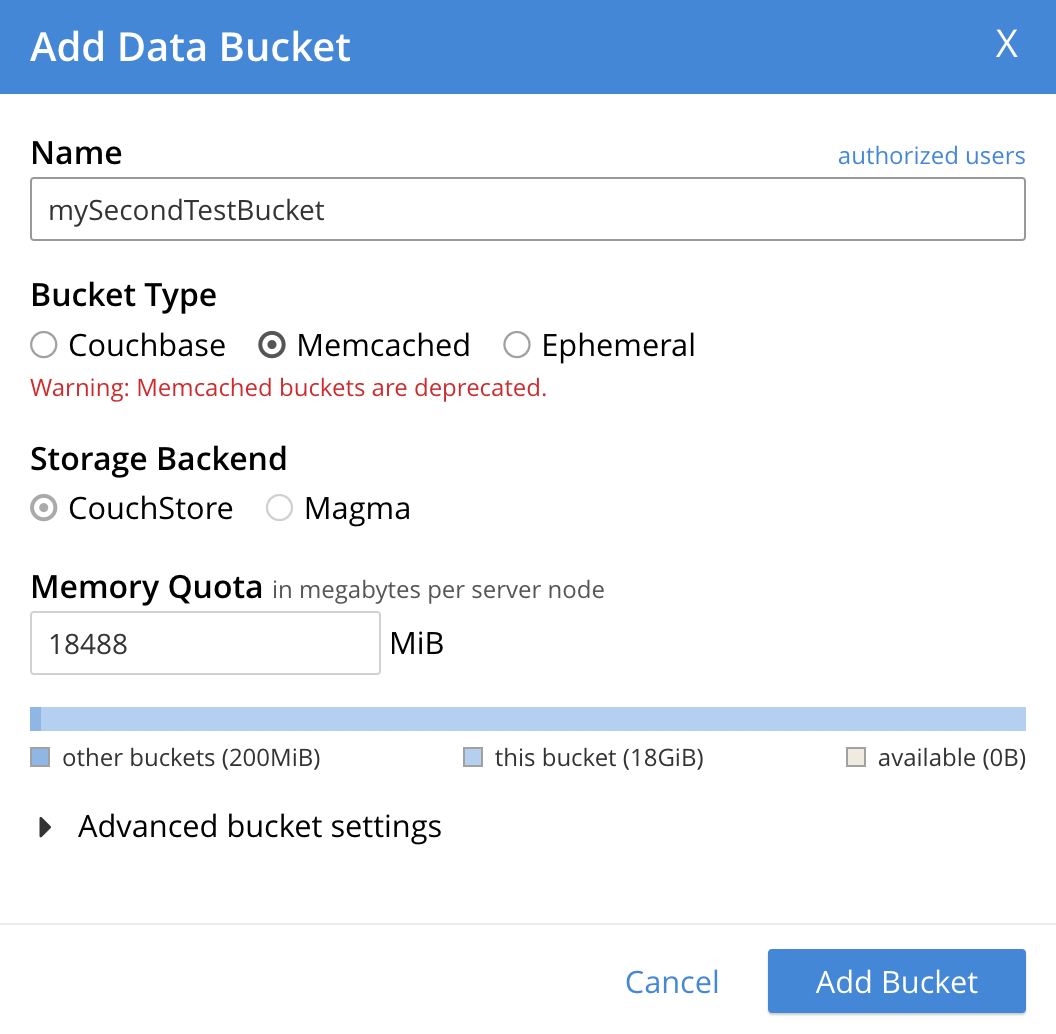
#### [](#memcached-bucket-settings)Memcached Bucket Settings
> [!CAUTION]
> Memcached buckets are deprecated. Use a **Couchbase** or **Ephemeral** bucket, instead.
To configure advanced settings for a Memcached bucket:
1. To enable flushing for the bucket, under **Flush**, select the **Enable** checkbox.
For more information about flushing, see [Flush a Bucket](flush-bucket.md).
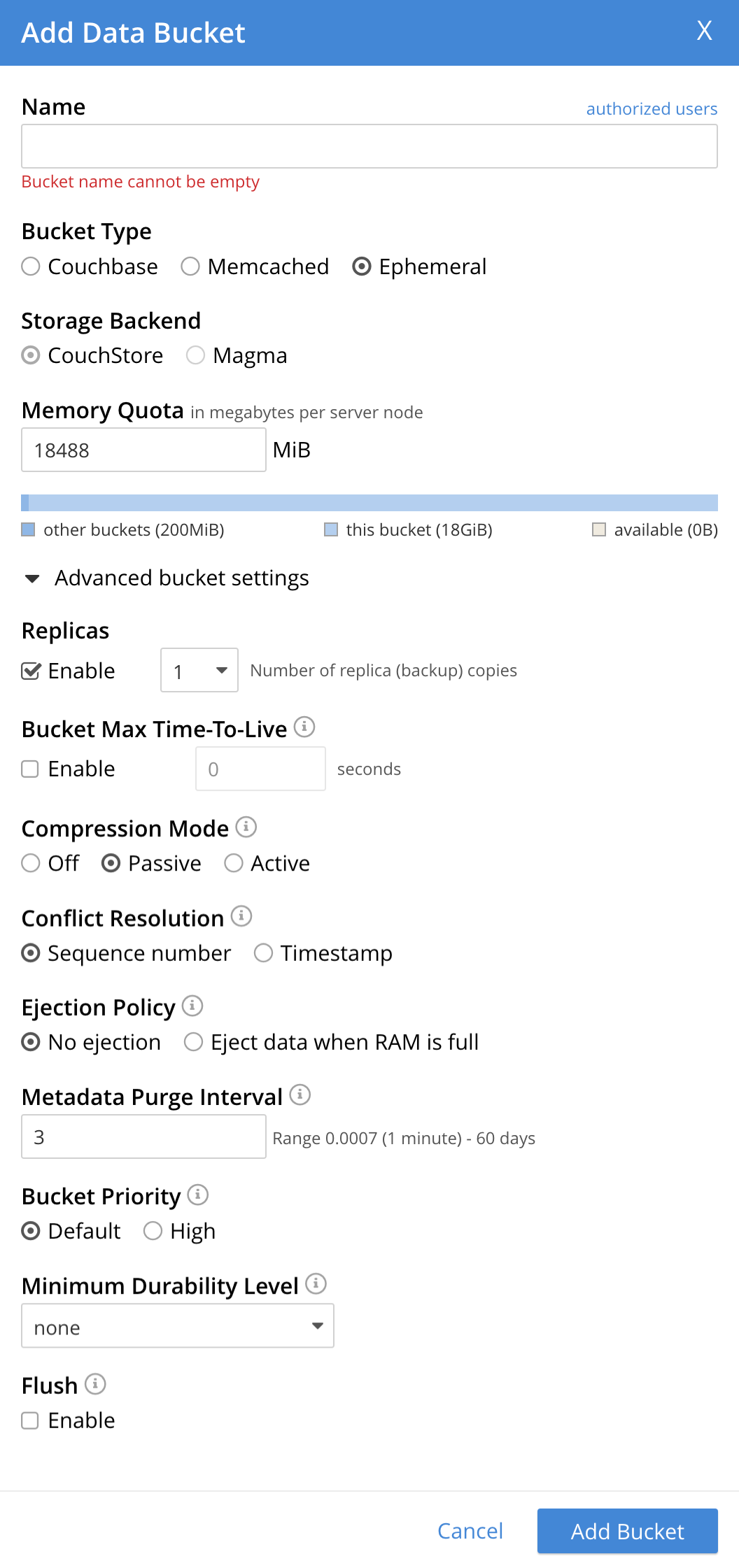
#### [](#ephemeral-bucket-settings)Ephemeral Bucket Settings
To configure advanced settings for an Ephemeral bucket:
1. To enable [replica creation and management](../../learn/clusters-and-availability/intra-cluster-replication.md), under **Replicas**, select the **Enable** checkbox.
1. In the **Number of replica (backup) copies** list, select the number of replicas for the bucket.
2. To set a [document expiration](../../learn/data/expiration.md) for documents in the bucket, under **Bucket Max Time-To-Live**, select the **Enable** checkbox.
1. In the **Seconds** field, enter the maximum number of seconds a document can exist in the bucket before it's deleted.
> [!TIP]
> The maximum allowed value is 2147483648 seconds (68.096 years). You can only apply this setting to documents created after you change the configuration.
3. Choose a **Compression Mode** for the bucket:
* **Off**
* **Passive**
* **Active**
For more information about the available compression modes, see [Compression](../../learn/buckets-memory-and-storage/compression.md).
4. Choose a **Conflict Resolution** method for Cross Datacenter Replication (XDCR) on this bucket:
* **Sequence number**
* **Timestamp**
For more information about XDCR conflict resolution, see [XDCR Conflict Resolution](../../learn/clusters-and-availability/xdcr-conflict-resolution.md).
5. Choose a **Bucket Priority**:
* **Default**
* **High**
Bucket Priority sets the priority of the bucket's background tasks relative to the background tasks of other buckets on the cluster.
Background tasks may involve DCP stream-processing, item-paging, and more. Specifying High might result in faster processing for the current bucket's tasks. This setting only takes effect when there is more than one bucket defined for the cluster, and the buckets are assigned different Bucket Priority values.
1. Choose an **Ejection Policy** for the bucket:
* **No ejection**
* **Eject data when RAM is full**
For more information about ejection, see the [Ejection section in Memory](../../learn/buckets-memory-and-storage/memory.md#ejection).
2. In the **Metadata Purge Interval** field, enter a value between `0.0007-60` to set how often a node purges metadata on deleted items.
A value of `0.0007` equals a minute. A value of `0.5` equals 12 hours. If this value is too high, the node might have a delay when reclaiming memory. If set too low, data might be inconsistent in XDCR or Views.
3. In the **Minimum Durability Level** list, select a durability level for the bucket:
* **none**
* **majority**
For more information about durability, see [Durability](../../learn/data/durability.md).
## [](#create-bucket-with-the-cli)Create a Bucket with the CLI
To create a bucket with the Couchbase CLI, use the `bucket-create` command.
For example:
```sh
./couchbase-cli bucket-create \
--cluster 10.143.201.101:8091 \
--username Administrator \
--password password \
--bucket testBucket \
--bucket-type couchbase \
--bucket-ramsize 1024 \
--max-ttl 500000000 \
--durability-min-level persistToMajority \
--enable-flush 0
```
The preceding example creates a `Couchbase` bucket named `testBucket`, with a RAM size of `1024`. It sets a Maximum Time-to-Live and disables Flush. It also sets a Minimum Durability Level of `persistToMajority`.
For more information about `bucket-create` and its parameters, see [bucket-create](../../cli/cbcli/couchbase-cli-bucket-create.md) in the Couchbase CLI reference.
## [](#create-bucket-with-the-rest-api)Create a Bucket with the REST API
To create a bucket with the Couchbase REST API, use the `POST` http method, with the `/pools/default/buckets` endpoint.
For example:
```sh
curl -v -X POST http://10.143.201.101:8091/pools/default/buckets \
-u Administrator:password \
-d name=testBucket \
-d bucketType=couchbase \
-d ramQuota=512 \
-d durabilityMinLevel=majorityAndPersistActive
```
The preceding example creates a `Couchbase` bucket named `testBucket`, with a RAM size of `512`. It sets a Minimum Durability Level of `majorityAndPersistActive`.
For more information about the `/pools/default/buckets` endpoint and its parameters, see [Creating and Editing Buckets](../../rest-api/rest-bucket-create.md) in the Buckets API reference.