---
title: General
description: General settings allow configuration of cluster
name, memory quotas, storage modes, and node
availability for the cluster; and of advanced settings for the
Index and Query Services.
pubDate: 2026-08-17T09:53:44.266Z
antora:
editUrl: https://github.com/couchbase/docs-server/edit/release/7.2/modules/manage/pages/manage-settings/general-settings.adoc
xref: xref:7.2@server:manage:manage-settings/general-settings.adoc[]
---
[Consult the llms.txt file for a full list of contents](/llms.txt)
[View original HTML](/server/7.2/manage/manage-settings/general-settings.html)
# General
> _General_ settings allow configuration of _cluster name_, _memory quotas_, _storage modes_, and _node availability_ for the cluster; and of _advanced settings_ for the Index and Query Services.
## [](#configuring-general-settings-examples-on-this-page)Examples on This Page
Full and Cluster Administrators can configure general settings by means of [Couchbase Web Console](#configure-general-settings-with-the-ui), the [CLI](#configure-general-settings-with-the-cli), or the [REST API](#configure-general-settings-with-the-rest-api).
## [](#configure-general-settings-with-the-ui)Configure General Settings with the UI
The appearance of the **General** screen is as follows:
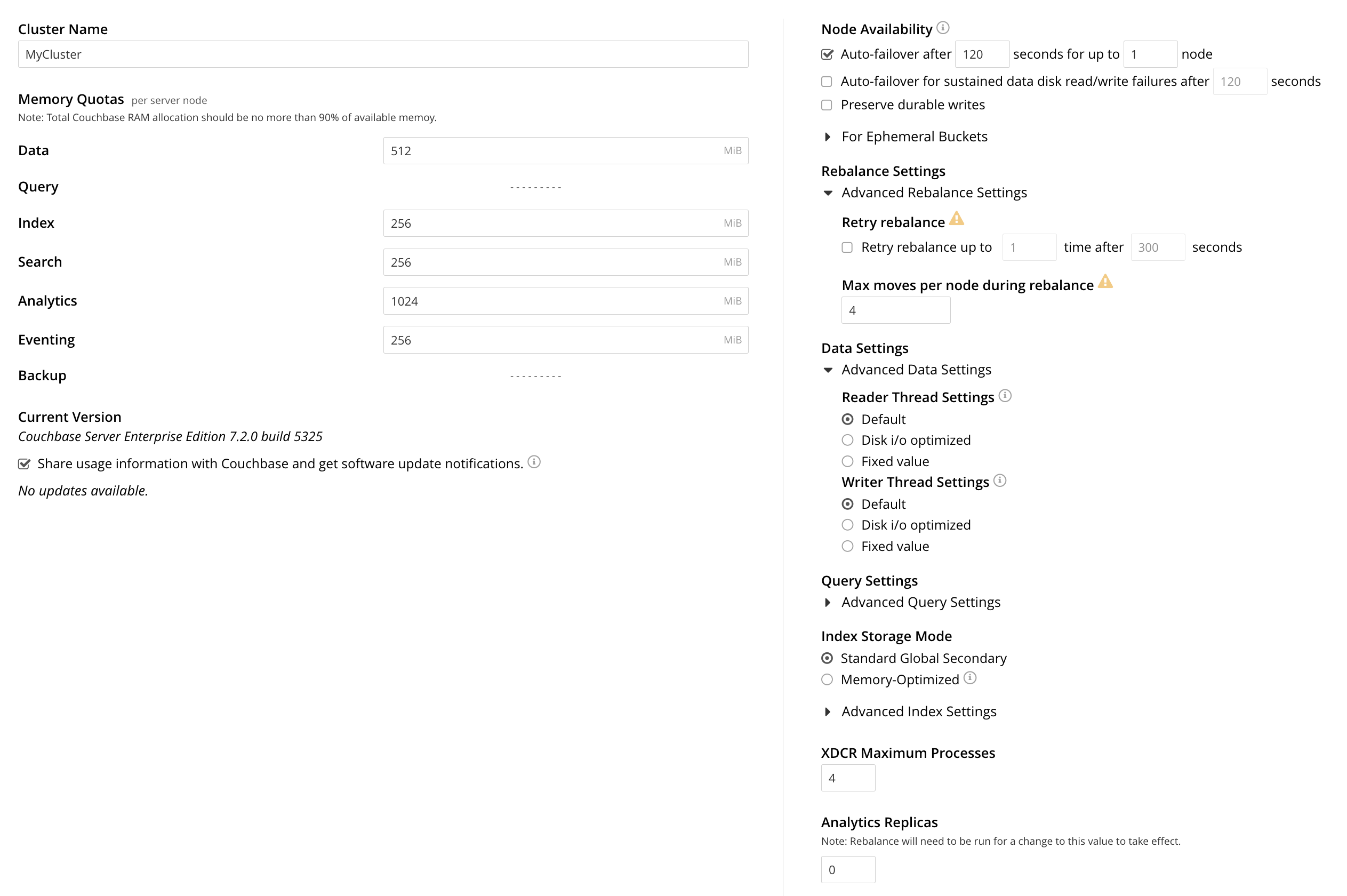
The panels and their UI elements are described below.
### [](#cluster-name)Cluster Name
The **Cluster Name** is the name that was given during initial setup. This name can be changed at any time. The interactive field appears as follows:

### [](#memory-quotas)Memory Quotas
The amount of memory available to each service, on every node. The combination of assigned values is not permitted to exceed the total memory available on the most memory-constrained node.
The panel appears as follows:
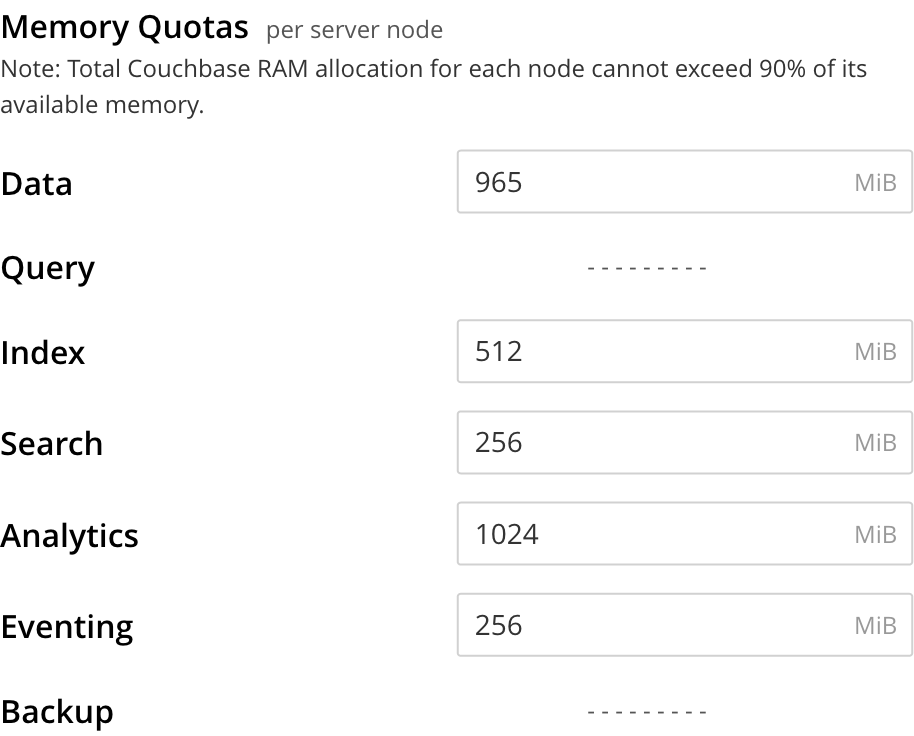
The displayed, configurable options are:
* **Data**. The memory allocation for the Data Service, per node. The minimum allocation must be equal to or greater than the sum of all per bucket memory-allocations on the node.
* **Index**. The buffer cache size for the Index Service. The specified amount of memory is pre-allocated as soon as the Index Service starts up. It is then shared with all indexes created on the node. The total memory-usage of the indexer process will be the buffer cache size plus the size of various internal data structures and queues.
* **Search**. The memory allocation for the Search Service, per node.
* **Analytics**. The memory allocation for the Analytics Service, per node.
* **Eventing**. The memory allocation for the Eventing Service, per node.
Note that neither the Query Service nor the Backup Service requires memory-allocation.
### [](#current-version)Current Version
This panel displays the current version of Couchbase Server, and can be used to indicate whether updates are available. It appears as follows:
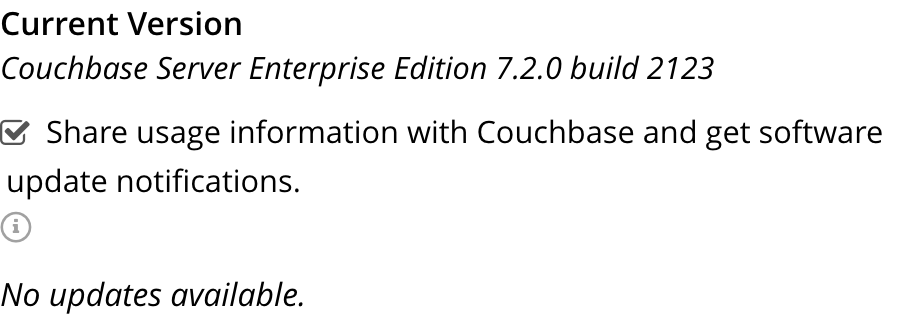
The **Share usage information with Couchbase and get software update notifications** checkbox is checked by default: this means that Couchbase Web Console will display adjacent notifications whenever a new version of Couchbase Server is available. If the checkbox is unchecked, notifications are not provided.
Additionally, if the checkbox is checked, Couchbase Web Console communicates with Couchbase Server to ascertain the following information, which is then transmitted to Couchbase:
* The server-version of the current installation.
* Information about data-size and performance.
* The cluster-configuration, including which services are deployed.
Note that data is transmitted to Couchbase from the browser accessing the web console, not from the cluster itself. The update-notification process works anonymously: data cannot be tracked. No identifiable information (such as bucket names, bucket data, design-document names, or hostnames) is transmitted.
### [](#node-availability)Node Availability
The options in the **Node Availability** panel control whether and how **Automatic Failover** is applied. For detailed information on policy and constraints, see [Automatic Failover](../../learn/clusters-and-availability/automatic-failover.md).
The panel appears as follows:
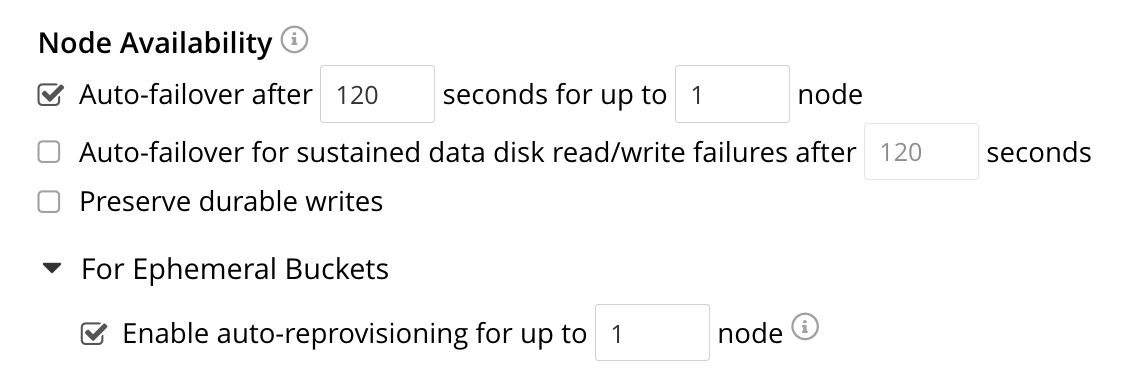
The following checkboxes are provided:
* **Auto-failover after _x_ seconds for up to _y_ node**: After the timeout period set here as _x_ seconds has elapsed, an unresponsive or malfunctioning node is failed over, provided that the limit on actionable events set here as _y_ (with the default value of 1) has not yet been reached. Data replicas are promoted to active on other nodes, as appropriate. This feature can only be used when three or more nodes are present in the cluster. The number of seconds to elapse is configurable: the default is 120; the minimum permitted is 5; the maximum 3600\. This option is selected by default.
* **Auto-failover for sustained data disk read/write failures after _z_ seconds**: After the timeout period set here as _z_ seconds has elapsed, a node is failed over if it has experienced sustained data disk read/write failures. The timeout period is configurable: the default length is 120 seconds; the minimum permitted is 5; the maximum 3600\. This checkbox can only be checked if **Auto-failover after _x_ seconds for up to _y_ node** has also been checked. This option is unchecked by default.
* **Preserve durable writes**: If this checkbox is checked, a node is _not_ failed over if this might result in the loss of durably written data. The default is that the checkbox is unchecked. For information, see [Preserving Durable Writes](../../learn/data/durability.md#preserving-durable-writes).
The **Node Availability** panel also contains a **For Ephemeral Buckets** option. When opened, this provides an **Enable auto-reprovisioning** checkbox, with a configurable number of nodes. Checking this ensures that if a node containing _active_ Ephemeral buckets becomes unavailable, its replicas on the specified number of other nodes are promoted to active status as appropriate, to avoid data-loss. Note, however, that this may leave the cluster in an unbalanced state, requiring a rebalance.
#### [](#auto-failover-and-durability)Auto-Failover and Durability
Couchbase Server provides _durability_, which ensures the greatest likelihood of data-writes surviving unexpected anomalies, such as node-outages. The auto-failover maximum should be established to support guarantees of durability. See [Durability](../../learn/data/durability.md), for information.
### [](#rebalance-settings)Rebalance Settings
_Rebalance_ redistributes data, indexes, event processing, and query processing among available nodes. For an overview, see [Rebalance](../../learn/clusters-and-availability/rebalance.md). Fully open, the panel appears as follows:
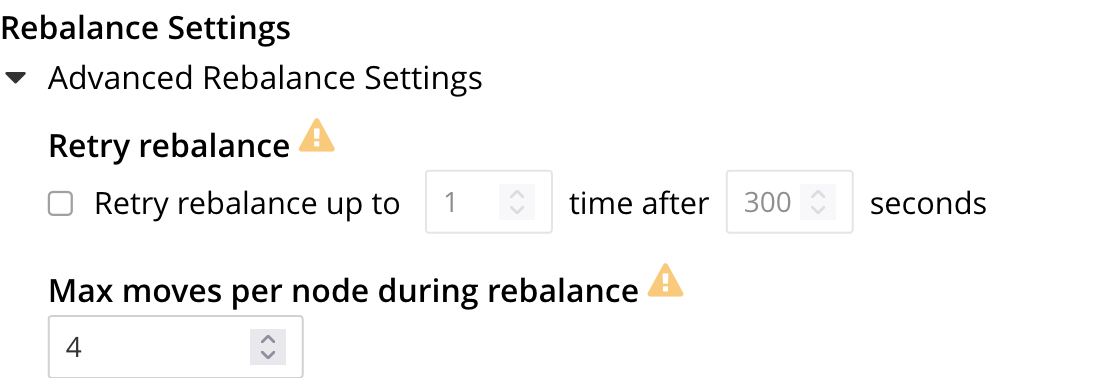
The **Retry rebalance** option allows rebalance to be _retried_, in cases where it has failed. Check the checkbox, to enable. The specifiable, _maximum number of retries_ must be in the range of 1 to 3, inclusive. The specifiable, _maximum number of seconds_ must be in the range of 5 to 3600, inclusive.
Note that this option should _not_ be enabled if the cluster is managed by _Couchbase Autonomous Operator_, or if custom scripts are already being used to trigger rebalance. Note also that no administrative tasks should be attempted when rebalance-retries are pending. However, pending rebalance-retries can be cancelled: see [Automated Rebalance-Failure Handling](../manage-nodes/add-node-and-rebalance.md#automated-rebalance-failure-handling), for information.
The **Max moves per node during rebalance** option establishes the maximum number of concurrent vBucket moves permitted on every individual node. The minimum value for the parameter is `1`, the maximum `64`, the default `4`. For information, see [Limiting Concurrent vBucket Moves](../../learn/clusters-and-availability/rebalance.md#limiting-concurrent-vbucket-moves).
### [](#data-settings)Data Settings
The settings in this area control the numbers of threads that are allocated _per node_ by Couchbase Server to the _reading_ and _writing_ of data, respectively. The maximum thread-allocation to each is _128_, the minimum _4_.
A high thread-allocation may improve performance on systems whose hardware-resources are commensurately supportive (for example, where the number of CPU cores is high). In particular, a high number of _writer_ threads on such systems may significantly optimize the performance of _durable writes_: see [Durability](../../learn/data/durability.md), for information.
A high number of reader and writer threads will benefit disk based workloads that require high throughput when using high end disk drives such as NVMe SSDs. This is likely to be the case when using Magma as the storage engine. In this case it is best to choose 'Disk i/o optimized' mode for Reader and Writer thread settings.
Note, however, that a high thread-allocation might _impair_ some aspects of system-performance on less appropriately resourced nodes. Consequently, changes to the default thread-allocation should not be made to production systems without prior testing.
Left-clicking on the **Advanced Data Settings** tab displays radio buttons for **Reader Thread Settings** and **Writer Thread Settings**:
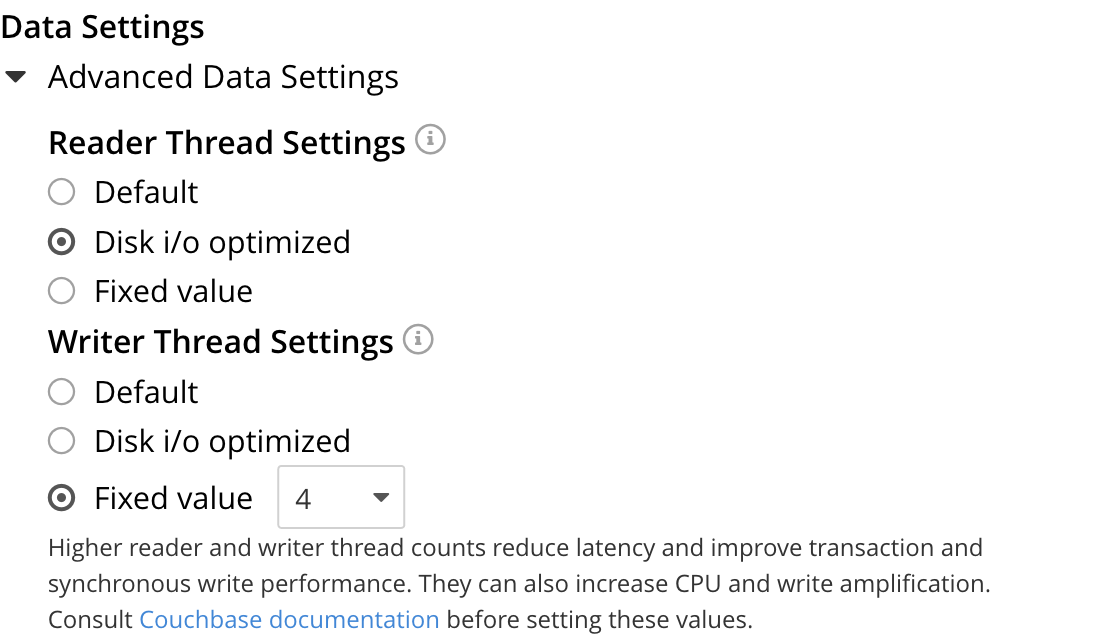
Each group has the same, three radio buttons, which are as follows:
* **Default**. The number of threads allocated is set to a balanced value which is reasonable for most workloads.
* **Disk i/o optimized**. The number of threads allocated is equal to the number of CPU cores for the node.
In order to get maximum performance from Magma for disk-oriented workloads, it is recommended to set the Writer Threads to 'Disk i/o optimized'. This setting will ensure there are enough threads to sustain high write rates.
To Learn more about the Magma Storage Engine, see [Storage Engines — Magma Storage Engine](../../learn/buckets-memory-and-storage/storage-engines.md#storage-engine-magma).
* **Fixed value**. The number of threads allocated is equal to the value selected from the pull-down menu.
> [!NOTE]
> A good rule of thumb is to set each of readers and writers equal to the queue depth of the underlying IO subsystem (i.e. readers = queue\_depth and writers = queue\_depth).
> However, for best performance it is recommended to benchmark with different settings and pick the one that best meets the throughput and latency requirements in your environment.
### [](#query-settings)Query Settings
Left-clicking on the **Advanced Query Settings** tab displays interactive fields whereby the Query Service can be configured. The top section of the panel appears as follows:
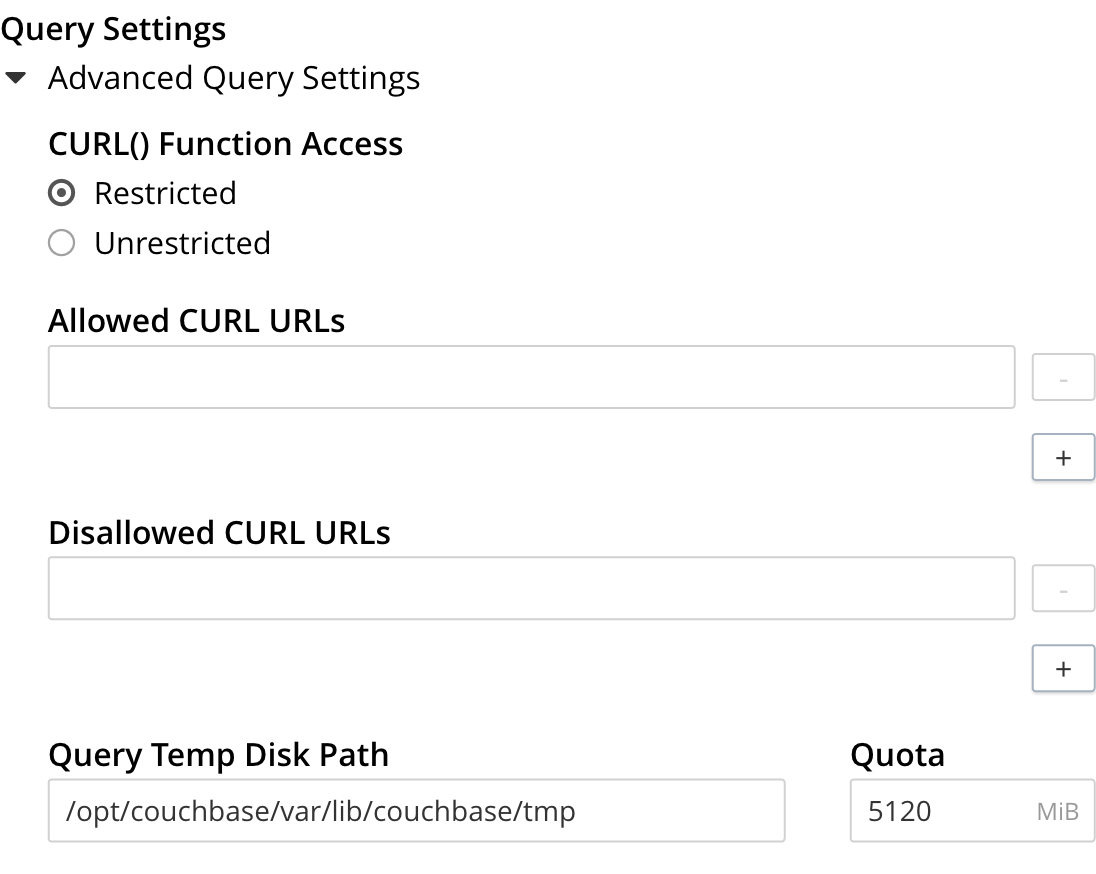
Specify either **Unrestricted** or **Restricted**, to determine which URLs are permitted to be accessed by the `curl` function. If **Unrestricted** (the default) is specified, all URLs can be accessed. If **Restricted** is specified, the UI expands, to display configurable fields into which the URLs allowed and disallowed can be entered.
The **Query Temp Disk Path** field allows specification of the path to which temporary files are written, based on query activities. The maximum size of the target can be specified, in megabytes.
Additional Query settings are provided in the lower section of the panel:
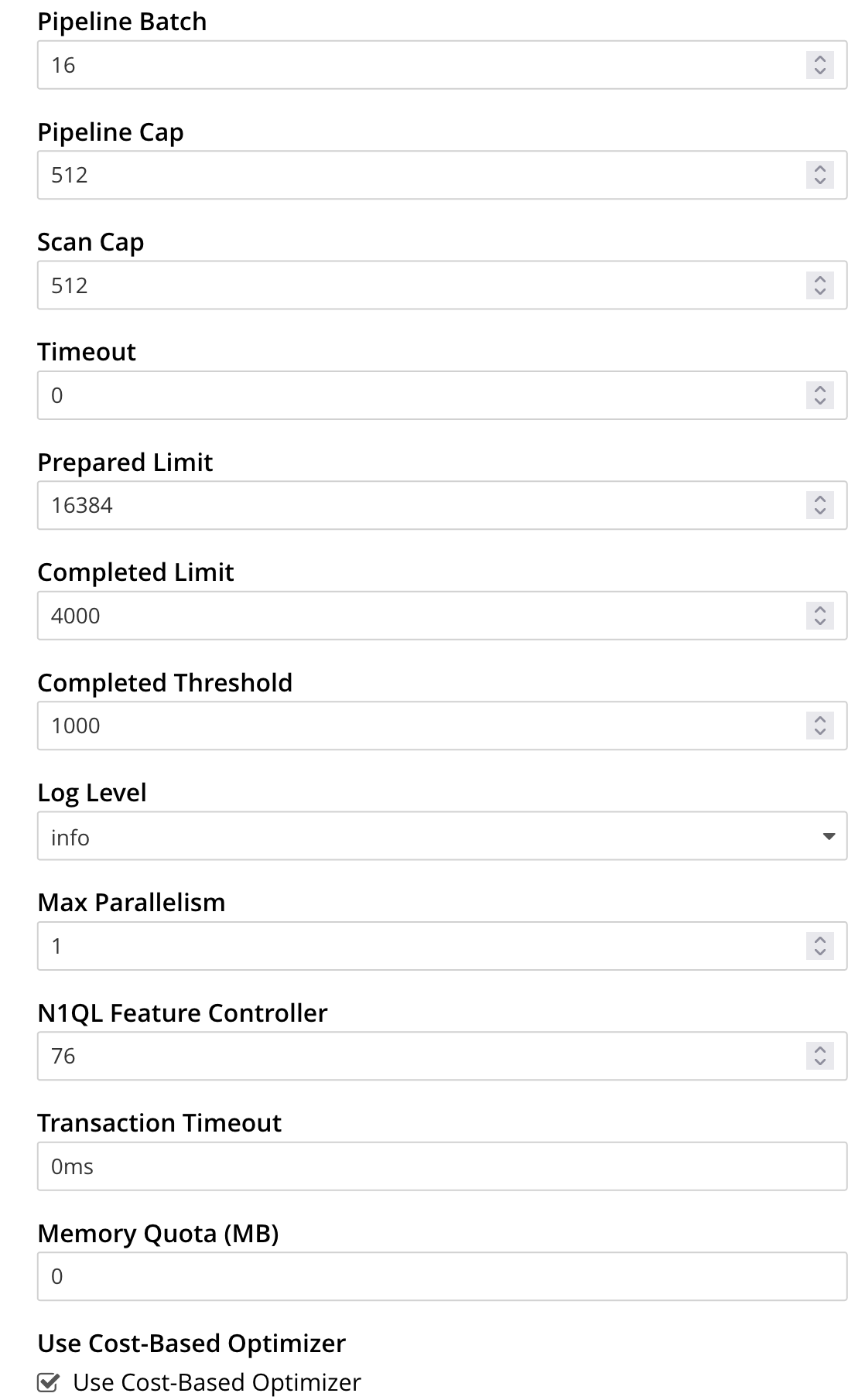
* **Pipeline Batch**: The number of items that can be batched for fetches from the Data Service.
* **Pipeline Cap**: The maximum number of items that can be buffered in a fetch.
* **Scan Cap**: The maximum buffered channel size between the indexer client and the Query Service, for index scans.
* **Timeout**: The maximum time to spend on a request before timing out.
* **Prepared Limit**: The maximum number of prepared statements to be held in the cache.
* **Completed Limit**: The number of requests to be logged in the completed requests catalog.
* **Completed Threshold**: The completed-query duration (in milliseconds) beyond which the query is logged in the completed requests catalog.
* **Log Level**: The log level used in the logger.
* **Max Parallelism**: The maximum number of index partitions for parallel aggregation-computing.
* **SQL++ Feature Controller**: Enables or disables features in the Query engine.
> [!WARNING]
> Do not change the **SQL++ Feature Controller** setting without guidance from technical support.
* **Transaction Timeout**: The number of milliseconds to elapse before a transaction times out.
* **Memory Quota**: The amount of memory, in megabytes, allocated to the processing of a query.
When checked (as it is by default), the **Use Cost-Based Optimizer** checkbox specifies that the cost-based optimizer is used for queries: when the checkbox is unchecked, the optimizer is _not_ used.
For additional details on all the Query settings in the lower section of the panel, refer to [Settings and Parameters](../../settings/query-settings.md).
### [](#index-storage-mode)Index Storage Mode
This panel provides radio buttons whereby the storage mode for indexes can be selected. The panel appears as follows:
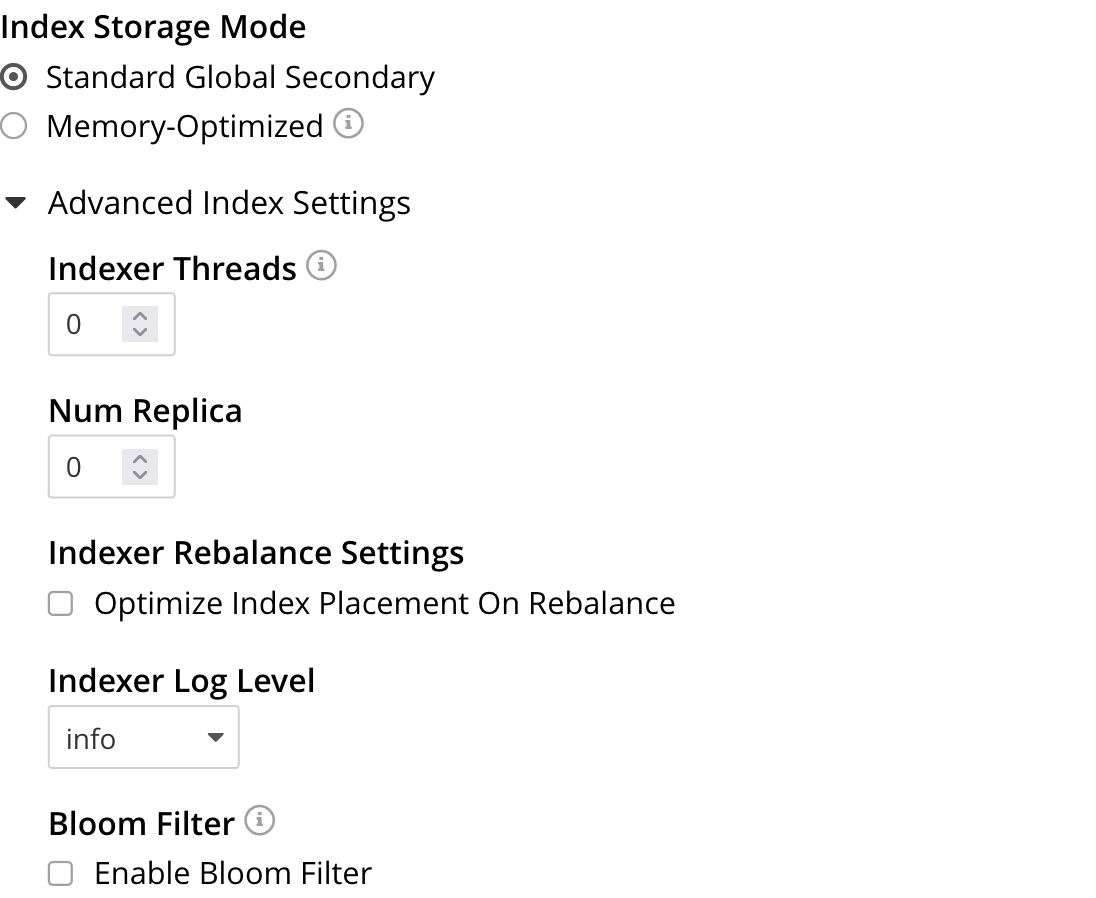
The options are [Memory Optimized Index Storage](../../learn/services-and-indexes/indexes/storage-modes.md#memory-optimized-index-storage), and [Standard Index Storage](../../learn/services-and-indexes/indexes/storage-modes.md#standard-index-storage).
**Advanced Settings** for indexes are also provided:
* **Indexer Threads**. The number of dedicated threads used by the Index Service. The number can be increased on multi-core machines. The default is 0.
* **Num Replica**. The default number of index replicas to be created by the Index Service whenever `CREATE INDEX` is invoked. For further details, refer to [Index Replication](../../learn/services-and-indexes/indexes/index-replication.md#index-replication).
* **Indexer Rebalance Settings**. When the **Optimize Index Placement On Rebalance** checkbox is checked, Couchbase Server redistributes indexes when rebalance occurs, in order to optimize performance. If the checkbox is unchecked (which is the default), such redistribution does not occur. For further details, refer to [Rebalancing the Index Service](../../learn/clusters-and-availability/rebalance.md#rebalancing-the-index-service).
* **Indexer Log Level**. Adjust the logging level. The options are: `Silent`, `Fatal`, `Error`, `Warn`, `Info`, `Verbose`, `Timing`, `Debug`, and `Trace`. The default is `Info`.
* **Bloom Filter**. Whether Bloom filters are enabled for memory management. When the **Enable Bloom Filter** checkbox is checked, Bloom filters are enabled; otherwise, they are disabled (which is the default). See [Per Page Bloom Filters](../../learn/services-and-indexes/indexes/storage-modes.md#per-page-bloom-filters).
7.2.1+From release 7.2.1 onward, Bloom filters for plasma back indexes will be enabled by default. During an upgrade, mixed mode clusters with nodes that support bloom filters will enable it for back indexes, even if they was disabled in the past. Users must explicitly disable it again after a cluster setup, or a new node is added.
Once bloom filters are disabled in mixed mode, adding a new 7.2.1+ node will not re-enable them.
### [](#xdcr-maximum-processes)XDCR Maximum Processes
The maximum number of threads used per node, to support XDCR. A greater number of threads increases parallelism, and may thereby produce enhanced XDCR performance. The default number of threads is 4.
The panel appears as follows:

### [](#analytics-replicas)Analytics Replicas
The number of replicas for analytics data. The absolute maximum number of replicas is 3\. Each replica resides on an Analytics Node: a given Analytics Node can host either one replica, or the active data on which replicas are based. Thus, if a cluster contains three Analytics Nodes, the practical maximum number of replicas is 2; one node hosting the active data, and each of the other two nodes hosting a single replica.
The panel appears as follows:

Note that if you change this setting, you must run a rebalance for the changes to take effect.
### [](#saving-settings)Saving Settings
To save settings, left-click on the **Save** button, at the lower left.

Alternatively, cancel recently entered values, and thereby reset to previous values; by left-clicking on **Cancel/Reset**.
## [](#configure-general-settings-with-the-cli)Configure General Settings with the CLI
To configure _name and memory_, _index storage_, and _auto-failover_ via CLI, use the appropriate CLI command; as described below. Note that no CLI support is provided for configuring _query settings_. As an alternative, see [Configure General Settings with the REST API](#configure-general-settings-with-the-rest-api), below. Additionally, for information on URL access lists via the SQL++ `CURL()` function, see [CURL Function](../../n1ql/n1ql-language-reference/curl.md).
### [](#name-and-memory-settings-via-cli)Name and Memory Settings via CLI
Name and memory settings are established with the [setting-cluster](../../cli/cbcli/couchbase-cli-setting-cluster.md) command.
```shell
/opt/couchbase/bin/couchbase-cli setting-cluster \
--cluster 10.143.192.101:8091 \
--username Administrator \
--password password \
--cluster-ramsize 256 \
--cluster-name 10.143.192.101 \
--cluster-index-ramsize 256 \
--cluster-fts-ramsize 512 \
--cluster-eventing-ramsize 256 \
--cluster-analytics-ramsize 1024
```
This establishes the cluster-name as `10.143.192.101`, the memory allocation for Data and Index Services each as 256 megabytes, and the memory allocation for each other service as zero.
If successful, the call produces the following output:
```shell
SUCCESS: Cluster settings modified
```
Note that settings for an individual server may be retrieved with the [server-info](../../cli/cbcli/couchbase-cli-server-info.md) command, the output for which can be filtered, as appropriate, by `grep`:
```shell
/opt/couchbase/bin/couchbase-cli server-info \
-c 10.143.192.101 -u Administrator -p password | grep fts
```
This returns the setting for `ftsMemoryQuota`:
```shell
"ftsMemoryQuota": 512,
```
### [](#index-storage-settings-via-cli)Index Storage Settings via CLI
Index storage can be configured with the [setting-index](../../cli/cbcli/couchbase-cli-setting-index.md) command.
```shell
/opt/couchbase/bin/couchbase-cli setting-index \
-c 10.143.192.101:8091 \
-u Administrator \
-p password \
--index-log-level info \
--index-stable-snapshot-interval 40000 \
--index-memory-snapshot-interval 150 \
--index-storage-setting default \
--index-threads 8 \
--index-max-rollback-points 10
```
This establishes the logging level as `info`, the stable snapshot interval at 40 seconds, the memory snapshot at 150 milliseconds, and the storage setting as `default` (which means _standard_, rather than _memory optimized_). The number of threads to be used is established as 8, and the maximum number of rollback points to 10\. For information on the significance of these values see [setting-index](../../cli/cbcli/couchbase-cli-setting-index.md).
If successful, the call produces the following output:
```shell
SUCCESS: Indexer settings modified
```
### [](#software-update-settings-via-cli)Software-Update Settings via CLI
Software update-notifications can be configured by means of the [setting-notification](../../cli/cbcli/couchbase-cli-setting-notification.md) command.
```shell
/opt/couchbase/bin/couchbase-cli setting-notification \
-c 10.143.192.101 -u Administrator -p password \
--enable-notifications 1
```
A value of 1 for `--enable-notifications` enables update-notifications. A value of 0 disables. If successful, the command produces the following output:
```shell
SUCCESS: Notification settings updated
```
### [](#auto-failover-settings-via-cli)Auto-Failover Settings via CLI
Auto-failover can be configured with the [setting-autofailover](../../cli/cbcli/couchbase-cli-setting-autofailover.md) command.
```shell
/opt/couchbase/bin/couchbase-cli setting-autofailover \
-c 10.143.192.101:8091 \
-u Administrator \
-p password \
--enable-auto-failover 1 \
--auto-failover-timeout 120 \
--max-failovers 2
```
This enables auto-failover, with a timeout of 120 seconds, and an event-maximum of 2.
If successful, the command returns the following output:
```shell
SUCCESS: Auto-failover settings modified
```
For a detailed description of auto-failover settings, policy, and constraints, see [Automatic Failover](../../learn/clusters-and-availability/automatic-failover.md).
### [](#query-settings-via-cli)Query Settings via CLI
You can set all of the cluster-level query settings, except for the CURL access control settings, using the [setting-query](../../cli/cbcli/couchbase-cli-setting-query.md) command.
To get the current cluster-level query settings, use the `--get` option:
```shell
/opt/couchbase/bin/couchbase-cli setting-query \
-c 10.143.192.101:8091 \
-u Administrator \
-p password \
--get
```
To set cluster-level query settings, for example the log level and the maximum parallelism, use the `--set` option:
```shell
/opt/couchbase/bin/couchbase-cli setting-query \
-c 10.143.192.101:8091 \
-u Administrator \
-p password \
--set \
--log-level debug \
--max-parallelism 4
```
For additional details on the cluster-level query settings, refer to [Settings and Parameters](../../settings/query-settings.md).
### [](#rebalance-settings-via-cli)Rebalance Settings via CLI
To obtain the cluster's current rebalance settings by means of the CLI, use the [setting-rebalance](../../cli/cbcli/couchbase-cli-setting-rebalance.md) command, with the `--get` option:
```shell
/opt/couchbase/bin/couchbase-cli setting-rebalance \
-c 10.143.192.101 \
-u Administrator \
-p password \
--get
```
If successful, the command returns the current rebalance settings:
```shell
Automatic rebalance retry disabled
Retry wait time: 300
Maximum number of retries: 2
```
To modify the current rebalance settings, use the `--set` option; and specify appropriate values for the `--max-attempts` and `--wait-for` flags:
```shell
/opt/couchbase/bin/couchbase-cli setting-rebalance \
-c 10.143.192.101 \
-u Administrator \
-p password \
--set \
--max-attempts 3 \
--wait-for 200
```
If successful, the command displays the following success message:
```shell
SUCCESS: Automatic rebalance retry settings updated
```
For more information, see the reference page [Configure Rebalance Retries](../../rest-api/rest-configure-rebalance-retry.md).
### [](#xdcr-process-setting-via-cli)XDCR Process Setting via CLI
To configure the number of XDCR processes for the node, use the [setting-xdcr](../../cli/cbcli/couchbase-cli-setting-xdcr.md) command, with the `--max-processes` option:
```shell
/opt/couchbase/bin/couchbase-cli setting-xdcr \
-c 10.143.192.101 \
-u Administrator \
-p password \
--max-processes 5
```
If successful, the command returns the following message:
```shell
SUCCESS: Global XDCR settings updated
```
### [](#analytics-settings-via-cli)Analytics Settings via CLI
To obtain the current Analytics replica settings by means of the CLI, use the [setting-analytics](../../cli/cbcli/couchbase-cli-setting-analytics.md) command, with the `--get` option:
```bash
/opt/couchbase/bin/couchbase-cli setting-analytics \
-c localhost \
-u Administrator \
-p password \
--get
```
If successful, the command returns the current replica settings:
```console
numReplicas: 0
```
To establish the number of replicas for Analytics Service data, use the [setting-analytics](../../cli/cbcli/couchbase-cli-setting-analytics.md) command, with the `--set` and `--replicas` options:
```bash
/opt/couchbase/bin/couchbase-cli setting-analytics \
-c localhost \
-u Administrator \
-p password \
--set \
--replicas 3
```
If successful, the command returns the following message:
```console
SUCCESS: Analytics settings updated
```
## [](#configure-general-settings-with-the-rest-api)Configure General Settings with the REST API
Multiple REST API methods are provided to support configuration of general settings. These are described below.
### [](#name-and-memory-settings-via-rest)Name and Memory Settings via REST
To establish name and memory settings, use the `/pools/default` method.
```shell
curl -v -X POST -u Administrator:password \
http://10.143.192.101:8091/pools/default \
-d clusterName=10.143.192.101 \
-d memoryQuota=256 \
-d indexMemoryQuota=256 \
-d ftsMemoryQuota=256 \
-d cbasMemoryQuota=1024 \
-d eventingMemoryQuota=512
```
This establishes the cluster's IP address as its name, and assigns memory-quotas to the Data, Index, Search, Analytics, and Eventing Services.
Note that when used with GET, `/pools/default` returns configuration-settings. The output can be filtered, by means of a tool such as [jq](https://stedolan.github.io/jq/):
```shell
curl -s -u Administrator:password \
http://10.143.192.101:8091/pools/default | jq '.ftsMemoryQuota'
```
If successful, this returns the value of the key `ftsMemoryQuota`:
```shell
256
```
### [](#software-update-settings-via-rest)Software-Update Settings via REST
Software update-notifications can be configured by means of the `/setting/stats` command.
```shell
curl -v -X POST -u Administrator:password \
http://10.143.192.101:8091/settings/stats \
-d sendStats=true
```
This establishes that software-update notifications should be send. To prevent the sending of notifications, set the value of `sendStats` to `false`.
### [](#node-availability-settings-via-rest)Node Availability Settings via REST
To establish node availability settings, use the `/settings/autoFailover` method.
```shell
curl -v -X POST -u Administrator:password \
http://10.143.192.101:8091/settings/autoFailover \
-d enabled=true \
-d timeout=120 \
-d failoverOnDataDiskIssues[enabled]=false \
-d failoverOnDataDiskIssues[timePeriod]=120 \
-d maxCount=2 \
-d failoverPreserveDurabilityMajority=true
```
This enables auto-failover, with a timeout of 120 seconds, and a maximum failover-count of 2\. Auto-failover is enabled in the event of suboptimal disk responsiveness, with a time-period of 120 seconds specified. Auto-failover is prohibited in cases where this might result in the loss of durably written data.
For more information on these options, see the descriptions provided above, for the [UI](#node-availability).
Additionally, the `/settings/autoReprovision` method can be used; to specify that if a node containing _active_ Ephemeral buckets becomes unavailable, its replicas on the specified number of other nodes are promoted to active status as appropriate, to avoid data-loss.
```shell
curl -v -X POST -u Administrator:password \
http://10.143.192.101:8091/settings/autoReprovision \
-d enabled=true \
-d maxNodes=1
```
This enables auto-reprovisioning, specifying 1 as the maximum number of nodes.
### [](#index-settings-via-rest)Index Settings via REST
To establish index settings, use the `/settings/indexes` method.
```shell
curl -v -X POST http://127.0.0.1:8091/settings/indexes \
-u Administrator:password \
-d indexerThreads=4 \
-d logLevel=verbose \
-d maxRollbackPoints=2 \
-d storageMode=plasma \
-d redistributeIndexes=false \
-d numReplica=0 \
-d enablePageBloomFilter=false
```
This establishes the storage mode for indexes as `plasma`. It also establishes a `verbose` logging level, and a total of 4 index threads. For detailed information on these and other settings, see the REST reference page for the method, at [Set GSI Settings](../../rest-api/post-settings-indexes.md).
If successful, the call returns a JSON object, which provides values for all current index settings:
```json
{
"redistributeIndexes":false,
"numReplica":0,
"enablePageBloomFilter":false,
"indexerThreads":4,
"memorySnapshotInterval":200,
"stableSnapshotInterval":5000,
"maxRollbackPoints":2,
"logLevel":"verbose",
"storageMode":"plasma"
}
```
### [](#data-settings-via-rest)Data Settings via REST
To set the number of reader and writer threads for Couchbase Server, use the `POST /pools/default/settings/memcached/global` HTTP method and endpoint, as follows:
```shell
curl -v -X POST -u Administrator:password \
http://10.143.192.101:8091/pools/default/settings/memcached/global \
-d num_reader_threads=12 \
-d num_writer_threads=8
```
This sets the number of _reader_ threads to `12`, and the number of _writer_ threads to `8`. If successful, the call returns an object whose values confirm the settings that have been made:
```json
{"num_reader_threads":12,"num_writer_threads":8}
```
See [Threading](../../learn/buckets-memory-and-storage/storage-settings.md#threading) for an overview of reader and writer threads. Also see the REST API reference page, [Setting Thread Allocations](../../rest-api/rest-reader-writer-thread-config.md).
### [](#query-settings-via-rest)Query Settings via REST
To set the directory for temporary query data, and establish its size-limit, use the `/settings/querySettings` method.
```shell
curl -v -X POST -u Administrator:password \
http://localhost:8091/settings/querySettings \
-d 'queryTmpSpaceDir=/tmp' \
-d 'queryTmpSpaceSize=2048'
```
This specifies that the directory for temporary query data should be `/tmp`; and that the maximum size should be 2048 megabytes.
If successful, this call returns a JSON document featuring all the current query-related settings, including access-control:
```json
{
"queryTmpSpaceDir": "/tmp",
"queryTmpSpaceSize": 2048,
// ...
"queryCurlWhitelist": {
"all_access": false,
"allowed_urls": [],
"disallowed_urls": []
}
}
```
The document's values indicate that the specified values for directory and size have been established; and that the current setting for access-control restricts access to all, with no exceptions.
To specify particular URLs as allowed and disallowed, use the `/settings/querySettings/curlWhitelist` method:
```shell
curl -v -X POST -u Administrator:password \
http://localhost:8091/settings/querySettings/curlWhitelist \
-d '{"all_access": false,
"allowed_urls": ["https://company1.com"],
"disallowed_urls": ["https://company2.com"]}'
```
A JSON document is specified as the payload for the method. The document's values indicate that `` is allowed, and `` is disallowed.
If successful, the call returns a JSON document that confirms the modified settings:
```json
{
"all_access": false,
"allowed_urls": [
"https://company1.com"
],
"disallowed_urls": [
"https://company2.com"
]
}
```
For additional information, refer to [Cluster Query Settings API](../../rest-api/rest-cluster-query-settings.md).
### [](#rebalance-settings-via-rest)Rebalance Settings via REST
By means of the REST API, both _rebalance retries_ and _maximum concurrent moves per node_ can be configured.
#### [](#rebalance-retries-via-rest)Rebalance Retries via REST
To obtain the cluster's current settings for _rebalance retries_ by means of the REST API, use the `GET /settings/retryRebalance` HTTP method and URI, as follows:
```shell
curl -X GET -u Administrator:password \
http://10.143.192.101:8091/settings/retryRebalance
```
If successful, the command returns the following object:
```json
{"enabled":true,"afterTimePeriod":200,"maxAttempts":3}
```
This output shows that rebalance retry is enabled, with `200` seconds required to elapse before a retry is attempted, and a maximum of `3` retries possible.
To change the rebalance settings, use the `POST` method with the same URI, specifying appropriate values:
```shell
curl -X POST -u Administrator:password \
http://10.143.192.101:8091/settings/retryRebalance \
-d enabled=false \
-d afterTimePeriod=100 \
-d maxAttempts=2
```
If successful, the command returns the following object:
```json
{"enabled":false,"afterTimePeriod":100,"maxAttempts":2}
```
This verifies that rebalance retry has been disabled, the required period between retries changed to `100` seconds, and the maximum number of retries changed to `2`.
For more information on getting and setting the rebalance retry status, see [Configure Rebalance Retries](../../rest-api/rest-configure-rebalance-retry.md), [Get Rebalance-Retry Status](../../rest-api/rest-get-rebalance-retry.md), and [Cancel Rebalance Retries](../../rest-api/rest-cancel-rebalance-retry.md).
#### [](#maximum-concurrent-vbucket-moves-via-rest)Maximum Concurrent vBucket Moves via REST
To inspect the current maximum number of concurrent vBucket moves permitted for every node, use the `GET /settings/rebalance` HTTP method and URI, with the `rebalanceMovesPerNode` parameter, as follows:
curl -v -X GET http://10.143.201.101:8091/settings/rebalance \
-u Administrator:password
This returns an object, confirming the current setting as being `4` (which is the default value):
{"rebalanceMovesPerNode":4}
To _set_ a new value for the parameter use the `POST` method with the same URI, and with the `rebalanceMovesPerNode` parameter. Note that the minimum value is `1`, and the maximum `64`.
curl -v -X POST http://10.143.201.101:8091/settings/rebalance \
-u Administrator:password \
-d rebalanceMovesPerNode=10
If successful, the call returns an object confirming the new setting:
{"rebalanceMovesPerNode":10}
For more information, see the REST reference page [Limiting Concurrent vBucket Moves](../../rest-api/rest-limit-rebalance-moves.md).
### [](#xdcr-process-setting-via-rest)XDCR Process Setting via REST
To determine how many XDCR processes are configured per node, use the `GET /settings/replications` HTTP method and URI, as follows. Note that this example pipes the output to the [jq](https://stedolan.github.io/jq/) program, to facilitate readability.
```shell
curl -X GET -u Administrator:password \
http://10.143.192.101:8091/settings/replications | jq '.'
```
If successful, the command returns the following object:
```json
{
"checkpointInterval": 600,
"compressionType": "Auto",
"desiredLatency": 50,
"docBatchSizeKb": 2048,
"failureRestartInterval": 10,
"filterBypassExpiry": false,
"filterDeletion": false,
"filterExpiration": false,
"goGC": 100,
"goMaxProcs": 4,
"logLevel": "Info",
"networkUsageLimit": 0,
"optimisticReplicationThreshold": 256,
"priority": "High",
"sourceNozzlePerNode": 2,
"statsInterval": 1000,
"targetNozzlePerNode": 2,
"workerBatchSize": 500
}
```
The configured number of threads is the value to `goMaxProcs`; which is currently `4.`To change this value, use the `POST` method with the same URI, specifying the required number of processes as the value to the `--goMaxProcs` option:
```shell
curl -X POST -u Administrator:password \
http://10.143.192.101:8091/settings/replications \
-d goMaxProcs=5 | jq '.'
```
If successful, this returns the following object:
```json
{
"checkpointInterval": 600,
"compressionType": "Auto",
"desiredLatency": 50,
"docBatchSizeKb": 2048,
"failureRestartInterval": 10,
"filterBypassExpiry": false,
"filterDeletion": false,
"filterExpiration": false,
"goGC": 100,
"goMaxProcs": 5,
"logLevel": "Info",
"networkUsageLimit": 0,
"optimisticReplicationThreshold": 256,
"priority": "High",
"sourceNozzlePerNode": 2,
"statsInterval": 1000,
"targetNozzlePerNode": 2,
"workerBatchSize": 500
}
```
This output indicates that the value of `goMaxProcs` has been appropriately incremented.
For more information, see the reference page [Managing Advanced XDCR Settings](../../rest-api/rest-xdcr-adv-settings.md).
### [](#analytics-settings-via-rest)Analytics Settings via REST
To establish the number of replicas for Analytics Service data, use the `/settings/analytics` endpoint. The `GET` method can be used to retrieve the current setting:
```bash
curl -X GET -u Administrator:password \
http://localhost:8091/settings/analytics
```
If successful, the call returns an object such as the following:
```json
{"numReplicas":1}
```
This indicates that the number of replicas currently configured for the Analytics Service is `1`. To change this number to `2`, enter the following:
```bash
curl -X POST -u Administrator:password \
http://localhost:8091/settings/analytics \
-d numReplicas=2
```
If successful, the call returns an object confirming the newly established number of replicas:
```json
{"numReplicas":2}
```