---
title: Filter a Replication
description: An XDCR replication can be filtered, by means of
expressions; so that only selected documents are replicated from the
source to the target cluster.
pubDate: 2026-08-17T09:53:44.266Z
antora:
editUrl: https://github.com/couchbase/docs-server/edit/release/7.2/modules/manage/pages/manage-xdcr/filter-xdcr-replication.adoc
xref: xref:7.2@server:manage:manage-xdcr/filter-xdcr-replication.adoc[]
---
[Consult the llms.txt file for a full list of contents](/llms.txt)
[View original HTML](/server/7.2/manage/manage-xdcr/filter-xdcr-replication.html)
# Filter a Replication
> An XDCR replication can be _filtered_, by means of _expressions_; so that only selected documents are replicated from the source to the target cluster.
## [](#understanding-filtering)Understanding Filtering
XDCR Advanced Filtering allows a limited subset of documents to be replicated from the source bucket. An _expression_ is created, and used to identify documents that provide a match. The expression can be applied to:
* The document's key
* Fields and values in the document-body
* The document's extended attributes
This page explains the practical steps whereby filtering can be performed. Note that when entered by means of the [UI](#filter-an-xdcr-replication-with-the-ui), the expression can be a maximum of 250 bytes (characters) in length: this restriction does _not_ apply to expressions entered by means of the [CLI](#filter-an-xdcr-replication-with-the-cli) or the [REST API](#filter-an-xdcr-replication-with-the-rest-api).
For a full conceptual description and links to reference information on regular and filtering expressions, see [XDCR Advanced Filtering](../../learn/clusters-and-availability/xdcr-filtering.md).
## [](#examples-on-this-page-create-replication)Examples on This Page
The examples in the subsections below show how to filter the same replication; using the [UI](#filter-an-xdcr-replication-with-the-ui), the [CLI](#filter-an-xdcr-replication-with-the-cli), and the [REST API](#filter-an-xdcr-replication-with-the-rest-api) respectively. As their starting-point, the examples assume the following:
* Two clusters already exist; each containing a single node. These are named after their IP addresses: `10.144.210.101` and `10.144.210.102`.
* Clusters `10.144.210.101` and `10.144.210.102` each contain a single bucket, which is the `travel-sample` bucket.
* On cluster `10.144.210.102`, the bucket `travel-sample` contains an additional, administrator-created collection, within the scope named `inventory`: this collection is named **France\_airport**. (For information on creating scopes and collections, see [Manage Scopes and Collections](../manage-scopes-and-collections/manage-scopes-and-collections.md)).
* On cluster `10.144.210.101`, a reference has been defined to `10.144.210.102`, as a remote cluster.
* No replication between the clusters yet exists.
* Each cluster has the Full Administrator username of `Administrator`, and password of `password`.
## [](#filter-an-xdcr-replication-with-the-ui)Filter an XDCR Replication with the UI
Proceed as follows:
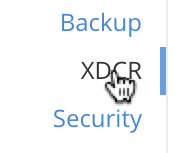
1. On `10.144.210.101`, access Couchbase Web Console. Left-click on the **XDCR** tab, in the right-hand navigation menu.
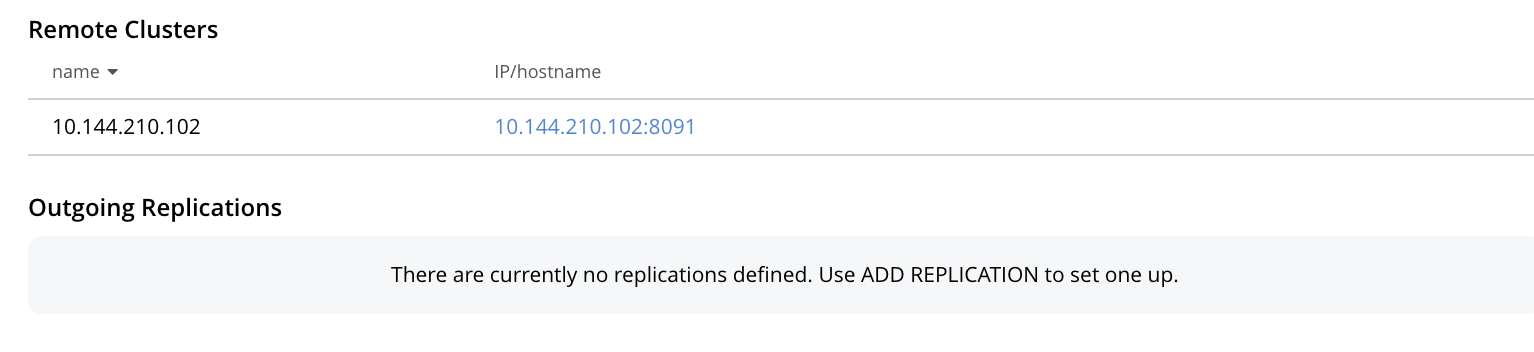
This displays the **XDCR Replications** screen, whose **Remote Clusters** panel currently shows that a reference to `10.144.210.102` has been defined; and whose **Outgoing Replications** panel shows that no replications have yet been defined.
2. To define and filter a replication, left-click on the **Add Replication** tab, towards the right:

This displays the **XDCR Add Replication** screen:
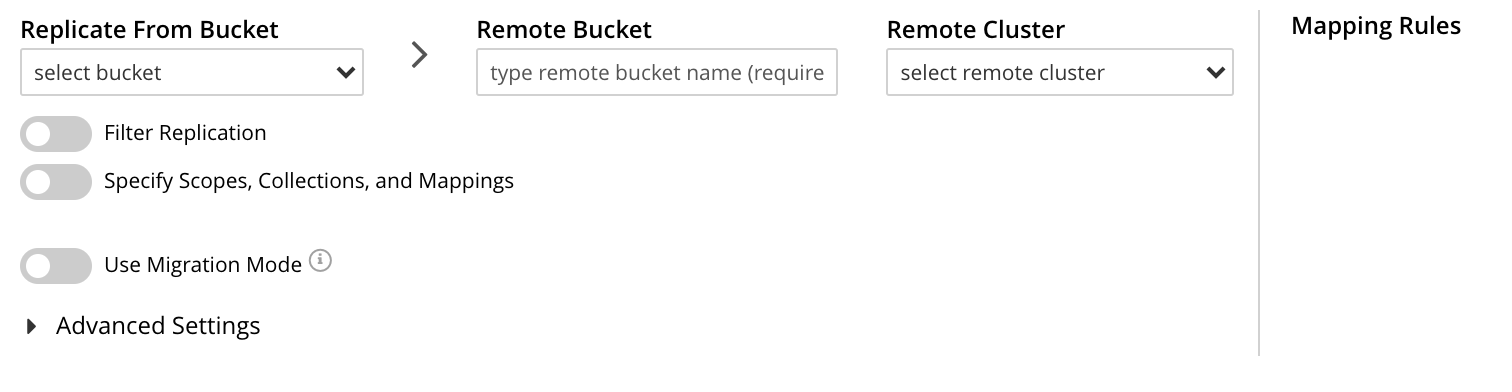
3. Specify _travel-sample_ as both source and target bucket; then specify `10.144.210.1012` as the target cluster. The fields now appear as follows:

4. Left-click on the **Filter Replication** toggle. The panel now expands vertically:
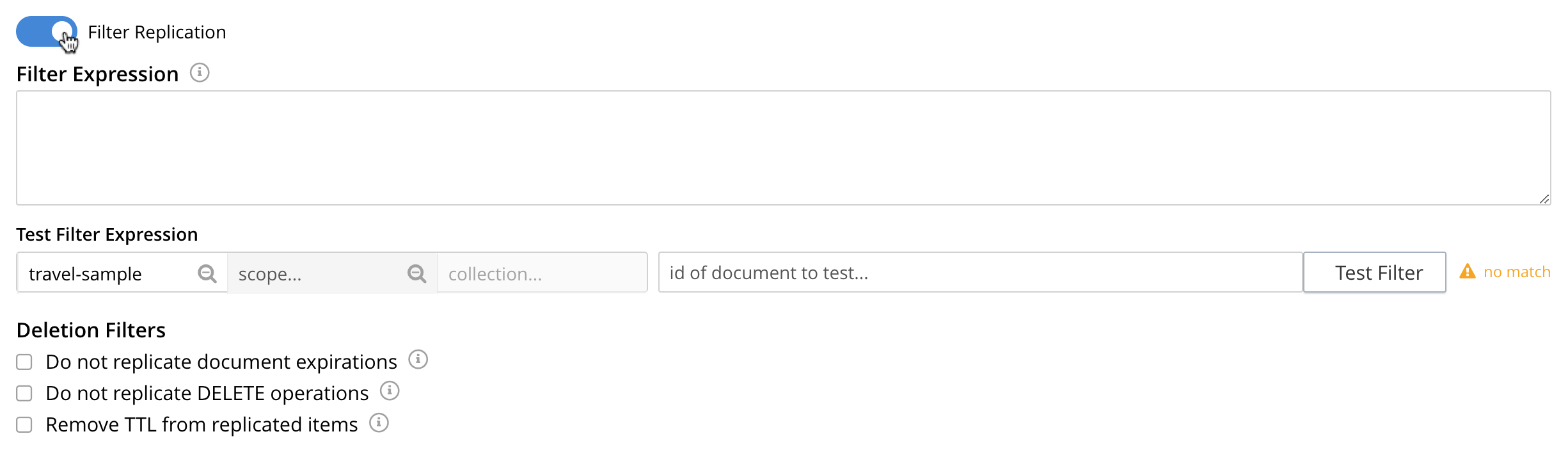
To replicate only those documents whose key features the string _airport_, and whose body contains _France_ as the value of _country_, enter the expression _'REGEXP\_CONTAINS(country, "France")'_, in the **Filter Expression** field:

5. Test the expression against a specified document.
Note that an expression _must_ be tested successfully, before it can be included as part of the replication: if an expression is specified and attemptedly saved without having been tested, the expression is ignored when saving occurs; and the replication is thus started in unfiltered form.
Enter the document's _scope_, _collection_, and _id_ in the interactive field adjacent to the **Test Filter** button. Then, left-click on the **Test Filter** button. If the specified document provides a successful match, this is indicated to the right of the **Test Filter** button:

If the test fails, a `no match` notification is provided, in the same location.
6. Left-click on the **Specify Scopes, Collections, and Mappings** toggle. The panel expands vertically:
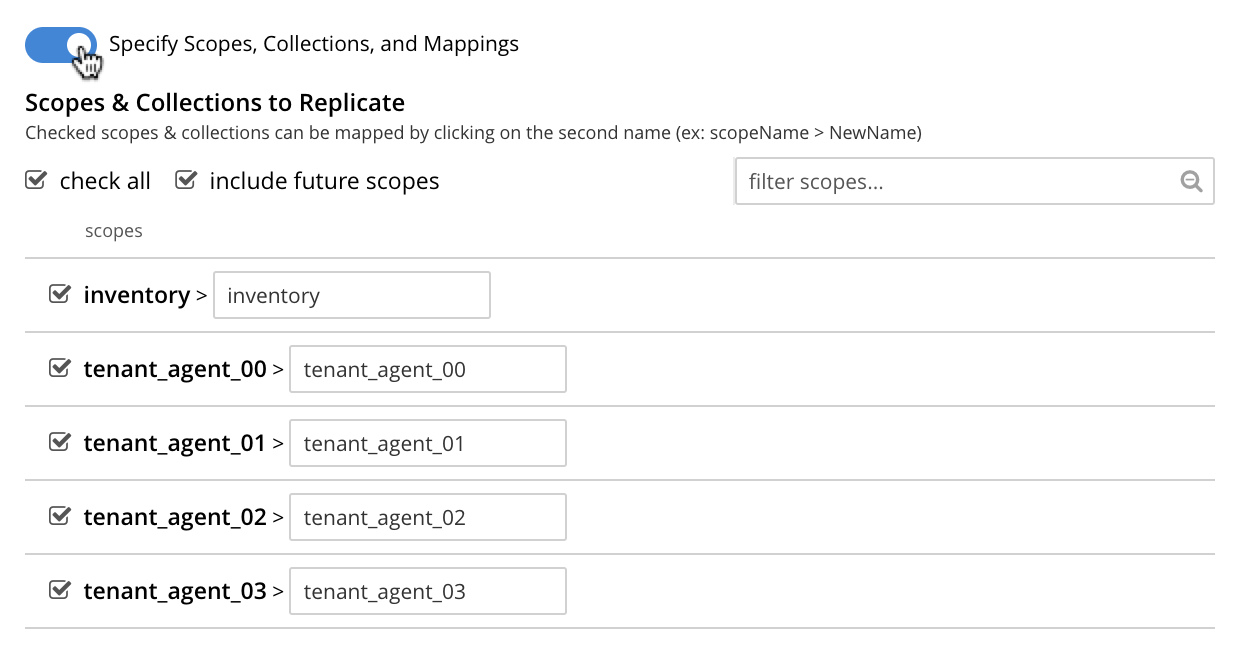
7. Uncheck all listed scopes except **inventory**. Left-click on the **inventory** row, to expand the row vertically:
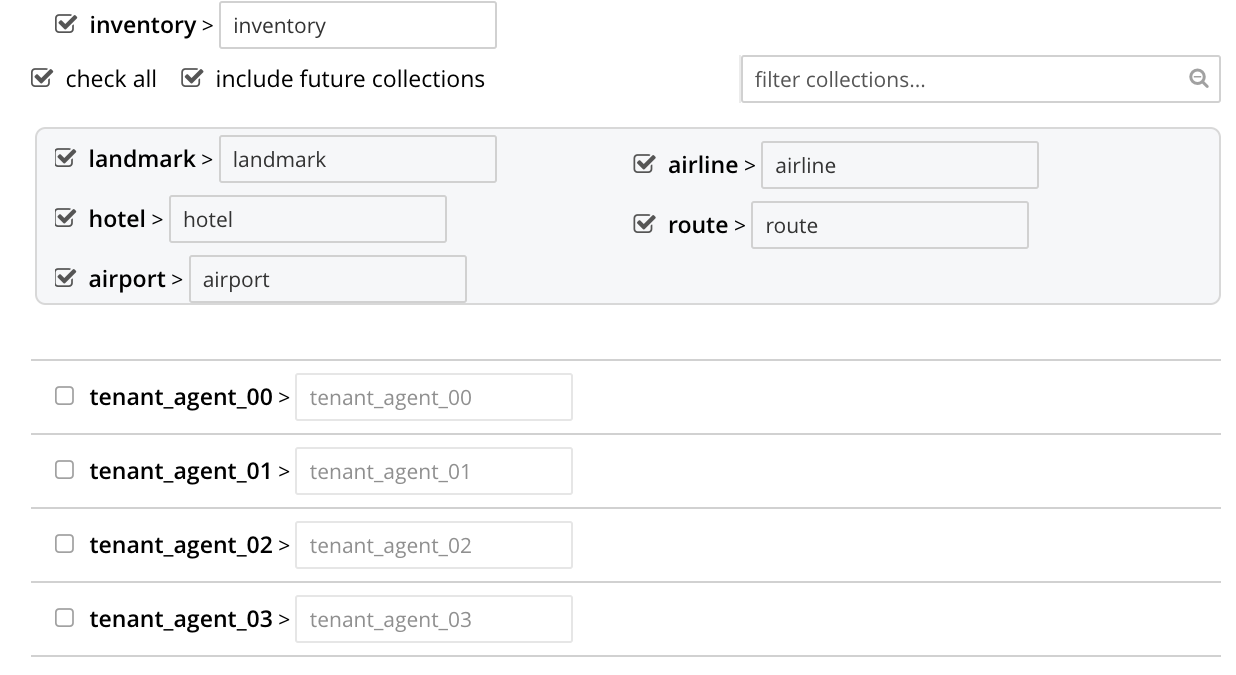
8. Uncheck all collections listed within the **inventory** scope, except **airport**; and modify the destination field for **airport** to read **France\_airport**. The row for **inventory** thus appears as follows:
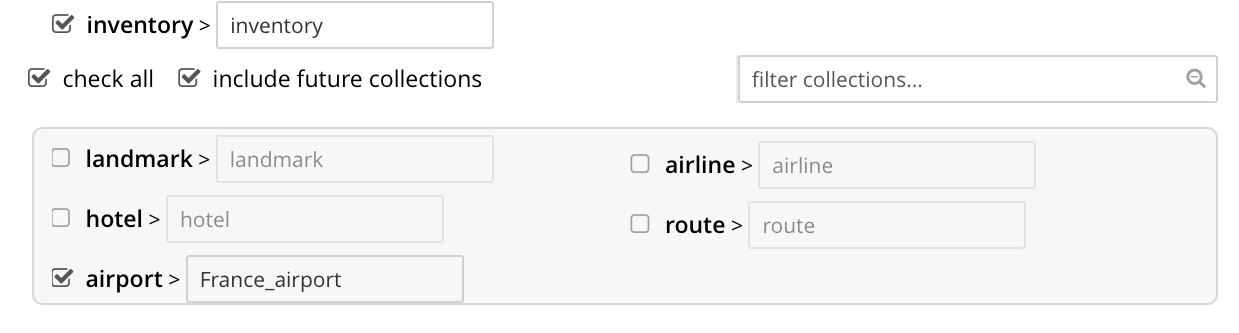
This indicates that only data from the source collection **airport** will be replicated, and will be replicated to the **France\_airport** collection on the target. The filter previously specified in the **Filter Expression** panel will be applied, and only documents that provide a match to the filter will be replicated.
9. Left-click on the **Save Replication** button, at the bottom of the screen:

This saves the replication, and redisplays the **XDCR Replications** screen. This now indicates that the saved replication is running:

To check the filter that has been applied, left-click on the the `filter` tab:
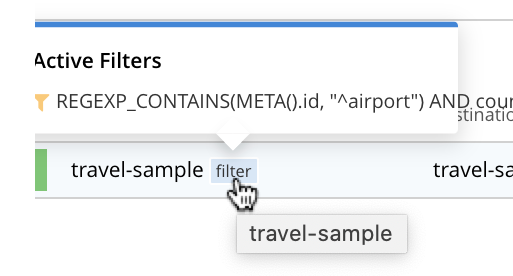
Note that if a filter has been specified, but has not been successfully tested, and therefore has not been included in the replication, the `filter` tab does not appear on the row for the replication.
10. To examine the content of collection _inventory.France\_airport_, within `travel-sample` on cluster `10.144.210.102`, access the cluster by means of Couchbase Web Console, and left-click on the **Buckets** tab, in the left-hand navigation bar. Then, examine the collections within the **inventory** scope. Left-click on the **Documents** tab for the collection **France\_airport**:
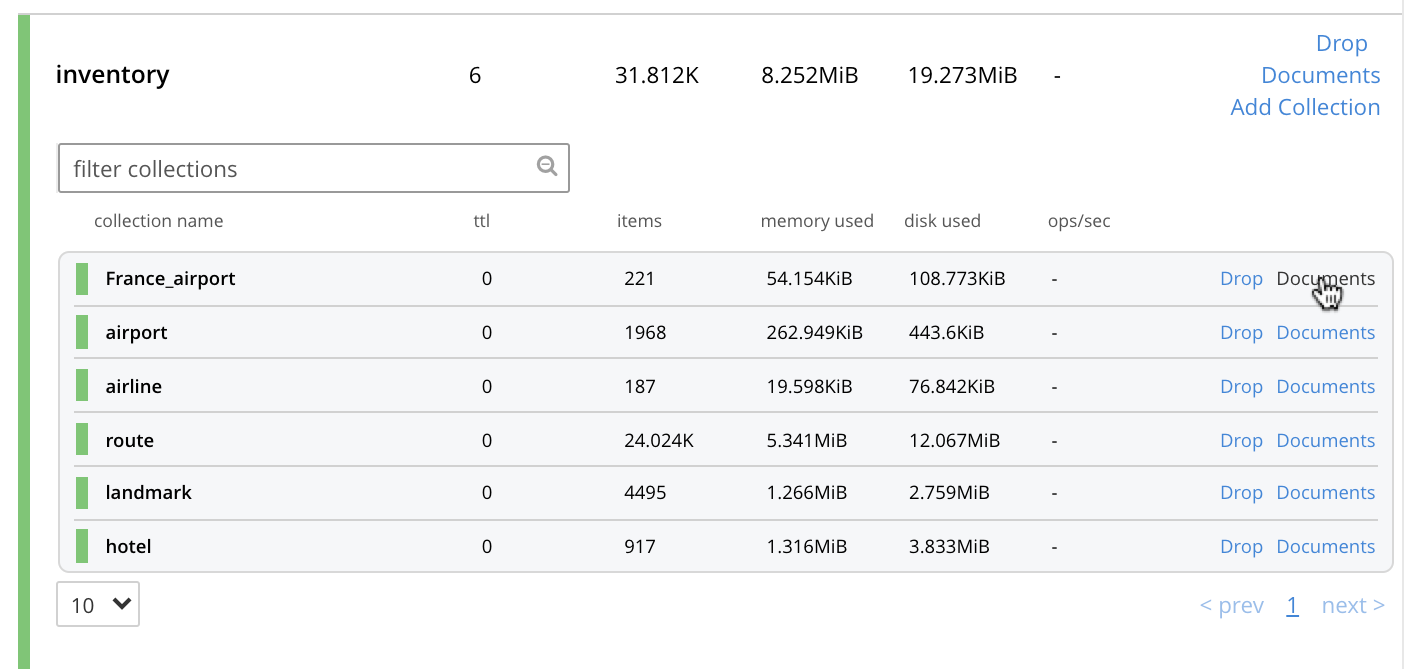
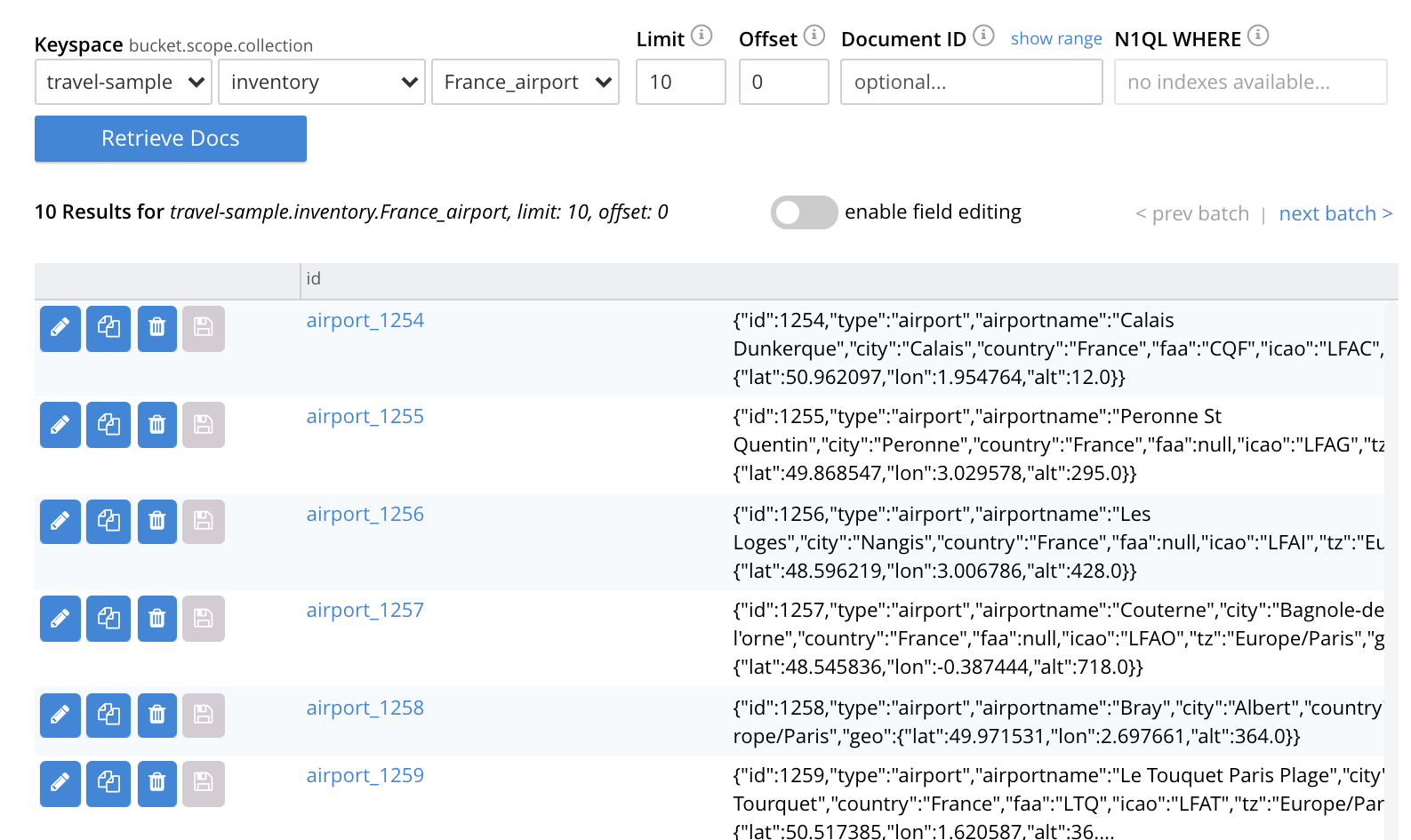
This brings up the **Documents** screen for the collection. The contents affirm that replication has occurred successfully:
For lists of available regular and filtering expressions, see the [XDCR Reference](../../xdcr-reference/xdcr-reference-intro.md).
### [](#applying-multiple-filters)Applying Multiple Filters
Only one filter can be applied to a single replication: thus, once defined, the filter is applied to _all_ mappings. Note also that only _one_ replication can be established between a given source bucket and a given target bucket. Therefore, to apply multiple filters, the corresponding number of replications must be established between different bucket-combinations.
### [](#deletion-filters)Deletion Filters
The **Filter Replication** panel features optional _deletion filters_:
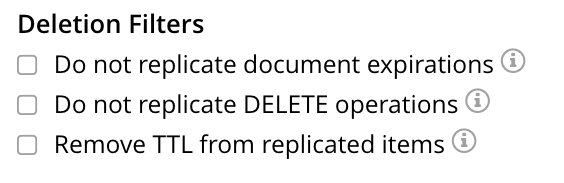
These filters control whether the deletion of a document at source causes deletion of a replica that has been created. Each filter covers a specific deletion-context:
* **Do not replicate document expirations**. If checked, this means that if, having been replicated, the document at source _expires_ and is deleted, the replicated copy of the document will _not_ be deleted. Conversely, if this option is not checked, expirations at source _are_ replicated; meaning that the replicated copy of the document _will_ be deleted.
* **Do not replicate DELETE operations**. If checked, this means that if, having been replicated, the document at source is expressly deleted, the replicated copy of the document will _not_ be deleted. Conversely, if this option is not checked, deletions at source _are_ replicated; meaning that the replicated copy of the document _will_ be deleted.
* **Remove TTL from replicated items**. If checked, this means that the TTL that a document bears at source is _not_ made part of the replicated copy of the document: instead, the TTL of the replicated copy is set to 0\. Conversely, if this option is not checked, the TTL _is_ made part of the replicated copy of the document, and may thereby determine when the replicated copy of the document expires.
For more information on deletion filters, see [Using Deletion Filters](../../learn/clusters-and-availability/xdcr-filtering.md#using-deletion-filters). For information on TTL and expiration, see [Expiration](../../learn/data/expiration.md).
Note that the replication of deletions, expirations, and/or TTLs is _not_ prevented by the specifying of a filter that is formed with regular and other filtering expressions: to ensure that document-deletions, expirations, and/or TTLs are _not_ replicated, the appropriate deletion-filter checkboxes must be checked.
### [](#editing-filters)Editing
Once established, an XDCR filter — along with **Replication Priority** and **Advanced Replication Settings** — can be edited.
In the **Outgoing Replications** panel, left-click on the row for the replication. When the **Edit** button is displayed, left-click on it. This brings up the **XDCR Edit Replication** screen: it content is nearly identical to that of the **XDCR Add Replications** screen, and thereby allows the filter to be modified and saved. Note that the radio-button options **Save filter & restart replication**, and **Save & continue replicating** are provided:
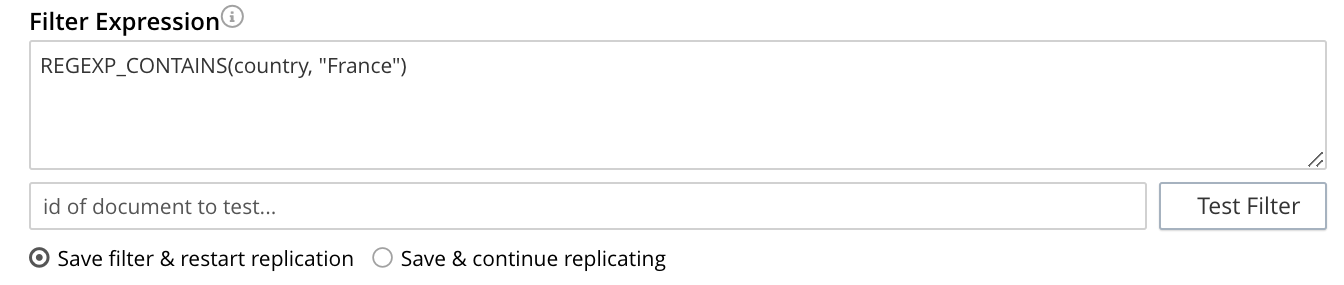
For a complete description of these options, see [Filter-Expression Editing](../../learn/clusters-and-availability/xdcr-filtering.md#filter-expression-editing).
Left-click on the **Save Replication** button, to save edits.
## [](#filter-an-xdcr-replication-with-the-cli)Filter an XDCR Replication with the CLI
Starting from the scenario defined above, in [Examples on This Page](#examples-on-this-page-create-replication), the CLI `xdcr-replicate` command can be used to create a filtered XDCR replication.
The example assumes that the `travel-sample` bucket is resident on each of two, single-node clusters, which are each named after their IP address. The bucket on the target has an additional collection within the `inventory` scope, which is named `France_airport`.
The replication is configured to replicate only to the collection `France_airport`; and to replicate from the source-collection `airport` only those documents whose `country` value is `France`.
This requires use of the following filter-expression:
'REGEXP_CONTAINS(country, "France")'
This also requires an _explicit mapping_ to be specified, as follows:
{
"tenant_agent_00": null,
"tenant_agent_01": null,
"tenant_agent_02": null,
"tenant_agent_03": null,
"inventory.landmark": null,
"inventory.hotel": null,
"inventory.airline": null,
"inventory.route": null,
"inventory.airport": "inventory.France_airport"
}
This explicit mapping specifies that replication from all `tenant_agent` scopes on the source is denied. It also specifies that replication from all source-collections within `inventory` is denied; with the exception of replication from the source-collection `inventory.airport`, which is validated as proceeding to the target-collection `inventory.France_airport`.
The full expression is as follows. Note that the `collection-explicit-mappings` flag has been set to `1`, as required, in order to enable explicit mappings:
/opt/couchbase/bin/couchbase-cli xdcr-replicate \
-c localhost:8091 \
-u Administrator -p password \
--create --xdcr-cluster-name 10.144.210.102 \
--xdcr-from-bucket travel-sample \
--xdcr-to-bucket travel-sample \
--filter-expression 'REGEXP_CONTAINS(country, "France")' \
--collection-explicit-mappings 1 \
--collection-mapping-rules '{"tenant_agent_00":null,"tenant_agent_01":null,"tenant_agent_02":null,"tenant_agent_03":null,"inventory.landmark":null,"inventory.hotel":null,"inventory.airline":null,"inventory.route":null,"inventory.airport":"inventory.France_airport"}'
If successful, the command returns the following output:
SUCCESS: XDCR replication created
For more information, see the complete reference for the [xdcr-replicate](../../cli/cbcli/couchbase-cli-xdcr-replicate.md) command.
## [](#filter-an-xdcr-replication-with-the-rest-api)Filter an XDCR Replication with the REST API
Starting from the scenario defined above, in [Examples on This Page](#examples-on-this-page-create-replication), the REST API's `POST /controller/createReplication` HTTP method and URI can be used to create a filtered XDCR replication.
The assumptions and requirements are identical to those described above, in [Filter an XDCR Replication with the CLI](#filter-an-xdcr-replication-with-the-cli).
curl -v -X POST -u Administrator:password \
http://localhost:8091/controller/createReplication \
-d replicationType=continuous \
-d fromBucket=travel-sample \
-d toCluster=10.144.210.102 \
-d toBucket=travel-sample \
-d priority=High \
-d collectionsExplicitMapping=true \
-d filterExpression=%27REGEXP_CONTAINS(country%2C%20%22France%22)%27 \
-d colMappingRules=%7B%22tenant_agent_00%22%3Anull%2C%22tenant_agent_01%22%3Anull%2C%22tenant_agent_02%22%3Anull%2C%22tenant_agent_03%22%3Anull%2C%22inventory.landmark%22%3Anull%2C%22inventory.hotel%22%3Anull%2C%22inventory.airline%22%3Anull%2C%22inventory.route%22%3Anull%2C%22inventory.airport%22%3A%22inventory.France_airport%22%7D
Note that the flag `collectionsExplicitMapping` is set to `true`; as is required to enable explicit mapping. Note also that the filter and mapping-rules expressions are necessarily encoded.
If the call is successful, `200 OK` is returned, with a response such as the following:
{"id":"8ac0de0d95d5863d7b41e246755a7ec8/travel-sample/travel-sample"}
The response features the `id` of the successfully created replication.
For more information, see [Creating XDCR Replications](../../rest-api/rest-xdcr-create-replication.md).
## [](#next-xdcr-steps-after-filter-replication)Next Steps
Data, lost from a local cluster due to catastrophic outage, can be recovered from a remote cluster to which an XDCR replication was occurring. See [Recover Data with XDCR](recover-data-with-xdcr.md).