---
title: Manage Auditing
description: Actions performed on Couchbase Server can be audited. This
allows administrators to ensure that system-management tasks are being
appropriately performed.
pubDate: 2026-08-17T09:53:44.266Z
antora:
editUrl: https://github.com/couchbase/docs-server/edit/release/7.6/modules/manage/pages/manage-security/manage-auditing.adoc
xref: xref:7.6@server:manage:manage-security/manage-auditing.adoc[]
---
[Consult the llms.txt file for a full list of contents](/llms.txt)
[View original HTML](/server/7.6/manage/manage-security/manage-auditing.html)
# Manage Auditing
> Actions performed on Couchbase Server can be _audited_. This allows administrators to ensure that system-management tasks are being appropriately performed.
## [](#audit-records-and-their-content)Audit Records and Their Content
The records created by the Couchbase Auditing facility capture information on _who_ has performed _what_ action, _when_, and _how_ successfully. The records are created by Couchbase Server-processes, which run asynchronously. Each record is stored as a JSON document, which can be retrieved and inspected.
Auditing can be configured by the **Full Admin** and the **Local User Security Admin** roles. The auditing configuration can be read by the **Full Admin**, the **Local User Security Admin**, and the **Read-Only Admin** roles.
A conceptual overview of event auditing can be found in [Auditing](../../learn/security/auditing.md). See the reference page [Audit Event Reference](../../audit-event-reference/audit-event-reference.md), for a complete list of the events that can be audited.
## [](#examples-on-this-page)Examples on This Page
The examples in the subsections below show how to manage auditing using the [UI](#managing-auditing-with-the-ui), the [CLI](#managing-auditing-with-the-cli), and the [REST API](#managing-auditing-with-the-rest-api) respectively.
## [](#managing-auditing-with-the-ui)Manage Auditing with the UI
Open the Audit tab of the Security settings by selecting **Security** **Audit**.
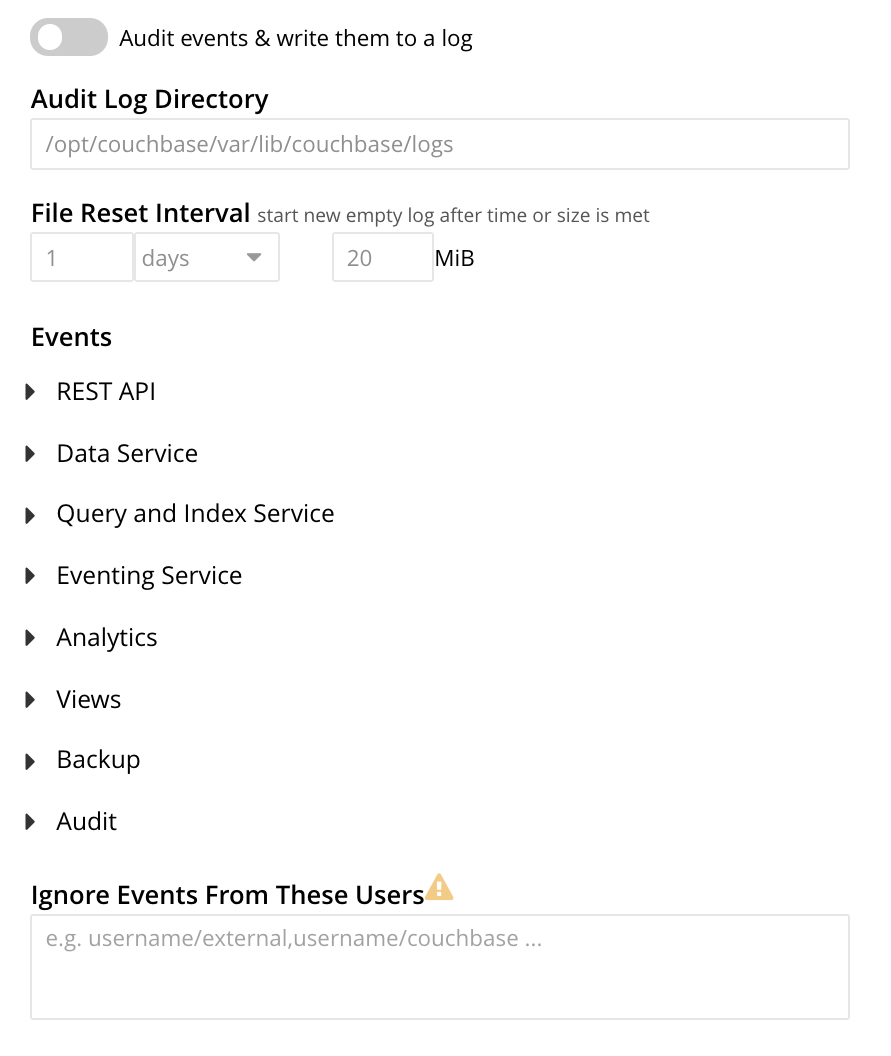
To enable auditing, turn on the **Audit events & write them to a log** toggle:
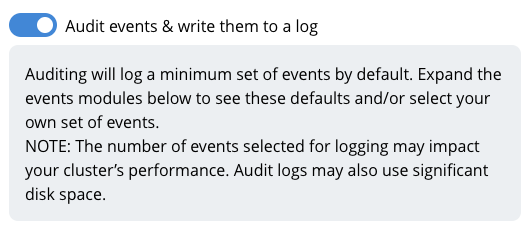
After enabling auditing, you can edit two fields that control the audit logs:
Audit Log Directory
This field sets the path where Couchbase Server saves the audit logs. The default path depends on the operating system on which Couchbase Server is installed:
* Linux: `/opt/couchbase/var/lib/couchbase/logs`
* Windows: `C:\Program Files\Couchbase\Server\var\lib\couchbase\logs`
* MacOS: `/Users/couchbase/Library/Application Support/Couchbase/var/lib/couchbase/logs`
File Reset Interval
These fields control when Couchbase Server rotates the audit log based on its age or file size. The rotation renames the current `audit.log` file to a new filename with a timestamp, such as `.local-2024-07-30T15-42-18-audit.log`. See [Saving and Pruning Audit Records](../../learn/security/auditing.md#saving-audit-records) for more information about log rotation.
> [!NOTE]
> By default, Couchbase Server does not automatically delete old log files. Over time, these log files can consume significant drive space on your nodes. You can use the [pruneAge](../../rest-api/rest-auditing.md#pruneAge) parameter of the `settings/audit` REST API to have Couchbase Server automatically delete log files based on their age. See [Configure Auditing](../../rest-api/rest-auditing.md) for more information.
## [](#managing-events)Managing Events
Couchbase Server supports both _filterable_ and _non-filterable_ events. To understand the difference between these, see [Filterable and Non-Filterable Events](../../learn/security/auditing.md#filterable-and-non-filterable-events).
Couchbase Web Console allows the user to enable event-auditing for the node; to enable filterable events per module; to disable filterable events individually, within each module; and to ignore all filterable events for specified local, external, and _internal_ (system) users.
To view all filterable and non-filterable events for (for example) the Data Service, first, ensure that logging is enabled for the node, by checking the **Audit events & write them to a log** checkbox. Then, left-click on the right-pointing arrowhead adjacent to **Data Service**. The **Data Service** events panel opens, as follows:
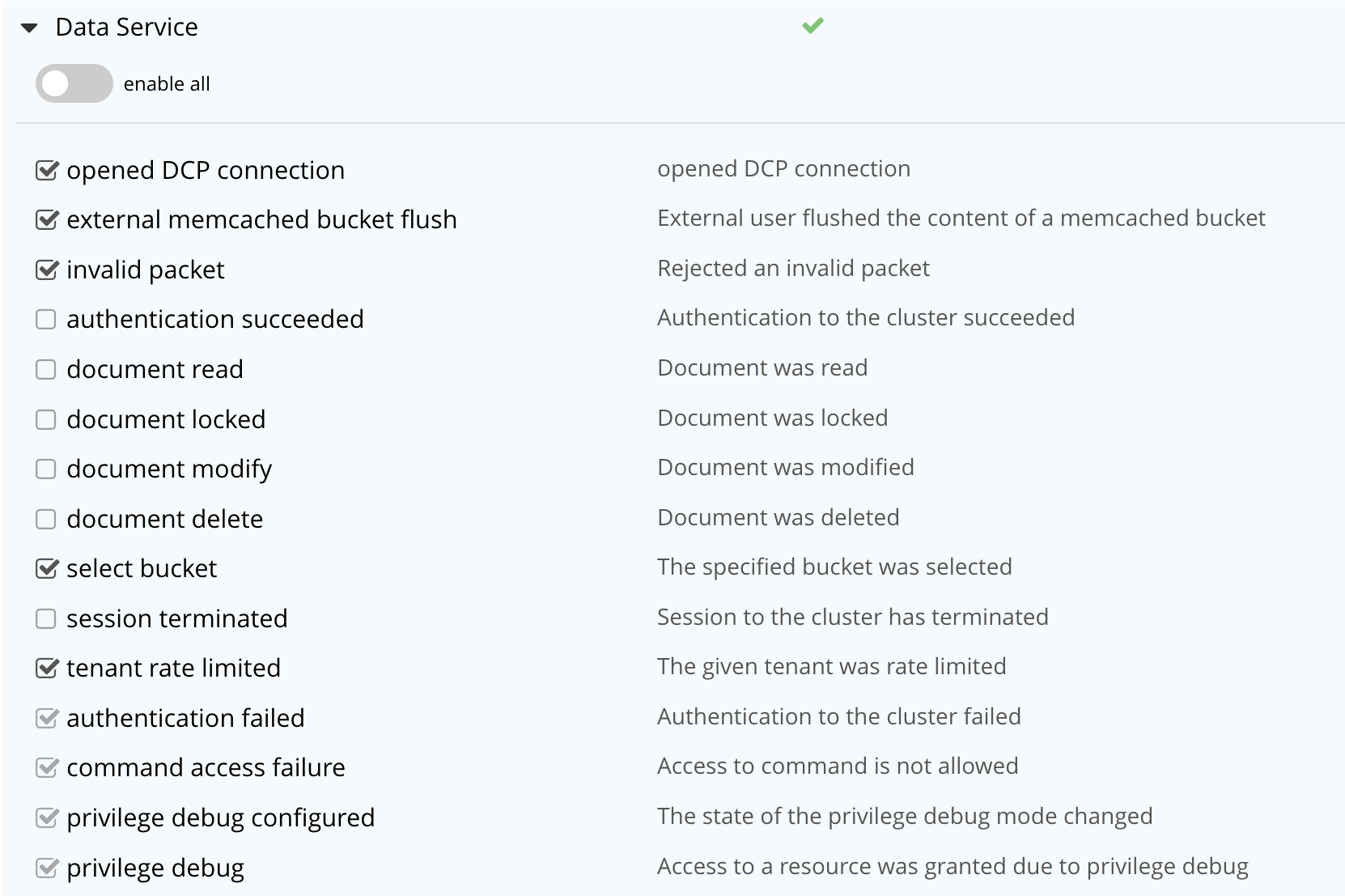
The **enable all** toggle for the Data Service is currently in the leftward position. Data Service events are each represented by an _event name_ (such as **opened DCP connection**), adjacent to a checkbox; with an _event description_ at the right. Events are of three kinds:
* Enabled by default, and can be disabled. These are indicated by checked, interactive checkboxes. Once the **Audit events & write them to a log** toggle has been moved to the right, the indicated events will be logged. At any time, such an event can be disabled by unchecking the checkbox.
* Enabled by default, and cannot be disabled. These events (known as _non-filterable_) are indicated by checked, _greyed-out_, \_non-\_interactive checkboxes. Once the **Audit events & write them to a log** toggle has been moved to the right, the indicated events will be logged.
* Disabled by default, and can be enabled. These are indicated by unchecked, interactive checkboxes. Once the **Audit events & write them to a log** toggle has been moved to the right, the indicated events can be individually enabled, by checking the appropriate checkboxes.
Inspection of the panels provided for other modules, such as **Query and Index Service**, and **Eventing Service**, will likewise show such subsets of events.
To elect to audit _all_ the events for the Data Service — that is, filterable as well as non-filterable — move the **enable all** toggle for the Data Service panel to the right:
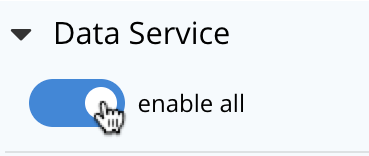
The panel now appears as follows:
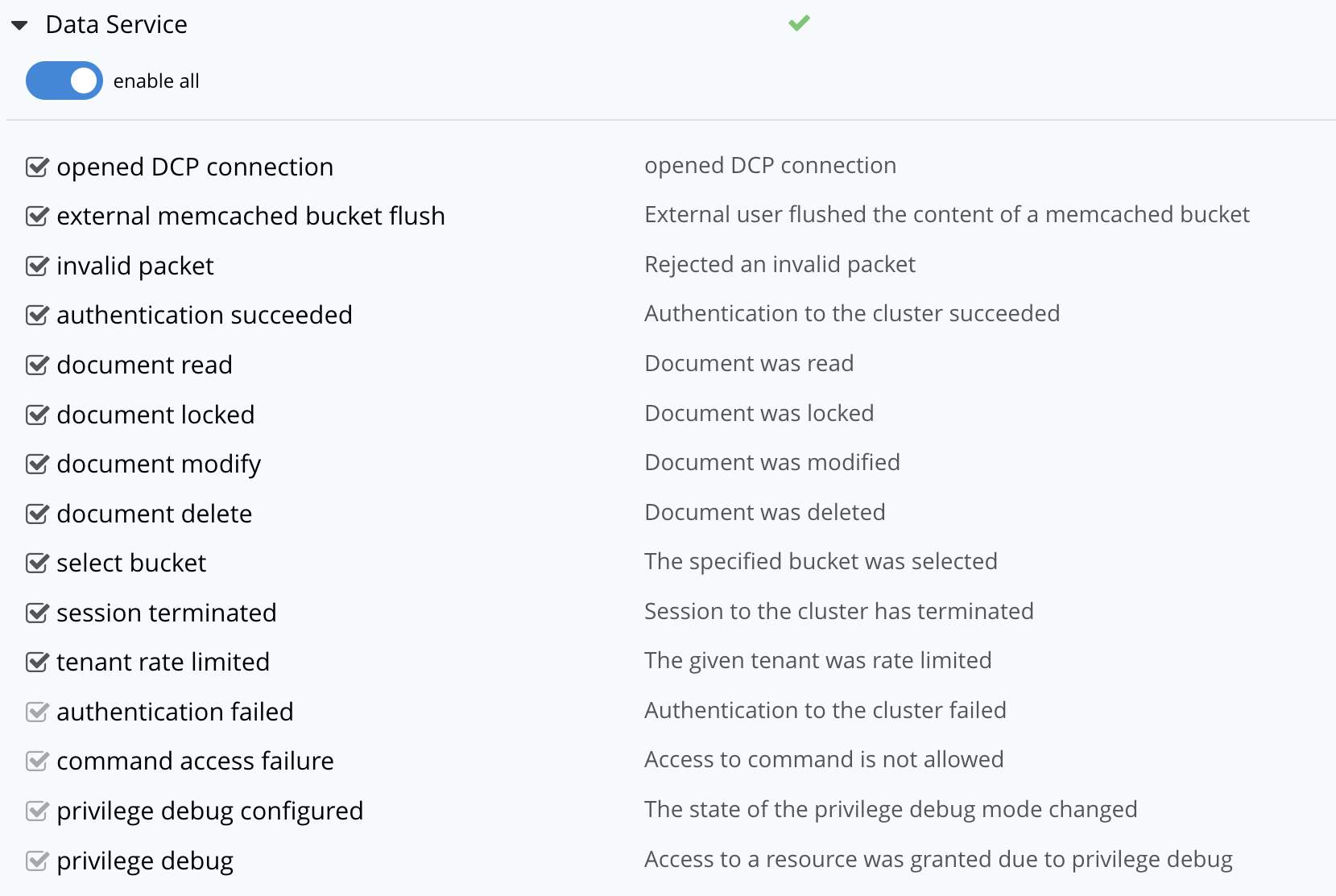
Every checkbox now appears selected, indicating that each corresponding event will be logged. To de-select one or more of the individual _filterable_ events, simply uncheck the corresponding checkboxes. The _non-filterable_ events cannot be individually disabled, and so remain greyed-out.
### [](#ignoring-events-by-user)Ignoring Filterable Events By User
In some cases, it may be unnecessary to log filterable events incurred by particular users: for example, authentication performed by the Full Administrator. These users can be specified in the **Ignore Events From These Users** field, which appears as follows:
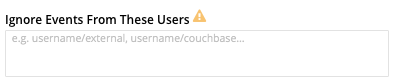
As the placeholder indicates, specification should take the form `_username_/external` or `_username_/couchbase`, according to the domain in which the user is registered. Multiple names should be comma-separated.
See [Authentication Domains](../../learn/security/authentication-domains.md), for information on authentication domains.
The following Couchbase _internal users_ may also be specified in the **Ignore Events From These Users** field:
| @eventing | @cbq-engine | @ns\_server | @index |
| ---------- | ----------- | ----------- | ------ |
| @projector | @goxdcr | @fts | @cbas |
Each internal user should be specified in the form `@_internalusername_/couchbase`.
For each user specified in the field, all filterable events will be ignored. Non-filterable events, however, will continue to be audited.
Left-click on the **Save** button, to save the configuration.
## [](#managing-auditing-with-the-cli)Managing Auditing with the CLI
To manage auditing with the Couchbase CLI, use the `setting-audit` command, as follows:
/opt/couchbase/bin/couchbase-cli setting-audit \
--cluster 10.143.192.101 \
--username Administrator \
--password password \
--set \
--audit-enabled 1 \
--audit-log-path '/opt/couchbase/var/lib/couchbase/logs' \
--audit-log-rotate-interval 86400 \
--audit-log-rotate-size 104857600
This enables auditing for the current node, by specifying a value of `1` for the `audit-enabled` parameter. (Specifying `0` would disable auditing for the current node.) A pathname is specified as the value of `audit-log-path`, indicating the location for the `audit.log` file. An `audit-log-rotate-interval` of `86400` seconds (24 hours) is specified, as is an `audit-log-rotate-size` of `104857600` byes (100 MB).
If the call is successful, the following message is displayed:
SUCCESS: Audit settings modified
For more information on configuring audit with the Couchbase command-line interface, see [setting-audit](../../cli/cbcli/couchbase-cli-setting-audit.md).
## [](#managing-auditing-with-the-rest-api)Managing Auditing with the REST API
The Couchbase REST API provides three endpoints whereby auditing can be managed. Full details are provided in [Configure Auditing](../../rest-api/rest-auditing.md).
Filterable events are referred to with individual _ids_, as well as by name, description, and module. A complete list can be displayed by means of the `GET /settings/audit/descriptors` http method and URI. In the following example, output is piped to the [jq](http://stedolan.github.io/jq) program, to facilitate readability.
curl -v -X GET -u Administrator:password http://10.143.192.101:8091/settings/audit/descriptors | jq
If successful, the call returns an array of objects, each of which contains identifying information for a filterable event:
[
{
"id": 8243,
"name": "mutate document",
"module": "ns_server",
"description": "Document was mutated via the REST API"
},
{
"id": 8255,
"name": "read document",
"module": "ns_server",
"description": "Document was read via the REST API"
},
{
"id": 8257,
"name": "alert email sent",
"module": "ns_server",
"description": "An alert email was successfully sent"
},
.
.
,
Each element in the array thus features the `id`, `name`, `module`, and `description` of a filterable event.
The `POST /settings/audit` http method and URI can be used to modify the current audit configuration. For example:
curl -v -X POST -u Administrator:password \
http://10.143.192.101:8091/settings/audit \
-d auditdEnabled=true \
-d disabled=8243,8255,8257,32770,32771,32772,32780,32783,32784,32785,32786,40963 \
-d disabledUsers=testuser/local,@eventing/local,@cbq-engine/local \
-d rotateSize=524288000 \
-d rotateInterval=7200 \
-d logPath='/opt/couchbase/var/lib/couchbase/logs'
-d pruneAge=10800
Here, auditing for the node is enabled, by specifying a value of `true` for the `auditEnabled` parameter. A comma-separated list of audit-event _ids_ is provided as the value for the `disabled` parameter; indicating that each corresponding filterable event will be disabled. Likewise, a list of `disabledUsers` is specified. See [Ignoring Filterable Events By User](#ignoring-events-by-user), above, for information. Note, however, that when specified using the REST API, local and internal usernames take the `/local`, rather than the `/couchbase` suffix. The `rotateSize` is specified in bytes, and the `rotateInterval` in seconds. The `pruneAge` parameter tells Couchbase Server to automatically delete rotated audit logs after 10800 seconds (3 hours).
See [Configure Auditing](../../rest-api/rest-auditing.md), for more detailed information; including use of the `GET /settings/audit` method and URI to retrieve the current audit configuration.