---
title: Install Sync Gateway
description: Install a Sync Gateway instance; securely sync enterprise
data from cloud to edge.
pubDate: 2026-08-17T09:53:44.266Z
antora:
editUrl: https://github.com/couchbase/docs-sync-gateway/edit/release/4.1/modules/start-here/pages/get-started-install.adoc
xref: xref:sync-gateway:start-here:get-started-install.adoc[]
---
[Consult the llms.txt file for a full list of contents](/llms.txt)
[View original HTML](/sync-gateway/current/start-here/get-started-install.html)
# Install Sync Gateway
> Install a _Sync Gateway_ instance; securely sync enterprise data from cloud to edge.
> This is **Step 2** in the _Start Here!_ topic group. It installs the _Sync Gateway_ binary distribution
> [!NOTE]
> Preparatory Steps
>
> Make sure you have read and acted-upon the information in [Prepare](get-started-prepare.md) before proceeding.
These instructions are for local or server based deployments. If you're using Docker, see [Deploy Sync Gateway with Docker](get-started-install-docker.md) instead.
Steps in Getting Started
[Introduction](../introduction.md)| [Prepare](get-started-prepare.md)| [Install](get-started-install.md)| [Configure](get-started-configure.md)
## [](#installation-process)Installation Process
You can install Sync Gateway on any of the [supported operating systems](../product-notes/supported-environments.md). On completion of this topic you should have a working Sync Gateway that you can extend and configure to meet your business needs.
The installation process first deploys the Sync Gateway package, then defines and starts an example instance of Sync Gateway running as a service.
By default Sync Gateway bases its initial setup on an example configuration file `serviceconfig.json`, provided in the `examples` directory.
This initial configuration has limited functionality. It is intended primarily to verify the success of the installation by proving a connection to Sync Gateway can be made.
## [](#configuration)Configuration
Sync Gateway's initial setup uses configuration details from a file its install script creates (`sync_gateway.json`, or `serviceconfig.json` on Windows).
To provide your own configuration to Sync Gateway, you can either:
* Continue using the default file.
You will need to restart Sync Gateway after each change.
* Run Sync Gateway from a command-line and provide a path to the required configuration file as a parameter.
* Run Sync Gateway as a service and set it to use the required configuration file path.
Instructions on how to do this are given in the _Install_ section for each of the platforms as they differ lightly.
You can refer to the [Configuration Overview](../configuration/configuration-overview.md) for more on the configuration process and to the [Bootstrap Configuration](../configuration/configuration-schema-bootstrap.md) for details on the configuration options for Centralized Persistent Modular configuration.
To run in legacy mode see [Legacy Pre-3.0 Configuration](../configuration/configuration-properties-legacy.md).
We also discuss more on the initial configuration in the next Getting Started section — see: [Configure](get-started-configure.md). Also, the installation package itself contains example configuration files — see the appropriate install platform section for details on their location.
## [](#install-for-linux)Install for Linux
In this Section
[Install](#lbl-linux-install) | [Install Locations](#lbl-linux-locn) | [Run](#lbl-linux-run) | [Configuration](#lbl-linux-owncfg)
### [](#download)Download
Download the required edition of Sync Gateway from the [downloads page](https://www.couchbase.com/downloads/?family=sync-gateway).
### [](#lbl-linux-install)Install
Follow the appropriate install option from the methods shown.
Install Options
* Ubuntu
* Red Hat/CentOS
* Debian
Install sync\_gateway with the dpkg package manager:
```bash
dpkg -i couchbase-sync-gateway-enterprise_4.1.1_x86_64.deb
```
Install sync\_gateway with the rpm package manager:
```bash
rpm -i couchbase-sync-gateway-enterprise_4.1.1_x86_64.rpm
```
Install sync\_gateway with the dpkg package manager:
```bash
dpkg -i couchbase-sync-gateway-enterprise_4.1.1_x86_64.deb
```
When the installation is complete Sync Gateway will be running as a service named `sync_gateway`.
To stop and start the `sync_gateway` service, use the methods show in [Run](#lbl-linux-run).
### [](#lbl-linux-locn)Install Locations
The default Sync Gateway installation uses the locations shown in [Table 1](#tbl-linux-locns).
__Table 1\. Default Installation Locations__
| Content | Location | Example |
| ------------------- | --------------------------------------- | ------------------------------------------------------------------------------------------ |
| Binaries | The installation directory | /opt/couchbase-sync-gateway/bin/ |
| Configuration files | The sync\_gateway user's home directory | /home/sync\_gateway/sync\_gateway.json |
| Example Configs | The installation directory | /opt/couchbase-sync-gateway/examples/ |
| Log files | The sync\_gateway user's home directory | /home/sync\_gateway/logs/ |
| Scripts | The installation directory | /opt/couchbase-sync-gateway/service/ |
| Service | systemd library | /lib/systemd/system/sync\_gateway.service or /usr/lib/systemd/system/sync\_gateway.service |
### [](#lbl-linux-run)Run
You can run Sync Gateway as a service, or directly from a command line, using one of the methods show here.
#### [](#command-line)Command Line
Start
```bash
(1)
/opt/couchbase-sync-gateway/bin/sync_gateway (2)
```
| **1** | Where /opt/couchbase-sync-gateway/ is the location into which you deployed the Sync Gateway package. |
| ----- | ---------------------------------------------------------------------------------------------------------------------------------------------------------------------- |
| **2** | Where resolves to a JSON format file containing the Sync Gateway configuration, for example, /home/sync\_gateway/sync-gateway-config.json |
Stop
You can stop Sync Gateway instances started in this way by using Ctrl+C. There is no specific shutdown procedure and it is safe to stop it at any time. For other command-line options — see [Command Line Options](../deploy/command-line-options.md)
#### [](#services)Services
Using systemd
```bash
systemctl start sync_gateway
systemctl stop sync_gateway
```
Using init
```bash
service sync_gateway start
service sync_gateway stop
```
### [](#lbl-linux-owncfg)Configuration
To change the default configuration file path of an existing Sync Gateway service you need to edit the service descriptor.
For `systemd` this will be `sync_gateway.service` in either `/lib/systemd/system/sync_gateway.service` or `/usr/lib/systemd/system/sync_gateway.service`
You will need to find and replace the path in following line with your required path: `Environment="CONFIG=/home/sync_gateway/sync_gateway.json"`
One way to do this is to use `systemctl`
1. Ensure the new file path includes a useable Sync Gateway configuration file.
2. Stop the service.
3. Copy the existing `sync_gateway.service` file to a safe location as a back-up.
4. Use `sudo systemctl --full edit sync_gateway` to edit the service.
This will create a temporary file in `/etc/systemd/system/sync_gateway.d` containing your changes. This file is picked-up and applied when the daemon reloads. Note, `systemctl edit` automatically reloads the edited unit.
5. Replace the path in `Environment="CONFIG=/home/sync_gateway/sync_gateway.json"` with your required path.
6. Save the changes.
When the daemon reload completes, Sync Gateway will restart using the required configuration file.
## [](#install-for-windows)Install for Windows
In this Section
[Install](#lbl-windows-install) | [Install Locations](#lbl-windows-locn) | [Run](#lbl-windows-run) | [Configuration](#lbl-windows-owncfg)
### [](#download-2)Download
Download the required edition of Sync Gateway from the [downloads page](https://www.couchbase.com/downloads/?family=sync-gateway).
### [](#lbl-windows-install)Install
Open the installer and follow the instructions. If the installation was successful you will see the following:
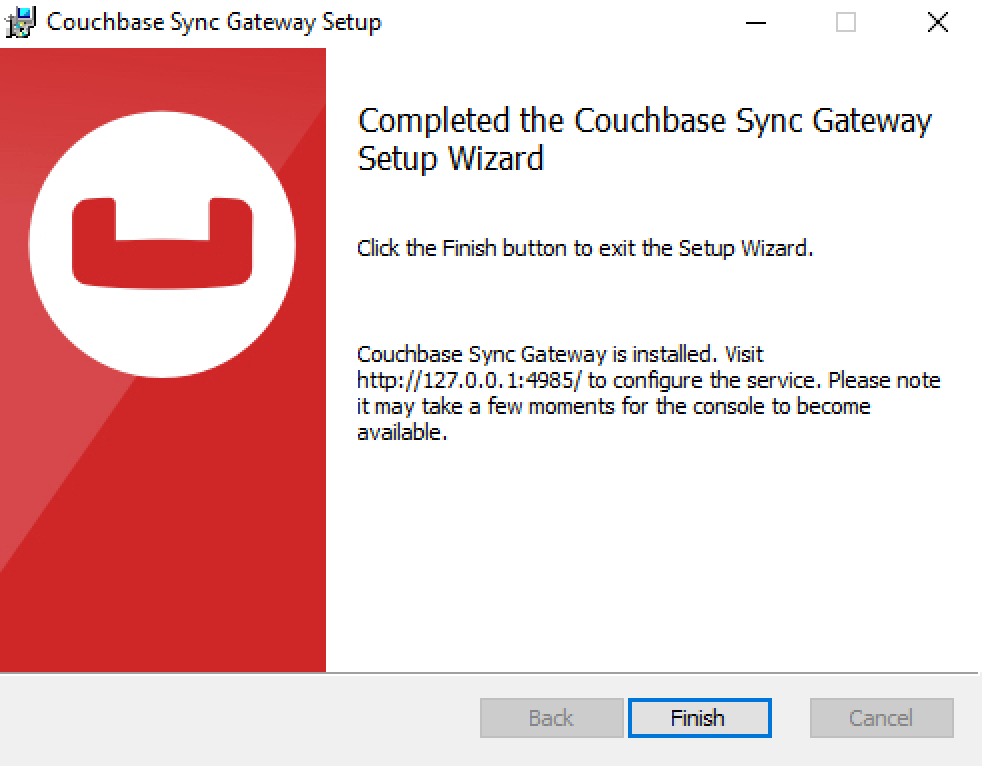
When the installation is complete Sync Gateway will be running as a service `SyncGateway`.
To stop/start the `SyncGateway` service, use the methods show in [Run](#lbl-windows-run).
### [](#lbl-windows-locn)Install Locations
The default Sync Gateway installation uses the locations shown in [Table 2](#tbl-windows-locns).
__Table 2\. Default Installation Locations__
| Content | Location |
| ------------------- | --------------------------------------------------------------------- |
| Binaries | C:\\Program Files\\Couchbase\\Sync Gateway\\ |
| Configuration files | C:\\Program Files\\Couchbase\\Sync Gateway\\ |
| Examples | C:\\Program Files\\Couchbase\\Sync Gateway\\examples |
| Log files | C:\\Program Files\\Couchbase\\Sync Gateway\\var\\lib\\couchbase\\logs |
| Tools | C:\\Program Files\\Couchbase\\Sync Gateway\\tools |
### [](#lbl-windows-run)Run
You can run Sync Gateway as a service, or directly from a command line, using one of the methods show here.
#### [](#command-line-2)Command Line
Start
```bash
c:\PROGRA~1\COUCHB~1\SYNCGA~1\SYNC_G~1.EXE (1)
```
| **1** | Where: The path to the executable uses Windows' short name notation resolves to a JSON format file containing the Sync Gateway configuration, for example, {home-location-windows}sync-gateway-config.json |
| ----- | --------------------------------------------------------------------------------------------------------------------------------------------------------------------------------------------------------------------------------------- |
Stop
You can stop Sync Gateway instances started in this way by using Ctrl+C. There is no specific shutdown procedure and it is safe to stop it at any time. For other command-line options — see [Command Line Options](../deploy/command-line-options.md)
#### [](#service)Service
Using the Windows' Services Application
1. From the Start Menu, **Control Panel → Admin Tools → Services**
2. Within the Service panel, locate and Right-Click the service
3. From the Options Menu, select **Start** (or Stop) Enter
Using Windows' Command Line Utility `sc.exe`
1. Start Sync Gateway Service
```bash
c:\> sc start SyncGateway
```
This will result in a response such as:
```bash
SERVICE_NAME: SyncGateway
TYPE : 10 WIN32_OWN_PROCESS
STATE : 2 START_PENDING
(NOT_STOPPABLE, NOT_PAUSABLE, IGNORES_SHUTDOWN)
WIN32_EXIT_CODE : 0 (0x0)
SERVICE_EXIT_CODE : 0 (0x0)
CHECKPOINT : 0x0
WAIT_HINT : 0x7d0
PID : 7420
FLAGS :
```
2. Stop Sync Gateway Service
```bash
c:\> sc stop SyncGateway
```
This will result in a response such as:
```bash
SERVICE_NAME: SyncGateway
TYPE : 10 WIN32_OWN_PROCESS
STATE : 4 RUNNING
(STOPPABLE, NOT_PAUSABLE, ACCEPTS_SHUTDOWN)
WIN32_EXIT_CODE : 0 (0x0)
SERVICE_EXIT_CODE : 0 (0x0)
CHECKPOINT : 0x0
WAIT_HINT : 0x0
```
### [](#lbl-windows-owncfg)Configuration
To change the default configuration file path of an existing Sync Gateway service you need to edit the service descriptor.
For Windows, the configuration path is provided as a command line parameter embedded within the `SyncGateway` service's `binpath`.
One way to edit the `binpath` value is to use Windows' _Service Control Manager's_ command line utility `sc.exe config`. See the [Syntax of the sc.exe Command](#lbl-syntax) and an example of the command in use in [Example 1](#ex-windows-scexe).
Syntax of the sc.exe Command
The format of the `sc.exe` command is shown below. For presentation purposes it is split over several lines. It should be input as a single line.
```bash
sc (1)
config (2)
SyncGateway (3)
binpath= (4)
" (5)
[path-to-sg-windows.exe] start [path-to-sync_gateway.exe] (6)
[path-to-config-file] (7)
[path-to-error-logs] (8)
" (9)
```
| **1** | Omit the parameter if the service is local |
| ----- | ------------------------------------------------------------------------------------------------------------------------------------------------------------------------------------------------------------------------------------------------------------------------------------------------------------------------------------------------------------------------------------------------------------------------------------ |
| **2** | Specifies the function we are using, config, in this instance |
| **3** | Identifies the service being changed |
| **4** | Specifies the string value of the path to the binary to be run, and any command line parameters. The rules for formatting the binpath value are quite complex: The entire string value must be enclosed in quotes There must be one space (only) following the equals sign and none before it Each of the \[path-to …\] elements must themselves be enclosed in quotes. These inner quotes must be escaped (for example \\" … \\") |
| **5** | Opening quotes for the binpath, preceded by a single space. |
| **6** | Path to the binaries. |
| **7** | You can provide the required configuration file path name here in the form: \\"path/to/file/name.json\\" |
| **8** | You can provide the required log file path name here in the form: \\"path/to/file/name.log\\" |
| **9** | Closing quotes for the binpath, preceded by a single space. |
Example 1\. Sample sc.exe Use
This example changes the configuration file name from `serviceconfig.json` to `sync-gateway-config.json`
```bash
sc config SyncGateway binpath= "\"C:\Program Files\Couchbase\Sync Gateway\sg-windows.exe\" start \"C:\Program Files\Couchbase\Sync Gateway\sync_gateway.exe\" \"C:\Program Files\Couchbase\Sync Gateway\sync-gateway-config.json\" \"C:\Program Files\Couchbase\Sync Gateway\var\lib\couchbase\logs\sync_gateway_error.log\""
```
## [](#install-for-mac-os)Install for Mac OS
In this Section
[Install](#lbl-macos-install) | [Install Locations](#lbl-macos-locn) | [Run](#lbl-macos-run) | [Configuration](#lbl-macos-owncfg)
### [](#download-3)Download
Download the required edition of Sync Gateway from the [downloads page](https://www.couchbase.com/downloads/?family=sync-gateway).
### [](#lbl-macos-install)Install
1. Unpack the .zip file to the **/opt** directory.
```bash
sudo unzip -d /opt couchbase-sync-gateway-enterprise_4.1.1_arm64.zip
```
2. Create a new macOS user.
```bash
sudo sysadminctl -addUser sync_gateway
```
If the operation is successful, you will get the following output.
```bash
sysadminctl ----------------------------
sysadminctl No clear text password or interactive option was specified (adduser, change/reset password will not allow user to use FDE) !
sysadminctl ----------------------------
sysadminctl Creating user record…
sysadminctl Assigning UID: 505
sysadminctl Creating home directory at /Users/sync_gateway
```
3. Create a new group and add the `sync_gateway` user to that group.
```bash
sudo dseditgroup -o create sync_gateway
sudo dseditgroup -o edit -a sync_gateway -t user sync_gateway
```
4. Define the Sync Gateway Service
This script will define and load the service, which is set it to automatically restart.
Other scripts in the `service` directory are available to update or uninstall the service.
```bash
cd /opt/couchbase-sync-gateway//service
sudo ./sync_gateway_service_install.sh (1)
```
| **1** | Note that you can, by using optional parameters, provide alternative file paths for the Sync Gateway configuration file (\--cfgpath=) or log files () path (\--logsdir=). These will be used instead of the default path whenever the service starts. So, for example: sudo ./sync\_gateway\_service\_install.sh --cfgpath=sync-gateway-config.json |
| ----- | --------------------------------------------------------------------------------------------------------------------------------------------------------------------------------------------------------------------------------------------------------------------------------------------------------------------------------------------------- |
5. When the install is complete the sync\_gateway service will be running
To stop/start the `sync_gateway` service, use the methods show in [Run](#lbl-macos-run)
### [](#lbl-macos-locn)Install Locations
The default Sync Gateway installation uses the locations shown in [Table 3](#tbl-macos-locns).
__Table 3\. Default Installation Locations__
| Content | Location | Example |
| ------------------- | --------------------------------------- | --------------------------------------------------------------- |
| Binaries | The installation directory | /opt/couchbase-sync-gateway/bin/ |
| Configuration files | The sync\_gateway user's home directory | /users/sync\_gateway/ |
| Examples | The installation directory | /opt/couchbase-sync-gateway/examples/ |
| Log files | The sync\_gateway user's home directory | /users/sync\_gateway/logs/ |
| Scripts | The installation directory | /opt/couchbase-sync-gateway/service/ |
| Service | Library directory | /Library/LaunchDaemons/com.couchbase.mobile.sync\_gateway.plist |
### [](#lbl-macos-run)Run
You can run Sync Gateway as a [service](#lbl-service), or directly from a [command line](#lbl-command), using one of the methods show here.
#### [](#lbl-command)Command Line
Start
```bash
(1)
/opt/couchbase-sync-gateway/bin/sync_gateway (2)
```
| **1** | Where /opt/couchbase-sync-gateway/ is the location into which you deployed the Sync Gateway package. |
| ----- | ----------------------------------------------------------------------------------------------------------------------------------------------------------------------- |
| **2** | Where resolves to a JSON format file containing the Sync Gateway configuration, for example, /users/sync\_gateway/sync-gateway-config.json |
Stop
You can stop Sync Gateway instances started in this way by using Ctrl+C. There is no specific shutdown procedure and it is safe to stop it at any time. For other command-line options — see [Command Line Options](../deploy/command-line-options.md)
#### [](#lbl-service)Service
```bash
sudo launchctl load -w /Library/LaunchDaemons/com.couchbase.mobile.sync_gateway.plist (1)
sudo launchctl unload -w /Library/LaunchDaemons/com.couchbase.mobile.sync_gateway.plist (2)
```
| **1** | Here we load, and automatically start, the default sync\_gateway service |
| ----- | ------------------------------------------------------------------------------------------------------------------------------------------------ |
| **2** | Here we unload the default sync\_gateway service. Note that it is not sufficient to stop the service. It is configured to automatically restart. |
### [](#lbl-macos-owncfg)Configuration
To change the default configuration file path of an existing Sync Gateway service you need to edit the service descriptor.
For Mac OS this will be the `.plist` file `com.couchbase.mobile.sync_gateway.plist`.
One way to do this would be:
1. Make sure the new file path includes a useable Sync Gateway configuration file
2. Within a terminal, stop the service — see: [start and stop the service](#lbl-macos-run)
3. Copy the existing `com.couchbase.mobile.sync_gateway.plist` file to a safe location as a back-up
4. Open the `com.couchbase.mobile.sync_gateway.plist` file in an editor. You'll need to use `sudo`
5. Within the `ProgramArguments` section of the `.plist`, find and edit the configuration file path, which by default contains: `/Users/sync_gateway/sync_gateway.json`
6. Save your changes
7. Restart the service — see: [start and stop the service](#lbl-macos-run)
## [](#next-steps)Next Steps
Now that you have installed Sync Gateway, continue to verify and explore the installation:
* [Configure](get-started-configure.md) — configure Sync Gateway to connect to Couchbase Server and verify the connection
* [Explore](get-started-explore.md) — add a database, create users, and run a CRUD cycle to confirm sync end-to-end
* Learn more about building Couchbase Mobile applications using the tutorial
* Learn more about the sync process:
* [Sync with Couchbase Server](../sync/sync-with-couchbase-server.md)
* [Bootstrap Configuration](../configuration/configuration-schema-bootstrap.md)
---
#####
## [](#related-content)Related Content
###### [](#-2)
Getting Started
* [Prepare](get-started-prepare.md)
* [Install](get-started-install.md)
* [Configure](get-started-configure.md)
###### [](#-3)
Product Information
* [Release Notes](../product-notes/release-notes.md)
* [Compatibility Matrix](../product-notes/compatibility.md)
* [Supported OS](../product-notes/supported-environments.md)
###### [](#-4)
Community
[Mobile Forum](https://forums.couchbase.com/c/mobile/14) | [Blog](https://blog.couchbase.com/) | [Blog (Mobile)](https://blog.couchbase.com/category/couchbase-mobile/?ref=blog-menu) | [Tutorials](https://docs.couchbase.com/tutorials/)