Adding Security
In this lesson you’ll learn how to add security to your Couchbase Mobile application. You’ll implement authentication and define access control, data validation, and access grant policies.
User Authentication
Install Sync Gateway
Users are created with a name/password on Sync Gateway which can then be used on the Couchbase Lite replicator to authenticate as a given user. You can create users by hardcoding the user’s name/password in the configuration file. Create a new file called sync-gateway-config.json with the following.
{
  "log": ["HTTP", "Auth"],
  "databases": {
    "todo": {
      "server": "walrus:",
      "users": {
        "user1": {"password": "pass", "admin_channels": ["user1"]},
        "user2": {"password": "pass", "admin_channels": ["user2"]},
        "mod": {"password": "pass", "admin_roles": ["moderator"]},
        "admin": {"password": "pass", "admin_roles": ["admin"]}
      },
      "roles": {
        "moderator": {},
        "admin": {}
      }
    }
  }
}
Try it out
-
Unzip the file and locate the executable at ~/Downloads/couchbase-sync-gateway/bin/sync_gateway.
-
Start it from the command-line with the config file.
$ /path/to/sync_gateway sync-gateway-config.jsonPS 'C:\Program Files (x86)\Couchbase\sync_gateway.exe' sync-gateway-config.json
| The Sync Gateway service might be running on Windows which will prevent this command from succeeding with the message 'FATAL: Failed to start HTTP server on 127.0.0.1:4985: listen tcp 127.0.0.1:4985: bind: Only one usage of each socket address (protocol/network address/port) is normally permitted.' To get around this, stop the 'Couchbase Sync Gateway' service in 'services.msc'. Two users are now visible at http://localhost:4985/_admin/db/todo/users. |
Replications with Authentication
With Sync Gateway users defined you can now enable authentication on the Couchbase Lite replicator. The code below creates two replications with authentication.
// This code can be found in AppDelegate.swift
// in the startReplication(withUsername:andPassword:) method
pusher = database.createPushReplication(kSyncGatewayUrl)
pusher.continuous = true
NotificationCenter.default.addObserver(self, selector: #selector(replicationProgress(notification:)),
    name: NSNotification.Name.cblReplicationChange, object: pusher)

puller = database.createPullReplication(kSyncGatewayUrl)
puller.continuous = true
NotificationCenter.default.addObserver(self, selector: #selector(replicationProgress(notification:)),
                                        name: NSNotification.Name.cblReplicationChange, object: puller)

if kLoginFlowEnabled {
    let authenticator = CBLAuthenticator.basicAuthenticator(withName: username, password: password!)
    pusher.authenticator = authenticator
    puller.authenticator = authenticator
}

pusher.start()
puller.start()
// This code can be found in CoreApp.cs
// in the StartReplication(string, string) method
var authenticator = default(IAuthenticator);
if(username != null password != null) {
authenticator = AuthenticatorFactory.CreateBasicAuthenticator(username, password);
}
var db = AppWideManager.GetDatabase(username);
var pusher = db.CreatePushReplication(SyncGatewayUrl);
pusher.Continuous = true;
pusher.Authenticator = authenticator;
var puller = db.CreatePullReplication(SyncGatewayUrl);
puller.Continuous = true;
puller.Authenticator = authenticator;
pusher.Start();
puller.Start();
_pusher = pusher;
_puller = puller;URL url = null;
try {
url = new URL(mSyncGatewayUrl);
} catch (MalformedURLException e) {
e.printStackTrace();
}
pusher = database.createPushReplication(url);
pusher.setContinuous(true);
puller = database.createPullReplication(url);
puller.setContinuous(true);
if (mLoginFlowEnabled) {
Authenticator authenticator = AuthenticatorFactory.createBasicAuthenticator(username, password);
pusher.setAuthenticator(authenticator);
puller.setAuthenticator(authenticator);
}
pusher.start();
puller.start();The CBLAuthenticator class has static methods for each authentication method supported by Couchbase Lite.
Here, you’re passing the name/password to the basicAuthenticatorWithName method.
The object returned by this method can be set on the replication’s authenticator property.
Try it out
-
Set
kSyncEnabledandkLoginFlowEnabledtotruein AppDelegate.swift.let kSyncEnabled = true let kLoginFlowEnabled = true -
Build and run.
-
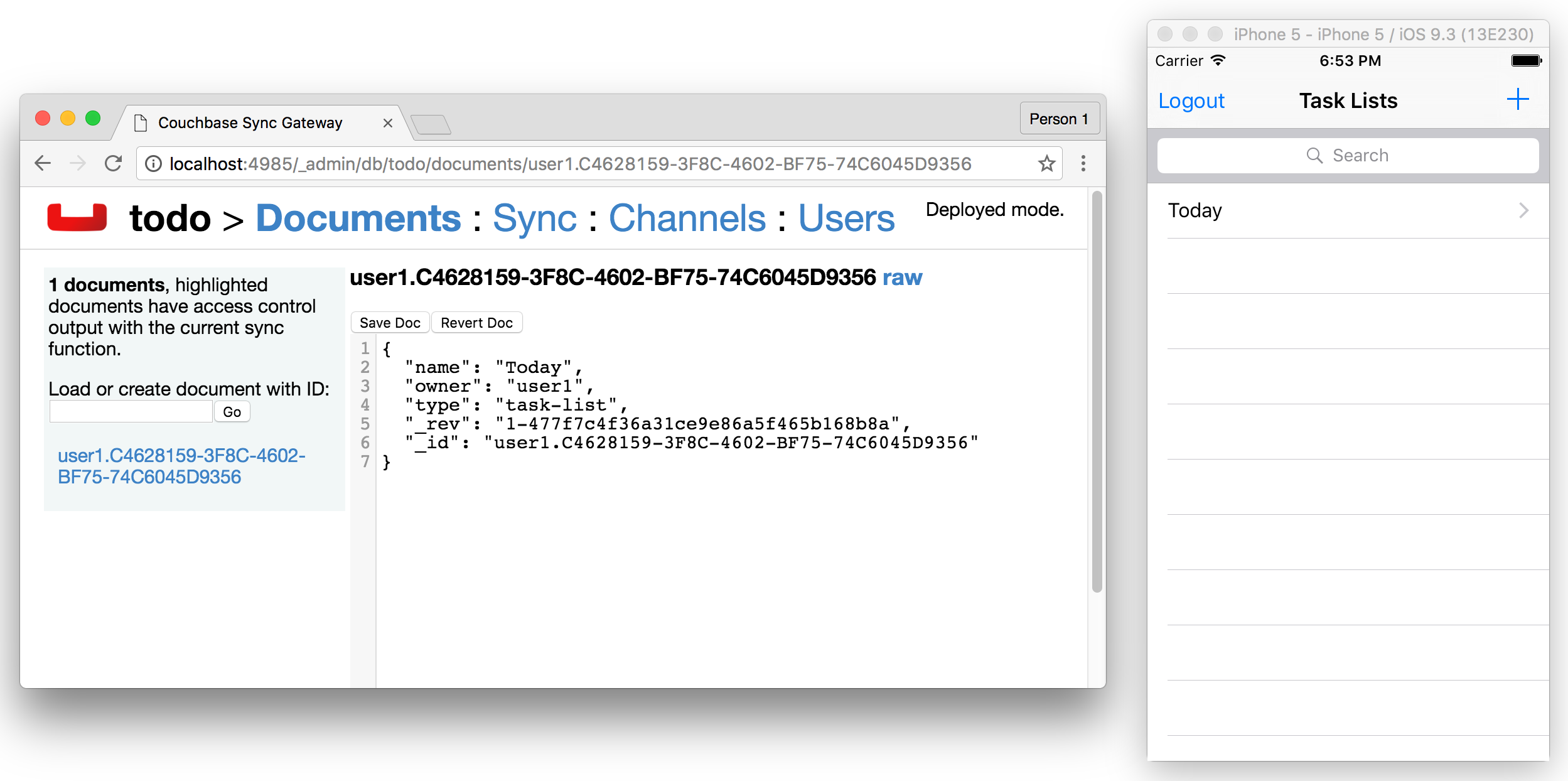
Now login with the credentials saved in the config file previously (user1/pass) and create a new list. Open the Sync Gateway Admin UI at http://localhost:4985/_admin/db/todo, the list document is successfully replicated to Sync Gateway as an authenticated user.
-
Change
LoginEnabled = falsetoLoginEnabled = truein theCreateHint()method in CoreApp.csvar retVal = new CoreAppStartHint { LoginEnabled = true, // Line to change is here EncryptionEnabled = false, SyncEnabled = false, UsePrebuiltDB = false, ConflictResolution = false, Username = todo }; return retVal; -
Build and run.
-
Now login with the credentials saved in the config file previously (user1/pass) and create a new list. Open the Sync Gateway Admin UI at http://localhost:4985/_admin/db/todo, the list document is successfully replicated to Sync Gateway as an authenticated user.
{% include experimental-label.html %}
center-image />
-
Set
mSyncEnabledandmLoginFlowEnabledtotruein Application.java.private Boolean mSyncEnabled = true; private Boolean mLoginFlowEnabled = true; -
Build and run.
-
Now login with the credentials saved in the config file previously (user1/pass) and create a new list. Open the Sync Gateway Admin UI at http://localhost:4985/_admin/db/todo, the list document is successfully replicated to Sync Gateway as an authenticated user.
{% include experimental-label.html %}
center-image />
Note: You can remove the local database and check if the pull replication retrieves the documents now present on Sync Gateway.
Using File Explorer, type %LOCALAPPDATA% into the location bar and press enter, then delete the database user1.cblite2.
Then restart the app and you’ll notice that the Today list isn’t displayed.
That is, the list document wasn’t replicated from Sync Gateway to Couchbase Lite.
Indeed, the document is not routed to a channel that the user has access to. Channel and access are new terms so don’t worry, we’ll cover what they mean in the next section.
Note: You can remove the local database and check if the pull replication retrieves the documents now present on Sync Gateway. On macOS, use the SimPholders utility app to quickly find the data directory of the application and delete the database called user1 on iOS, or you can use the adb shell to navigate to the application’s data folder and delete it on Android. Then restart the app and you’ll notice that the Today list isn’t displayed. That is, the list document wasn’t replicated from Sync Gateway to Couchbase Lite. Indeed, the document is not routed to a channel that the user has access to. Channel and access are new terms so don’t worry, we’ll cover what they mean in the next section.
Access Control
In order to give different users access to different documents, you must write a sync function. The sync function lives in the configuration file of Sync Gateway. It’s a JavaScript function and every time a new document, revision or deletion is added to a database, the sync function is called and given a chance to examine the document.
You can use different API methods to route documents to channels, grant users access to channels and even assign roles to users. Access rules generally follow the order shown on the image below: write permissions, validation, routing, read permissions.

| Open the Access Control lesson in a new tab, it will be useful throughout this section. |
Document Types
The Sync Function takes two arguments:
-
doc: The current revision being processed.
-
oldDoc: The parent revisions if it’s an update operation and
nullif it’s a create operation.
Each document type will have different access control rules associated with it. So the first operation is to ensure the document has a type property. Additionally, once a document is created, its type cannot change. The code below implements those 2 validation rules.
function(doc, oldDoc){
  /* Type validation */
  if (isCreate()) {
    // Don't allow creating a document without a type.
    validateNotEmpty(type, doc.type);
  } else if (isUpdate()) {
    // Don't allow changing the type of any document.
    validateReadOnly(type, doc.type, oldDoc.type);
  }

  if (getType() == "task-list") {
    /* Write access */
    /* Validation */
    /* Routing */
    /* Read Access */
  }

  function getType() {
    return (isDelete() ? oldDoc.type : doc.type);
  }

  function isCreate() {
    // Checking false for the Admin UI to work
    return ((oldDoc == false) || (oldDoc == null || oldDoc._deleted)  !isDelete());
  }

  function isUpdate() {
    return (!isCreate()  !isDelete());
  }

  function isDelete() {
    return (doc._deleted == true);
  }

  function validateNotEmpty(key, value) {
    if (!value) {
      throw({forbidden: key +  is not provided.});
    }
  }

  function validateReadOnly(name, value, oldValue) {
    if (value != oldValue) {
      throw({forbidden: name +  "is read-only."});
    }
  }

  // Checks whether the provided value starts with the specified prefix
  function hasPrefix(value, prefix) {
    if (value  prefix) {
      return value.substring(0, prefix.length) == prefix
    } else {
      return false
    }
  }
}
As shown above, you can define inner functions to encapsulate logic used throughout the sync function. This makes your code more readable and follows the DRY principle (Don’t Repeat Yourself).
Try it out
-
Open the Sync menu on the Admin UI http://localhost:4985/_admin/db/todo/sync.
-
Copy the code snippet above in the Sync Function text area.
-
Click the Deploy To Server button. It will update Sync Gateway with the new config but it doesn’t persist the changes to the filesystem.
-
Add two documents through the REST API. One with the
typeproperty and the second document without it. Notice that the user credentials (user1/pass) are passed in the URL.curl -vX POST 'http://user1:pass@localhost:4984/todo/_bulk_docs' \ -H 'Content-Type: application/json' \ -d '{"docs": [{"type": "task-list", "name": "Groceries"}, {"names": "Today"}]}'The output should be the following:
[
  {
  	"id": "e498cad0380e30a86ed5572140c94831",
  	"rev": "1-e4ac377fc9bd3345ddf5892b509c4d79" },
  {error:forbidden,reason:type is not provided.,status:403}
]
| The curl executable for Windows can be found on this page The document without a type is rejected with an error message: type property missing. |
Write Permissions
Once you know the type of a document, the next step is to check the write permissions.
The following code ensures the user creating the list document matches with the owner property or is a moderator.
/* Write Access */
var owner = doc._deleted ? oldDoc.owner : doc.owner;
try {
  // Moderators can create/update lists for other users.
  requireRole(moderator);
} catch (e) {
  // Users can create/update lists for themselves.
  requireUser(owner);
}
When a document is deleted the user properties are removed and the \_deleted: true property is added as metadata.
In this case, the sync function must retrieve the type from oldDoc.
In the code above, the getType inner function encapsulates this logic.
Similarly, the owner field is taken from oldDoc if doc is a deletion revision.
The requireUser and requireRole functions are functionalities built in Sync Gateway.
Try it out
-
Open the Sync menu on the Admin UI http://localhost:4985/_admin/db/todo/sync.
-
Copy the changes above in the Sync Function text area to replace the
/* Write access */block. -
Click the Deploy To Server button. It will update Sync Gateway with the new config but it doesn’t persist the changes to the filesystem.
-
Add two documents through the REST API. The request is sent as a user (user1/pass). One document is a list for user1 and another is a list for user2.
curl -vX POST 'http://user1:pass@localhost:4984/todo/_bulk_docs' \
      -H 'Content-Type: application/json' \
      -d '{docs: [{type: task-list, owner: user1}, {type: task-list, owner: user2}]}'
The response should be the following:
[
  {id:8339356c8bb6d8b32477e931ce04c5c9,rev:1-39539a8ec6ddd252d6aafe1f7e3efd9a},
  {error:forbidden,reason:wrong user,status:403}
]
The list with user2 as the owner is rejected.
Validation
After write permissions, you must ensure the document has the expected schema. There are different types of validation such as checking for the presence of a field or enforcing read-only permission on parts of a document. The code below performs various schema validation operations.
/* Validation */
if (!isDelete()) {
  // Validate required fields.
  validateNotEmpty(name, doc.name);
  validateNotEmpty(owner, doc.owner);

  if (isCreate()) {
    // Validate that the _id is prefixed by owner.
    if (!hasPrefix(doc._id, doc.owner + .)) {
        throw({forbidden: task-list id must be prefixed by list owner});
    }
  } else {
    // Don’t allow task-list ownership to be changed.
    validateReadOnly(owner, doc.owner, oldDoc.owner);
  }
}
validateNotEmpty and validateReadOnly are inner functions to encapsulate common validation operations.
Try it out
-
Open the Sync menu on the Admin UI http://localhost:4985/_admin/db/todo/sync.
-
Copy the changes above in the Sync Function text area to replace the
/* Validation */block. -
Click the Deploy To Server button. It will update Sync Gateway with the new config but it doesn’t persist the changes to the filesystem.
Challenge: Persist documents using curl until it gets persisted and Sync Gateway returns a 201 Created status code.
Routing
Once you have determined that the schema is valid you can route the document to channels. A channel is a namespace for documents specifically designed for access control. The code below routes the document to its own list channel.
/* Routing */
// Add doc to task-list's channel.
channel(task-list. + doc._id);
channel(moderators);
Try it out
-
Open the Sync menu on the Admin UI http://localhost:4985/_admin/db/todo/sync.
-
Copy the changes above in the Sync Function text area to replace the
/* Routing */block. -
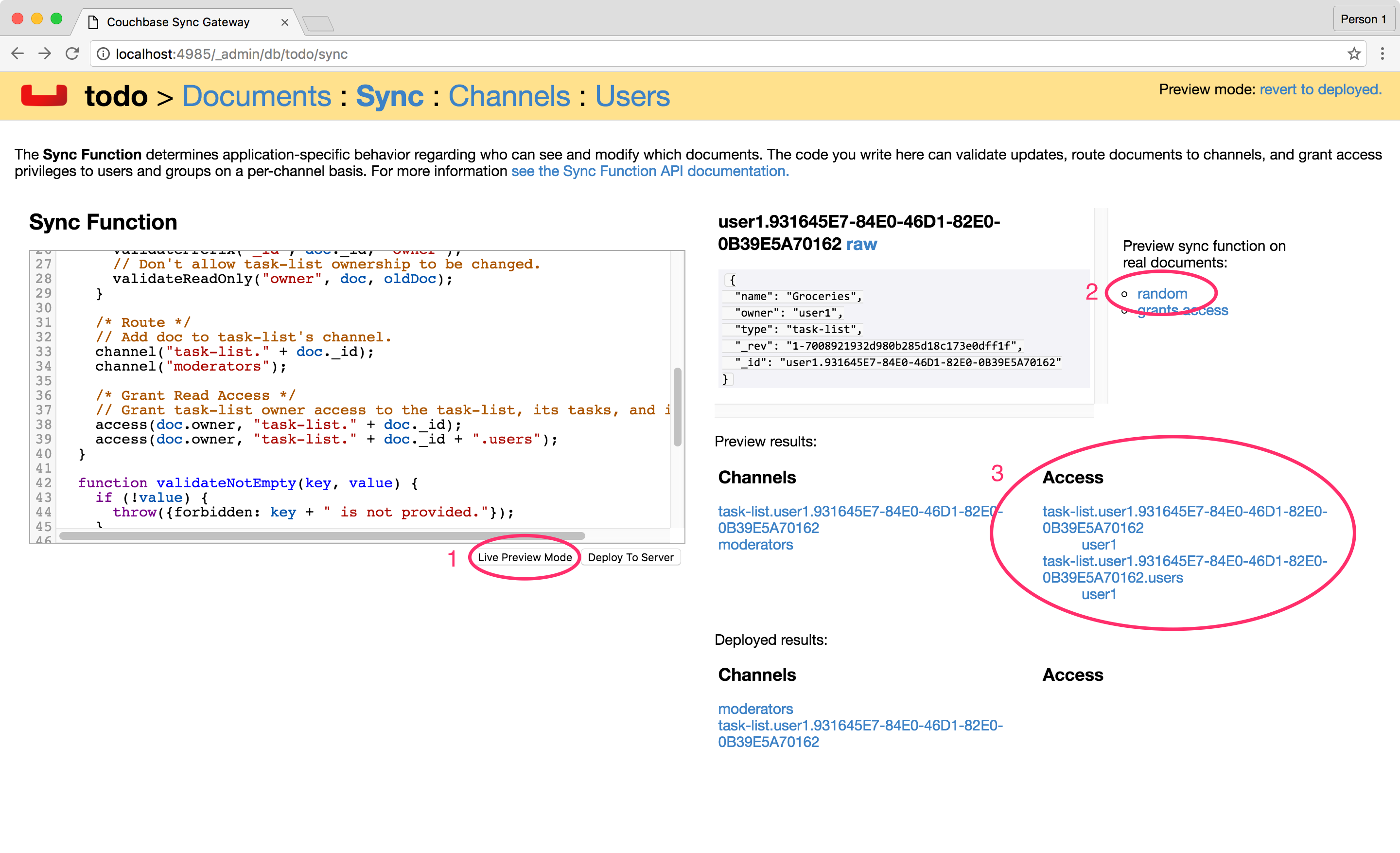
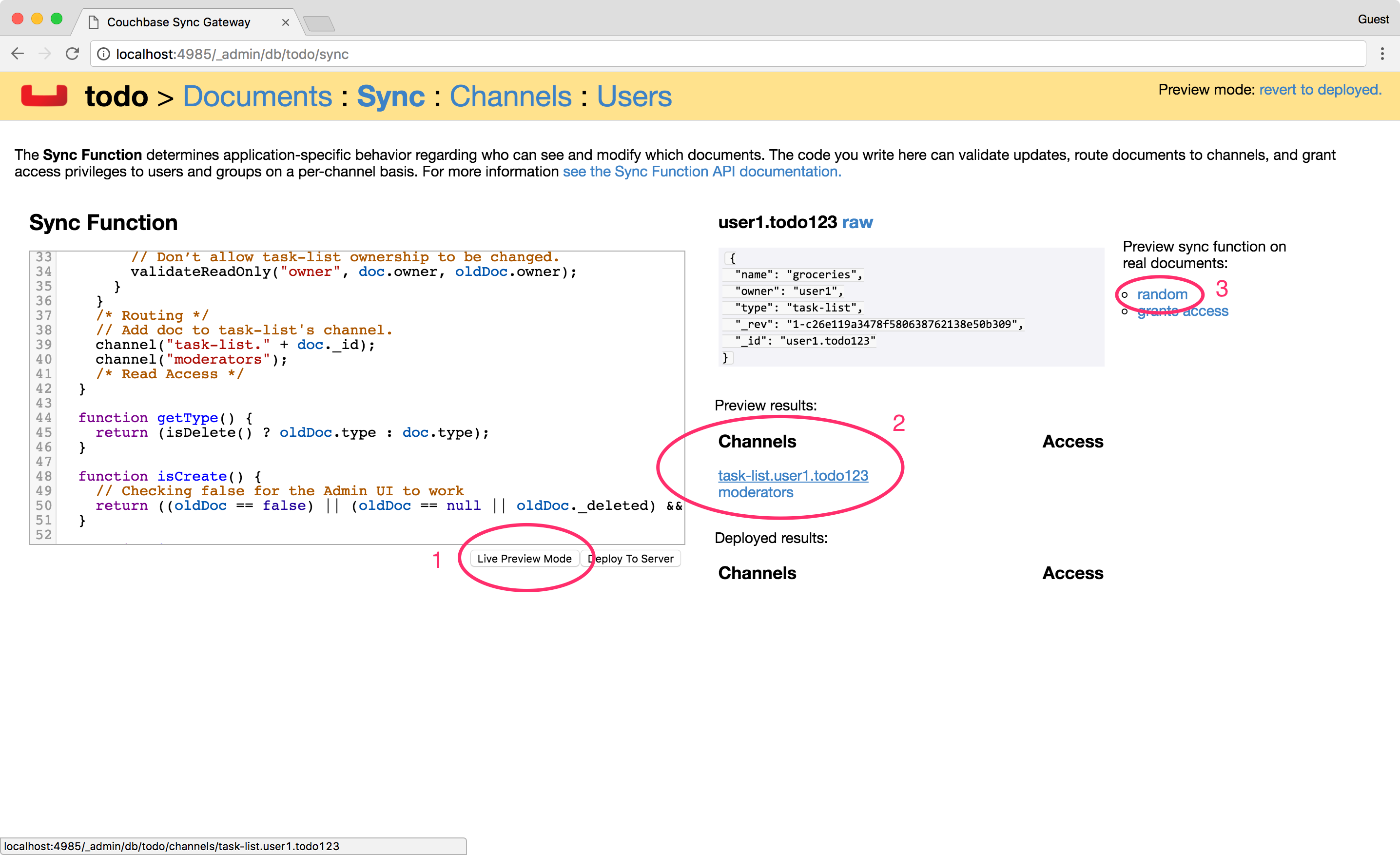
Click the Live Preview Mode button. This mode doesn’t restart Sync Gateway but will use the updated Sync Function for testing purposes. Click the random button to pick a document at random and run it through the sync function again. It re-calculates the routing to channels and access grants. This time, the owner (user1) has access to its own list’s channel.
-
Both documents are saved and mapped to the corresponding channels in the Admin UI.
Read Access
The last step in writing access control rules for a document type is to allow read access to channels. The following code grants the owner and users that are moderators access to the list’s channel.
/* Read Access */
// Grant task-list owner access to the task-list, its tasks, and its users.
access(owner, task-list. + doc._id);
access(owner, task-list. + doc._id + .users);
access(role:moderator, task-list. + doc._id);
Try it out
-
Open the Sync menu on the Admin UI http://localhost:4985/_admin/db/todo/sync.
-
Copy the changes above in the Sync Function text area to replace the
/* Read access */block. -
Click the Live Preview Mode button. This mode doesn’t restart Sync Gateway but will use the updated Sync Function for testing purposes. Click the random button to pick a document at random and run it through the sync function again. It re-calculates the routing to channels and access grants. This time, the owner (user1) has access to its own list’s channel.