Build and Run
Description — Build and run a starter app to validate your install of Couchbase Lite on Java
Abstract — This content provides sample code and instructions that enable you to test your Couchbase Lite for java installation.
Related Content — Install | Prerequisites | Build and Run |
Build a Getting Started App
This section explains how to validate your configured build environment by building a starter app that uses many of Couchbase Lite’s more common features.
The GettingStarted app demonstrates how to use Couchbase Lite. Console and Web App versions are available.
- Desktop App
-
Ensure you added the Couchbase Lite dependency to your build.gradlefileCreate, build and run a new project using the following
GettingStarted.javacode:private void getStarted() throws CouchbaseLiteException, URISyntaxException { (1) // One-off initialization CouchbaseLite.init(); System.out.println("CBL Initialized"); (2) // Create a database Database database = new Database("mydb"); System.out.println("Database created: mydb"); (3) // Create a new collection (like a SQL table) in the database. Collection collection = database.createCollection("myCollection", "myScope"); System.out.println("Collection created: " + collection); (4) // Create a new document (i.e. a record) // and save it in a collection in the database. MutableDocument mutableDoc = new MutableDocument() .setString("version", "2.0") .setString("language", "Java"); collection.save(mutableDoc); (5) // Retrieve immutable document and log the database generated // document ID and some document properties Document document = collection.getDocument(mutableDoc.getId()); if (document == null) { System.out.println("No such document :: " + mutableDoc.getId()); } else { System.out.println("Document ID :: " + document.getId()); System.out.println("Learning :: " + document.getString("language")); } (6) // Retrieve and update a document. document = collection.getDocument(mutableDoc.getId()); if (document != null) { collection.save(document.toMutable().setString("language", "Kotlin")); } (7) // Create a query to fetch documents with language == "Kotlin" Query query = QueryBuilder.select(SelectResult.all()) .from(DataSource.collection(collection)) .where(Expression.property("language") .equalTo(Expression.string("Kotlin"))); try (ResultSet rs = query.execute()) { System.out.println("Number of rows :: " + rs.allResults().size()); } // (8) // OPTIONAL -- if you have Sync Gateway Installed you can try replication too // Create a replicator to push and pull changes to and from the cloud. // Be sure to hold a reference somewhere to prevent the Replicator from being GCed if (SG_URI != null) { replicator = startRepl(SG_URI, collection); } } private Replicator startRepl(String uri, Collection collection) throws URISyntaxException { CollectionConfiguration collConfig = new CollectionConfiguration() .setPullFilter((doc, flags) -> "Java".equals(doc.getString("language"))); ReplicatorConfiguration replConfig = new ReplicatorConfiguration( new URLEndpoint(new URI(uri))) .addCollection(collection, collConfig) .setType(ReplicatorType.PUSH_AND_PULL) .setAuthenticator(new BasicAuthenticator("sync-gateway", "password".toCharArray())); Replicator repl = new Replicator(replConfig); // Listen to replicator change events. // Use `token.remove()` to stop the listener ListenerToken token = replicator.addChangeListener(change -> { System.out.println("Replicator state :: " + change.getStatus().getActivityLevel()); }); // Start replication. repl.start(); return repl; }1 Initialize the library 2 Create a database 3 Create a collection 4 Create a new document 5 Retrieve document and log its ID 6 Retrieve the document as mutable and change the languagetoKotlinand save it7 Query the database output count and id to log 8 Optionally, initiate a replication On running the app, you should see the document ID and property printed to the console together with a query result showing the number of rows in the database.
This shows the document was successfully persisted to the database.
See [About the Getting Started App] for more on the app itself
- Web App
-
This section explains how to set-up a build project to create Couchbase Lite web apps using gradle and Intellij IDEA.
Steps
-
Create a new project folder and add a
build.gradlefile similar to this one.include::example$GetStartedWS/build.gradle.sample -
Within Intellij IDEA, open the new project folder
If you don’t have auto-import enabled, then accept the Import from Gradle prompt that appears at the bottom right of the screen.
-
Create a Java class DBManager using this code:
(1) // One-off initialization private void init() { CouchbaseLite.init(); } (2) // Create a database public Database createDb(String dbName) throws CouchbaseLiteException { return new Database(dbName); } (3) // Create a new named collection (like a SQL table) // in the database's default scope. public Collection createCollection(Database database, String collName) throws CouchbaseLiteException { return database.createCollection(collName); } (4) // Create a new document (i.e. a record) // and save it in a collection in the database. public String createDoc(Collection collection) throws CouchbaseLiteException { MutableDocument mutableDocument = new MutableDocument() .setFloat("version", 2.0f) .setString("language", "Java"); collection.save(mutableDocument); return mutableDocument.getId(); } (5) // Retrieve immutable document and log the database generated // document ID and some document properties public Document retrieveDoc(Collection collection, String docId) throws CouchbaseLiteException { return collection.getDocument(docId); } (6) // Retrieve and update a document. public void updateDoc(Collection collection, String docId) throws CouchbaseLiteException { Document document = collection.getDocument(docId); if (document != null) { collection.save( document.toMutable().setString("language", "Kotlin")); } } (7) // Create a query to fetch documents with language == Kotlin. public List<Map<String, Object>> queryDocs(Collection collection) throws CouchbaseLiteException { Query query = QueryBuilder.select(SelectResult.all()) .from(DataSource.collection(collection)) .where(Expression.property("language").equalTo(Expression.string("Kotlin"))); List<Map<String, Object>> results = new ArrayList<>(); try (ResultSet rs = query.execute()) { for (Result result: rs) { results.add(result.toMap()); } } return results; } (8) // OPTIONAL -- if you have Sync Gateway Installed you can try replication too. // Create a replicator to push and pull changes to and from the cloud. // Be sure to hold a reference somewhere to prevent the Replicator from being GCed public Replication startReplicator(Collection collection, ReplicatorChangeListener listener) throws URISyntaxException { CollectionConfiguration collConfig = new CollectionConfiguration() .setPullFilter((doc, flags) -> "Java".equals(doc.getString("language"))); ReplicatorConfiguration replConfig = new ReplicatorConfiguration( new URLEndpoint(new URI("ws://localhost:4984/getting-started-db"))) .addCollection(collection, collConfig) .setType(ReplicatorType.PUSH_AND_PULL) .setAuthenticator(new BasicAuthenticator("sync-gateway", "password".toCharArray())); Replicator replicator = new Replicator(replConfig); // Listen to replicator change events. // Use `token.remove()` to stop the listener ListenerToken token = replicator.addChangeListener(listener); // Start replication. replicator.start(); return new Replication(replicator, token); } -
Create a Servlet similar to the one found in the example GettingStartedServlet
-
Create an
index.htmlfile insrc/main/web appwith the following content:include::example$GetStartedWS/src/main/webapp/index.html -
Create a
showDbItems.jspfile insrc/main/web appwith the following content:include::example$GetStartedWS/src/main/webapp/showDbItems.jsp -
Build, deploy and run the app using
jettyRun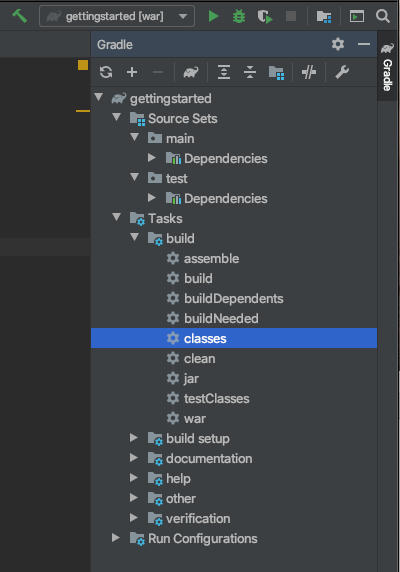
-
Point your browser to: `localhost:8080/'
This opens the browser at your index.html page.
-
Select the here link
This launches the servlet and displays the results in
showdDbItems.jsp.
-
-
+ About the Starter App::
+
-
Create a database
The app creates its database in the
/getting-started.cblite2directory relative to its root location when run (See: Finding a Database File).
| Explicitly state your required database location when creating your database (see: Finding a Database File for how to do this) |
-
Add content to the DB
-
Run a simple query counting the DB rows
-
Start a one-shot, bi-directional replication using Sync Gateway and _Couchbase Server
-
Produce a simple report on the db Contents
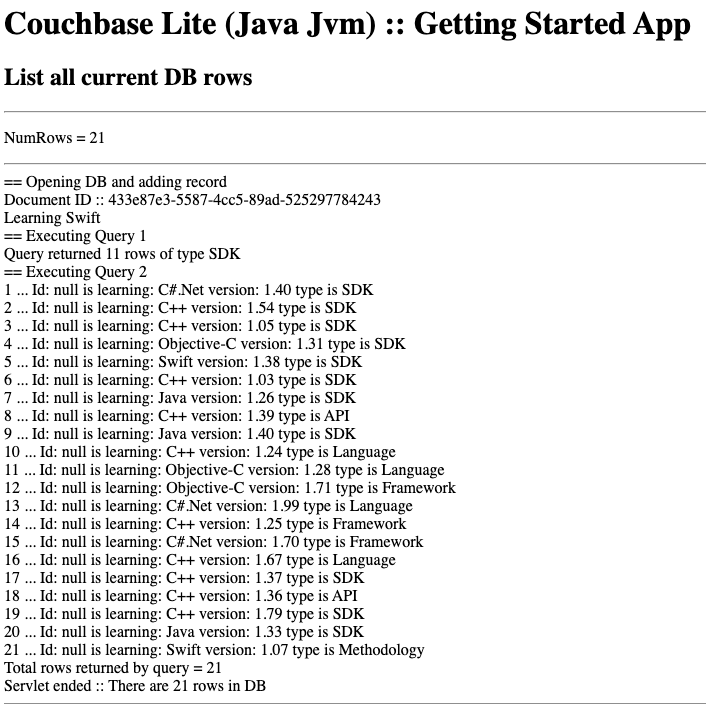
| Before starting your app ensure you have started both your Couchbase Server and _Sync Gateway instances. |