Explore Sync Gateway
Add a database, create users, and run a CRUD cycle to explore your Sync Gateway installation end-to-end.
This is Step 4 in the Start Here! topic group. Here we add a database configuration, create a Sync Gateway user, and run a CRUD cycle to confirm sync is working end-to-end.
|
Preparatory Steps
Ensure you have completed all steps in Prepare, Install, and Configure before proceeding.
|
- Steps in Getting Started
-
Introduction | Prepare | Install | Configure
Introduction
In this step you will use the Sync Gateway Admin REST API to add a database configuration pointing to the travel-sample bucket, create a role and user scoped to the inventory.hotel collection, and then run a full CRUD cycle to confirm that sync is working between Sync Gateway and Couchbase Server.
On completion of this topic you will have confirmed end-to-end sync and will be ready to build on this foundation with confidence.
|
The |
Add a Database Configuration
Use the Admin REST API to add a database to your Sync Gateway cluster.
The curl command shown in Example 1 creates a traveldb database pointing to the Couchbase Server travel-sample bucket, scoped to the inventory.hotel collection.
curl  --location --request PUT 'http://127.0.0.1:4985/traveldb/' \(1)
      --header "Authorization: Basic $DIGEST" \
      --header 'Content-Type: application/json' \
      --data-raw '{
          "bucket": "travel-sample", (2)
          "scopes": {
            "inventory": {
              "collections": {
                "hotel": {} (3)
              }
            }
          },
          "index": {"num_replicas": 0} (4)
}'| 1 | Here we specify the name of the Sync Gateway database — traveldb |
| 2 | Now we point traveldb at the Couchbase Server bucket travel-sample, which we created in Configure Server for Sync Gateway |
| 3 | We scope the database to the inventory.hotel collection in the travel-sample bucket |
| 4 | Suitable for single-node development clusters — remove or increase for production |
Add a Sync Gateway User
Create a Sync Gateway role and user to allow secure access during replication on this Sync Gateway cluster.
Add a Role
The curl command shown in Example 2 adds a role called stdrole with access to the inventory.hotel collection.
curl  --location --request PUT 'http://127.0.0.1:4985/traveldb/_role/stdrole' \(1)
      --header "Authorization: Basic $DIGEST" \
      --header 'Content-Type: application/json' \
      --data-raw '{
          "name": "stdrole",
          "collection_access": {
             "inventory": { (2)
                "hotel": {
                    "admin_channels": ["newrolechannel"] (3)
                 }
             }
           }
}'| 1 | Here we identify the Sync Gateway database — traveldb, the action _role, and the role name stdrole. |
| 2 | Here we scope the role to the inventory scope and hotel collection in the travel-sample bucket. |
| 3 | Here we identify the channels accessible to users assigned this role; these will be used by the Sync Function to control access. |
Add the User
The curl command shown in Example 3 adds a user called sgwuser1.
curl  --location -g --request POST 'http://localhost:4985/traveldb/_user/' \(1)
      --header 'Content-Type: application/json' \
      --header "Authorization: Basic $DIGEST" \(2)
      --data-raw '{
          "name": "sgwuser1", (3)
          "password": "passwordstring",
          "admin_roles": ["stdrole"], (4)
          "collection_access": {
             "inventory": { (5)
                "hotel": {
                    "admin_channels": ["public"]
                 }
             }
           }
}'| 1 | Here we identify the Sync Gateway database — traveldb and the required object _user |
| 2 | The credential in the Authorization header relates to the Sync Gateway admin user |
| 3 | Here we provide the credentials of the user to create: name sgwuser1 and required password.
If the password is omitted, a random password is generated. |
| 4 | Here we identify any roles assigned to this user; it will inherit any channels associated with those roles. |
| 5 | Here we scope the user’s access to the inventory scope and hotel collection in the travel-sample bucket. |
Verify the CRUD Cycle
Here we will use curl and Sync Gateway’s REST API to run a full CRUD cycle:
-
Create a New Document — Add a document via the API and verify it appears in Couchbase Server
-
Get a Document Using the API — Read the document back from Couchbase Server using the Sync Gateway API
-
Update a Document Using the API — Update the document and observe the change in Couchbase Server
-
Sync a Couchbase Server Change — Update the document in Couchbase Server and check the change in Sync Gateway
-
Delete a Document Using the API — Delete the document and verify its state in both Couchbase Server and Sync Gateway
Create a New Document
Use curl to add a new document to the traveldb database via the Sync Gateway public API.
DIGEST=`echo -n sgwuser1:passwordstring | base64`

curl  --location --request PUT 'http://localhost:4984/traveldb.inventory.hotel/hotel_88801' \(1)
      --header "Authorization: Basic $DIGEST" \
      --header 'Content-Type: application/json' \
      --data-raw '{
          "_id": "hotel_88801",
          "id": "88801",
          "type": "hotel",
          "name": "Verify-Install Topic",
          "address": "The Shambles",
          "city": "Manchester",
          "country": "United Kingdom"
}'| 1 | The keyspace traveldb.inventory.hotel targets the hotel collection in the inventory scope of the traveldb database. |
{"id":"hotel_88801",
"ok":true,
"rev":"1-f28b5cc13a38892f4f85913d4e654270"}View the document in the Couchbase Server Admin Console to verify it synced from Sync Gateway.
-
Within the Admin Console, select Buckets and select Documents to open the Document Editor tab.
-
Within the Document Editor tab:
-
Enter
travel-sampleas Bucket -
Enter
inventoryas Scope -
Enter
hotelas Collection -
Enter
id="88801"as SQL++ WHERE query -
Enter
You will see the response shown in Figure 1. The document should include any changes made through Sync Gateway, including the initial create.
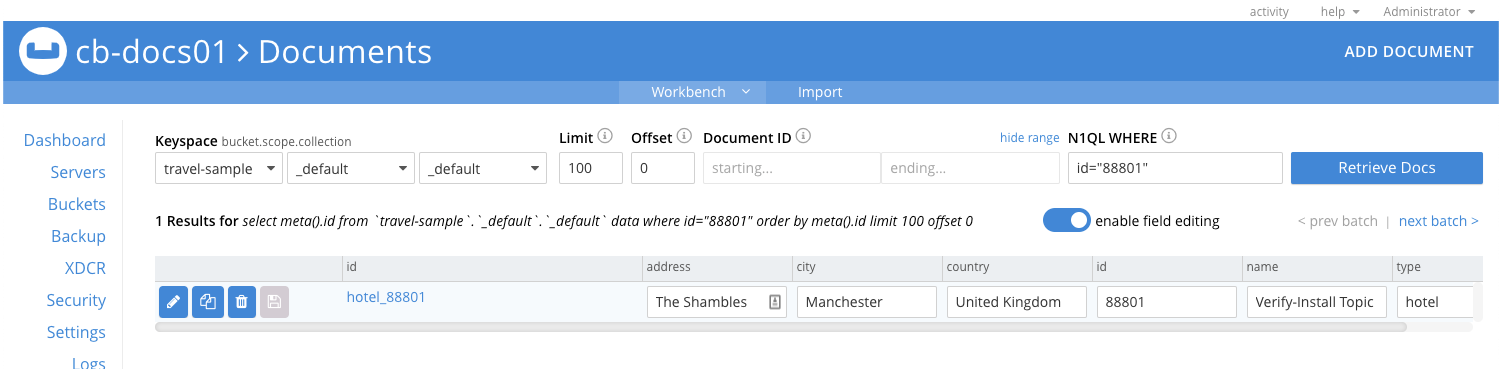 Figure 1. Couchbase Server Document Editor
-
Get a Document Using the API
curl  --location --request GET 'http://localhost:4984/traveldb.inventory.hotel/hotel_88801' \
--header "Authorization: Basic $DIGEST"{
"_id": "hotel_88801",
"_rev": "1-f28b5cc13a38892f4f85913d4e654270",
"address": "The Shambles",
"city": "Manchester",
"country": "United Kingdom",
"id": "88801",
"name": "Verify-Install Topic",
"type": "hotel"
}Update a Document Using the API
curl  --location -g \
      --request PUT 'http://localhost:4984/traveldb.inventory.hotel/hotel_88801?new_edits=true&rev=1-f28b5cc13a38892f4f85913d4e654270' \(1)
      --header "Authorization: Basic $DIGEST" \
      --header 'Accept: application/json' \
      --header 'Content-Type: application/json' \
      --data-raw '{
        "_id": "hotel_88801",
        "id": "88801",
        "type": "hotel",
        "name": "Verify-Install Topic Updated", (2)
        "address": "The Shambles",
        "city": "Manchester",
        "country": "United Kingdom",
        "email": "enquiries@hotel_88801.internet" (3)
}'| 1 | This revision is the one returned by the response to the initial PUT request — see: Response to Add Document Request |
| 2 | Here we change the text of the name field. |
| 3 | Here we add an email field. |
{
    "id": "hotel_88801",
    "ok": true,
    "rev": "2-249366b198e81f203d7ae9eb54376210"  (1)
}| 1 | The revision shows this is the second change to the document. "ok":true indicates success. |
Check Document on Couchbase Server — does the document contain the updated name value?
Sync a Couchbase Server Change
This confirms that changes made in Couchbase Server replicate back to Sync Gateway.
-
Within the Couchbase Server Document Editor:
-
Retrieve
88801if it is not currently displayed. Usemeta().id="hotel_88801"as the query, withtravel-sampleas Bucket,inventoryas Scope, andhotelas Collection. -
Edit the email value to
reception@hotel_88801.internet -
Edit the name value to
Verify-Install Topic-Updated-In-Server -
Save the change.
-
-
In your terminal, use the API to get the document again — see Get a Document Using the API.
You should see the change you made in Couchbase Server reflected in the response. For example:{"_id":"hotel_88801","_rev":"3-cc2e758ef63b0daf5b01b2baf98c72b6", (1) "address":"The Shambles","city":"Manchester","country":"United Kingdom","email":"reception@hotel_88801.internet","id":"88801","name":"Verify-Install Topic-Updated-In-Server","type":"hotel"}1 The revision sequence is now 3. The email and name fields reflect both the Sync Gateway change and the Couchbase Server amendment.
Delete a Document Using the API
curl --location -g --request DELETE 'http://localhost:4984/traveldb.inventory.hotel/hotel_88801?rev=3-cc2e758ef63b0daf5b01b2baf98c72b6' \(1)
--header "Authorization: Basic $DIGEST"| 1 | Provide the revision ID of the latest revision (3), as returned in the response to the last GET request. |
{
    "id": "hotel_88801",
    "ok": true,
    "rev": "4-03f1ba127340e8c50c31a36279298e60" (1)
}| 1 | The delete counts as the fourth revision. "ok":true indicates success. |
-
Check Document on Couchbase Server — you should now see "No Results".
-
Use the API to get the document — see: Get a Document Using the API.
You should see the following response:{"error":"not_found","reason":"deleted"}%
Ways to Verify Sync
To verify that document changes have been replicated, you can:
-
Monitor the Sync Gateway revision number returned by the database endpoint (GET /{db}/). The revision number increments for every change on the Sync Gateway database.
-
Query a document by ID on the Sync Gateway REST API — see Check Document on Couchbase Server. Use GET /{keyspace}/{docid} — see: REST API Access for more.
-
Query a document from the Query Workbench on the Couchbase Server Console.
Next Steps
Now you have confirmed Sync Gateway is deployed and syncing end-to-end. You can explore more complex scenarios with confidence.
-
Learn more about Sync Gateway’s Bootstrap Configuration or how to Sync with Couchbase Server
-
Implement access controls for users and data — see: Users, Roles, and the Sync Function
-
Implement secure connectivity — see: User Authentication and TLS Certificate Authentication
-
Build more complex syncs:
-
Other Sync Gateway nodes — see: Inter Sync Gateway Sync - Overview
-
Mobile devices using Couchbase Lite — see: Sync Using App
-