Migrate Existing Self-Managed Couchbase Mobile Clusters to App Services
- Capella App Services
If you’re an existing Couchbase Mobile user, you may already have a Couchbase Server cluster with an attached Sync Gateway. You can migrate your data and users from your self-managed servers to Couchbase Capella. Once you migrate the data and users, configure the App Services for remote sync.
Requirements
-
You’re running a self-hosted Couchbase Server with a Sync Gateway 2.0 or higher with shared bucket access enabled.
-
You have registered for access to Capella Cloud.
-
You migrate your data with XDCR, the only supported migration method. App Services does not support backup and restore with
cbbackupmgrfor this migration. The--filter-keysoption accepts only an include regular expression and does not support excluding patterns, so a restore cannot exclude the_syncconfiguration and registry documents.
Before You Migrate
Give your App Endpoint the same name as your on-prem Sync Gateway database. Sync Gateway calculates a metadata ID for each database, and a different name can produce a different metadata ID. If that happens, App Services cannot find the existing metadata documents in the bucket, including the user and role documents that XDCR copies. This requirement still applies in App Services 4.1.
XDCR copies your Sync Gateway users and roles to Capella along with your data. The following table shows when a matching name is strictly required:
| Configuration type | App Endpoint name requirement |
|---|---|
Default collection only |
Use a matching name. Users and roles also carry over with a different name because this configuration sets no metadata ID, but a matching name avoids the risk. |
Persistent configuration with named collections |
Required. The App Endpoint must use the same name as the on-prem database, and the same scopes and collections. |
Compare every setting in your on-prem database configuration with the App Endpoint configuration, for example delta sync.
Some on-prem settings have no Capella equivalent and no exact migration path.
Examples include Inter-Sync Gateway Replication, revs_limit, and import_partitions, but this is not a complete list.
If your on-prem configuration sets enable_star_channel to false, remove that setting.
App Services always enables the star channel to support reliable replication of the * channel.
Before you start Step 1, record the following from your on-prem configuration:
-
Database name
-
Scopes
-
Collections
-
Configuration settings
Later steps depend on them.
Process
Complete the following steps to migrate from your self-managed cluster to App Services.
Step 1. Set up Capella server for replication
-
Now create an appropriately named bucket. Give the bucket the same name as the source bucket on your self-managed cluster.
Step 2. Set up XDCR replication
Set up an XDCR one way data replication from the self-managed cluster bucket to the Capella bucket. For the Capella side of the setup, see Replicate from a self-managed cluster to Capella.
|
Use a one-way replication that copies the whole bucket. Do not use the Active-Active XDCR with Sync Gateway setup for this migration. |
|
If you’re replicating from a 3.x version of Sync Gateway deployment using persistent configuration mode, you must configure the following XDCR filter: |
Replicating over a Private Link
To replicate over a Capella private link, ask Capella Support to enable XDCR over private endpoints for your organization first. Then create the XDCR remote reference on your self-managed cluster with the Capella private link hostname. In the remote reference, set the network type to Force using alternate address.
Step 3. Wait for replication to complete
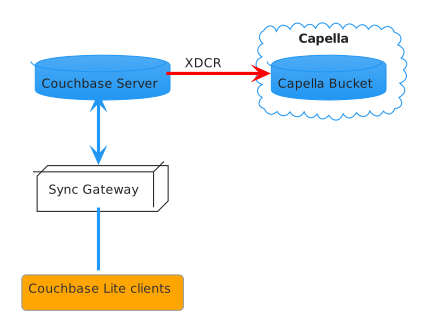
The following figure shows the setup of the components at this point. XDCR is copying the data from the on-prem bucket into Capella.
During this period, clients stay connected to the original Sync Gateway, and XDCR replication captures their updates.
Step 4. Detach replication
Once the XDCR replication is complete:
-
Stop Sync Gateway cluster on source self-managed cluster.
-
Stop XDCR replication from source self-managed cluster.
This ensures that Couchbase Mobile clients cannot write new data that never migrates to the Capella cluster.
Step 5. Set up Capella App Services
Now launch App Services on the target Capella Cluster.
Then create an App Endpoint and configure it via Capella UI. Give your App Endpoint the same name as your on-prem Sync Gateway database, so App Services finds your migrated users and roles. For more information, see Before You Migrate.
Here are key aspects of the App Endpoint creation that you’ll have to handle:
-
Import Filter: If your existing setup uses a custom Import Filter function, you can write the filter function using the inline editor on Capella or import an existing Import Filter function file.
-
Access Control: You can write the sync function using the inline editor on Capella or import existing sync filter function file.
-
Authentication Provider: If your existing application uses basic authentication, then there are no changes required. If your existing setup uses OpenID Connect (OIDC), reconfigure the OIDC provider on Capella.
-
Users and roles: Your Sync Gateway users and roles carry over through XDCR when your configuration meets the conditions in Before You Migrate. If they do not carry over, recreate them with the App Services Admin API. If you scripted user creation with
POSTrequests against Sync Gateway, switch toPUT /{db}/_user/{name}, because the App Services Admin API creates users only throughPUT. -
Configuration settings: Apply the on-prem database settings that have an App Endpoint equivalent, such as delta sync. For settings with no Capella equivalent, see Before You Migrate.
Step 6. Direct Couchbase Mobile clients to the new Capella App Services
Direct Couchbase Lite clients to App Endpoint URL. Choose one of the following options:
-
You can roll out a new application version that points to the App Services URL endpoint. Rolling out the new version this way causes downtime.
-
You can configure the load balancer available in the source cluster to redirect existing clients to new App Services target.
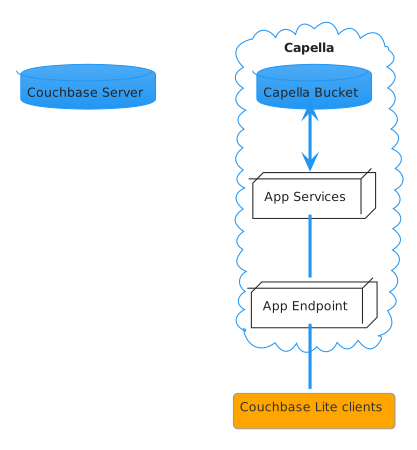
The following figure shows the setup of the components now that the migration is complete.