Use a Couchbase SDK with Operational Insights Services
- Operational Insights
- how-to
The Couchbase SDKs enable you to connect client code written in popular languages to Operational Insights services. You can connect existing applications to Operational Insights services and develop new ones.
Columnar SDKs, are similar to the Operational Insights SDKs. They must be used to connect to the current Operational Insights Capella Service, as it presents a different connection interface, without Operational Insights Enterprise’s load balancer.
About SDK Use
Existing applications that you originally designed for the Analytics Service in Couchbase Server or Capella should continue to work with Operational Insights services after a few changes, centered on connection string, imports, and the query method. For more information, see the individual Operational Insights SDK pages for the Go, Java, Node.js, and Python Columnar SDKs.
The main differences are:
-
How you obtain the connection string for your app.
-
How Operational Insights links to, and organizes, collections of data from different sources.
For more information about developing an app for analytics, see the Analytics topic in the SDK documentation for your preferred language. For example, for the Java SDK see Analytics (Java SDK).
Getting Started
Before you can connect an app built with a Couchbase SDK to Operational Insights services, you use the Capella UI to create a project and cluster. See Create a Cluster.
You can also use the UI to manage links and collections for different data sources and for ad hoc querying and exploration.
Getting the Connection String
Each Operational Insights cluster has its own connection string. To find and copy the string:
-
In the Capella UI, select the Operational Insights tab.
-
Select the cluster you want to connect to. The workbench opens.
-
At top left, from the Operational Insights Cluster <cluster name> list select Connection Information.
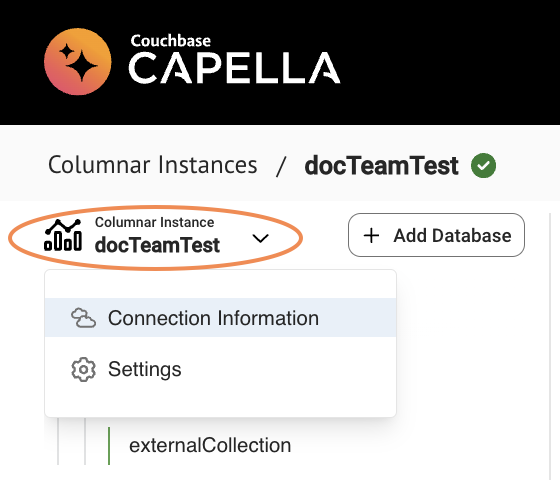
The Connection Information dialog opens.
-
To copy the connection string, click it or the copy icon.
-
When you paste in the connection string, replace the
https://protocol withcouchbases://:couchbases://cb.<your-endpoint>.cloud.couchbase.com