Install the Couchbase Analytics Connector on Tableau Server
- how-to
The Couchbase Analytics Connector can be installed on Tableau Server.
This enables publishing of reports and workbooks that are created on Tableau Desktop to a Tableau Server project. The connector also allows users to publish the data sources they created on Tableau Desktop with the Couchbase Analytics Connector to Tableau Server. Other users with access to the project can build their own reports and workbooks using the same data sources.
Install the Couchbase Analytics Connector on Tableau Server for Windows
-
On Windows running Tableau Server, copy the couchbase-analytics-<version>.taco file to the
C:\ProgramData\Tableau\Tableau Server\data\tabsvc\vizqlserver\Connectorsfolder. -
Next, copy the couchbase-jdbc-driver-<version>.jar to the
C:\Program Files\Tableau\Driversfolder. -
To apply the changes and install the connector run the following command.
tsm pending-changes apply
Install the Couchbase Analytics Connector on Tableau Server for Linux
-
On Linux running Tableau Server, copy the couchbase-analytics-<version>.taco file to the
/var/opt/tableau/tableau_server/data/tabsvc/vizqlserver/Connectorsfolder. -
Next, copy the couchbase-jdbc-driver-<version>.jar to the
/opt/tableau/tableau_driver/jdbcfolder. -
To apply the changes and install the connector, run the following command.
$ tsm pending-changes apply
Verify the Couchbase Analytics Connector for Tableau Server Installation
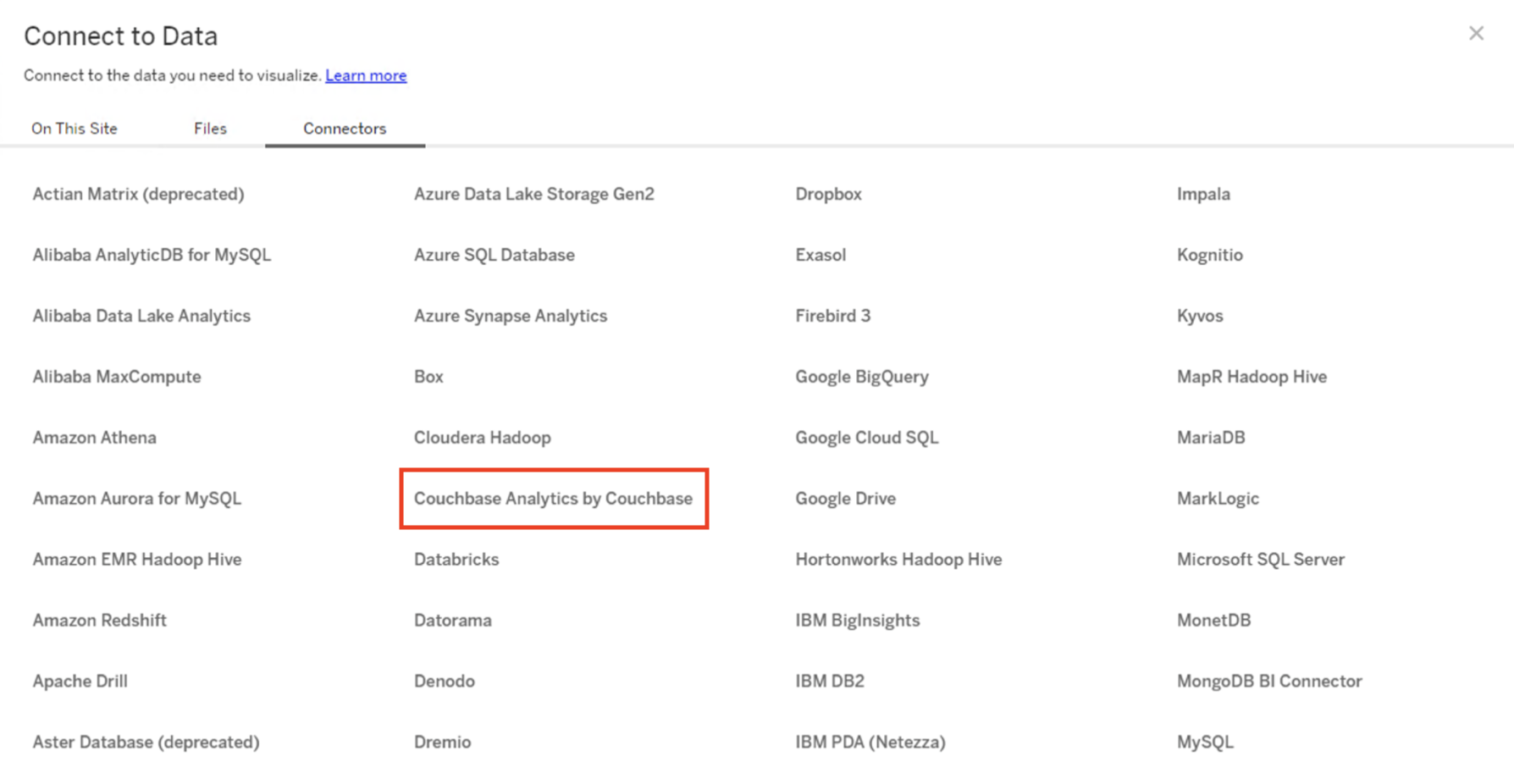
Once the changes have been applied, launch Tableau Server and go to . Here, you should now see the option to select Couchbase Analytics by Couchbase.
Configure SSL Certificates for Tableau Server
If you use a certificate from a trusted public certificate authority (CA) or if you’re connecting to Couchbase Capella, no manual SSL configuration is required. Certificates of well-known public certification authorities as well as Couchbase Capella are trusted by default.
If you use a certificate from a private CA or require client certificate authentication, you must configure a properties file as follows.
-
Create a file named
couchbase-analytics.propertiesand save it in the following directory:- Windows
-
Save the file to
ProgramData\Tableau\Tableau Server\data\tabsvc\vizqlserver\Datasources - Linux
-
Save the file to
/var/opt/tableau/tableau_server/data/tabsvc/vizqlserver/Datasources/
-
To trust a certificate from a private CA, specify either the certificate path or the keystore path, not both.
- Certificate file path
-
sslCertPath=<path to your certificate file> - Keystore path
-
sslKeystorePath=<path to your keystore>
sslKeystorePassword=<your keystore password>
-
To authenticate using a client certificate, configure either PEM files or a keystore.
- PEM Files
-
clientCertPath=<path to client certificate pem> clientKeyPath=<path to client key pem> # Optional; required only if the private key is encrypted clientKeyPassword=<private key password> - Keystore
-
clientCertKeystorePath=<path to keystore file>
clientCertKeystorePassword=<keystore password>
| For steps to install and configure the connector on Tableau Desktop, see Install the Couchbase Tableau Connector on Tableau Desktop. |