Remote Sync
Description - Couchbase Lite for Ionic - Synchronizing data changes between local and remote databases using Sync Gateway or Capella App Services
|
All code examples are indicative only. They demonstrate the basic concepts and approaches to using a feature. Use them as inspiration and adapt these examples to best practice when developing applications for your platform. |
Introduction
Couchbase Lite for React Native provides API support for secure, bi-directional, synchronization of data changes between mobile applications and a central server database. It does so by using a replicator to interact with Sync Gateway or Capella App Services.
The replicator is designed to manage replication of documents and-or document changes between a source and a target database. For example, between a local Couchbase Lite database and Capella App Services endpoint, which is ultimately mapped to a bucket in a Couchbase Capella Couchbase cluster instance in the cloud.
This page shows sample code and configuration examples covering the implementation of a replication using Sync Gateway or Capella App Services.
Your application runs a replicator (also referred to here as a client), which will initiate connection with a Sync Gateway or Capella App Services endpoint (also referred to here as a server) and participate in the replication of database changes to bring both local and remote databases into sync.
Subsequent sections provide additional details and examples for the main configuration options.
Couchbase Capella Free Tier
Couchbase Capella offers a free tier that allows you to get started with Couchbase Capella and Couchbase Capella App Services. The free tier includes a single node Capella cluster.
To get started with the free tier, see the documentation on Couchbase Capella Free Tier. For new developers to the platform, Couchbase Capella free tier is the fastest way to get started trying out sync within your mobile application.
Replication Concepts
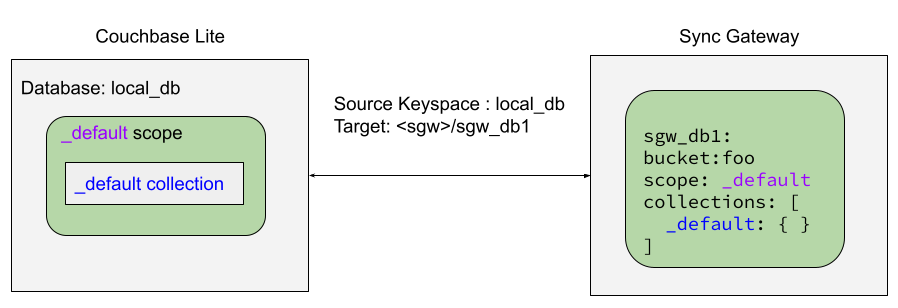
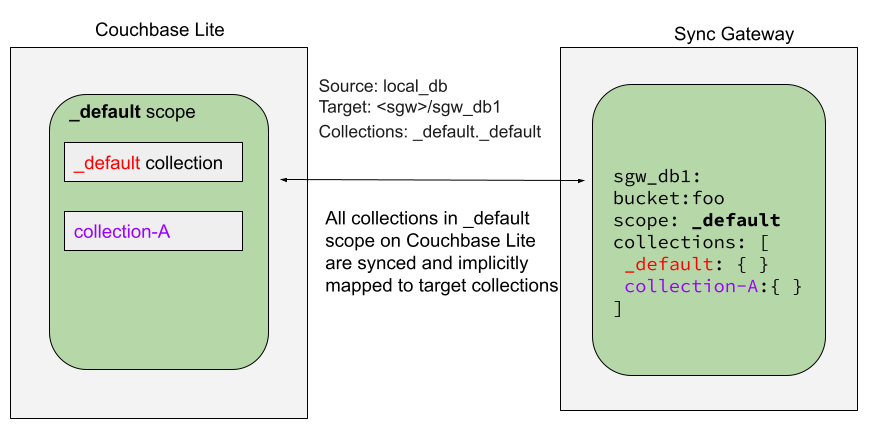
Couchbase Lite allows for one database for each application running on the mobile device. This database can contain one or more scopes. Each scope can contain one or more collections.
To learn about Scopes and Collections, see Databases.
You can set up a replication scheme across these data levels:
Database
The `_default` collection is synced.
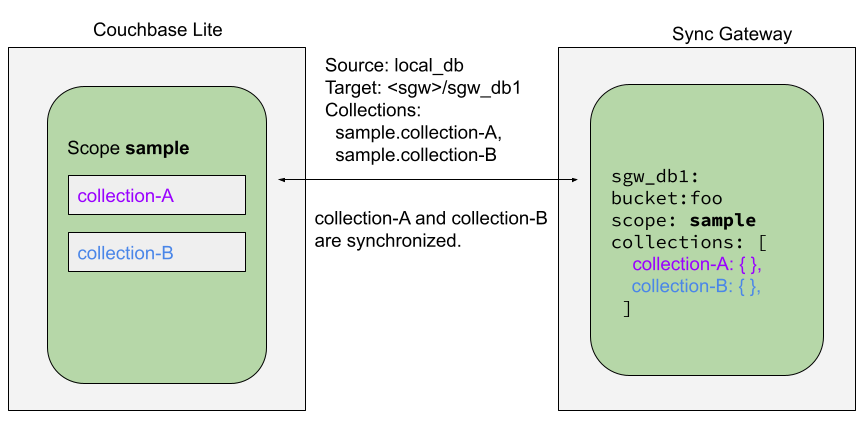
Collection
A specific collection or a set of collections is synced.
As part of the syncing setup, the Gateway has to map the Couchbase Lite database to the database being synced on Capella.
Replication Protocol
Scheme
Couchbase Mobile uses a replication protocol based on WebSockets for replication. To use this protocol the replication URL should specify WebSockets as the URL scheme (see the Configure Target section below).
Incompatibilities
Couchbase Lite’s replication protocol is incompatible with CouchDB-based databases. And since Couchbase Lite 2.x+ only supports the new protocol, you will need to run a version of Sync Gateway that supports it - see: Compatibility.
Scopes and Collections
Scopes and Collections allow you to organize your documents in Couchbase Lite.
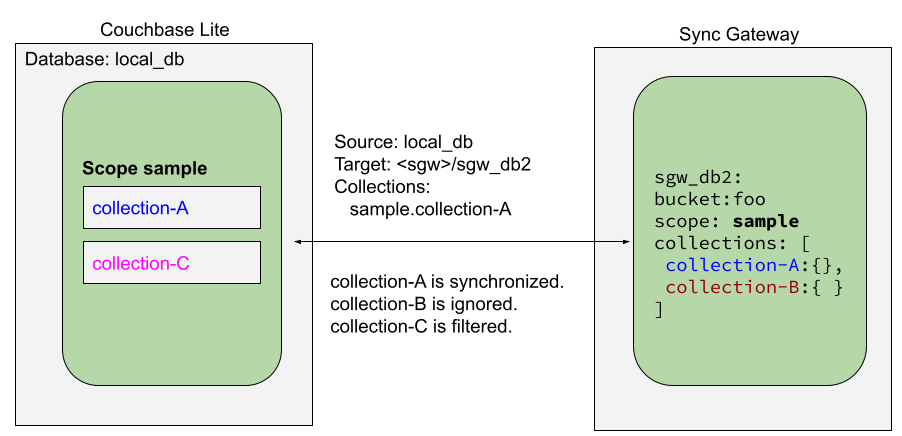
When syncing, you can configure the collections to be synced.
The collections specified in the Couchbase Lite replicator setup must exist (both scope and collection name must be identical) on the Sync Gateway side, otherwise starting the Couchbase Lite replicator will result in an error.
During replication:
1. If Sync Gateway config (or server) is updated to remove a collection that is being synced, the client replicator will be offline and will be stopped after the first retry. An error will be reported.

2. If Sync Gateway config is updated to add a collection to a scope that is being synchronized, the replication will ignore the collection. The added collection will not automatically sync until the Couchbase Lite replicator’s configuration is updated.
Default Collection
When upgrading Couchbase Lite to >= 3.1, the existing documents in the database will be automatically migrated to the default collection.
For backward compatibility with the code prior to >= 3.1, when you set up the replicator with the database, the default collection will be set up to sync with the default collection on the server.
Configuration Summary
You should configure and initialize a replicator for each Couchbase Lite database instance you want to sync. Example 1 shows the configuration and initialization process.
|
You need Couchbase Lite 3.1+ and Sync Gateway 3.1+ or Capella App Services to use |
Example 1. Replication configuration and initialization
import {
  ReplicatorConfiguration,
  CollectionConfiguration,
  URLEndpoint,
  BasicAuthenticator,
  Replicator,
  ListenerToken
} from '@couchbase/couchbase-lite-react-native';

// Create endpoint and authenticator
const endpoint = new URLEndpoint('ws://localhost:4984/projects');
const auth = new BasicAuthenticator('demo@example.com', 'P@ssw0rd12');

// NEW API: Create collection configuration
const collectionConfig = new CollectionConfiguration(collection);

// Pass collection configurations in constructor
const config = new ReplicatorConfiguration(
  [collectionConfig],  // Collections passed during initialization
  endpoint
);

config.setAuthenticator(auth);

// Create replicator
const replicator = await Replicator.create(config);

// Listen to replicator change events
const token: ListenerToken = await replicator.addChangeListener((change) => {
  // Check for errors
  const error = change.status.getError();
  if (error) {
    console.error('Replication error:', error);
  }

  // Check activity level
  if (change.status.getActivityLevel() === 3) { // IDLE
    console.log('Replication is idle');
  }
});

// Start replication
await replicator.start(false);

// Remember to clean up when done:
// await token.remove();
// await replicator.stop();|
Version 1.0 API Change
Collections are now passed during NEW API (Recommended): OLD API (Deprecated): The |
Example 1b. Multiple Collections
The new API allows each collection to have its own replication settings:
import { CollectionConfiguration } from '@couchbase/couchbase-lite-react-native';

// Configure users collection
const usersConfig = new CollectionConfiguration(usersCollection)
  .setChannels(['public', 'users']);

// Configure orders collection with different settings
const ordersConfig = new CollectionConfiguration(ordersCollection)
  .setChannels(['orders', 'admin'])
  .setDocumentIDs(['order-1', 'order-2']);  // Only specific documents

// Pass both configurations during initialization
const config = new ReplicatorConfiguration(
  [usersConfig, ordersConfig],
  endpoint
);

config.setAuthenticator(auth);
const replicator = await Replicator.create(config);
Configure
In this section
Configure Target
Use the Initialize and define the replication configuration with local and remote database locations using the ReplicatorConfiguration object.
The constructor provides:
* the name of the local database to be sync’d
* the server’s URL (including the port number and the name of the remote database to sync with)

It is expected that the app will identify the IP address and URL and append the remote database name to the URL endpoint, producing for example: `wss://10.0.2.2:4984/travel-sample`
The URL scheme for web socket URLs uses `ws:` (non-TLS) or `wss:` (SSL/TLS) prefixes.
Example 2. Add Target to Configuration
// Define the target URL for the replication endpoint
const targetURL = 'wss://10.1.1.12:4984/travel-sample';

// Initialize the URLEndpoint with the target URL
const targetEndpoint = new URLEndpoint(targetURL);

// Create the ReplicatorConfiguration with the target endpoint
const config = new ReplicatorConfiguration(targetEndpoint);

// Add the already initialised collection to the replicator configuration
config.addCollection(collectionName);|
Note use of the scheme prefix ( |
Sync Mode
Here we define the direction and type of replication we want to initiate.
We use ReplicatorConfiguration class’s replicatorType and continuous parameters, to tell the replicator:
* The type (or direction) of the replication: `PUSH_AND_PULL`; `PULL`; `PUSH`
* The replication mode, that is either of:
    * Continuous - remaining active indefinitely to replicate changed documents (`continuous=true`).
    * Ad-hoc - a one-shot replication of changed documents (`continuous=false`)
Example 4. Configure replicator type and mode
config.replicatorType = ReplicatorType.PUSH_AND_PULL;

// Configure Sync Mode
config.continuous = true|
Unless there is a solid use-case not to, always initiate a single This prevents the replications generating the same checkpoint |
Retry Configuration
Couchbase Lite for React Native’s replication retry logic assures a resilient connection.
Couchbase Lite for Swift’s replication retry logic assures a resilient connection.
In the event it detects a transient error, the replicator will attempt to reconnect, stopping only when the connection is re-established, or the number of retries exceeds the retry limit (9 times for a single-shot replication and unlimited for a continuous replication).
On each retry the interval between attempts is increased exponentially (exponential backoff) up to the maximum wait time limit (5 minutes).
The REST API provides configurable control over this replication retry logic using a set of configiurable properties - see: Table 1.
Table 1. Replication Retry Configuration Properties
| Property | Use cases | Description |
|---|---|---|
|
Reduce to detect connection errors sooner |
The interval (in seconds) between the heartbeat pulses. |
|
Change this to limit or extend the number of retry attempts. |
The maximum number of retry attempts. |
|
Change this to adjust the interval between retries. |
The maximum interval between retry attempts. |
When necessary you can adjust any or all of those configurable values - see: Example 5 for how to do this.
Example 5. Configuring Replication Retries
// Create the target endpoint
const target = new URLEndpoint('ws://foo.couchbase.com/db');

// Create the replicator configuration
const config = new ReplicatorConfiguration(target);

// Add the collection to the replicator configuration
config.addCollection(collection);

// Set the replicator type
config.setReplicatorType(ReplicatorType.PUSH_AND_PULL);

// Set continuous replication
config.setContinuous(true);

// Set heartbeat interval (in seconds)
config.setHeartbeat(150);

// Set the maximum number of retry attempts
config.setMaxAttempts(20);

// Set the maximum wait time between retry attempts (in seconds)
config.setMaxAttemptWaitTime(600);

// Create the replicator with the configuration
const replicator = await Replicator.create(config);-
Here we use
setHeartbeat()to set the required interval (in seconds) between the heartbeat pulses -
Here we use
setMaxAttempts()to set the required number of retry attempts -
Here we use
setMaxAttemptWaitTime()to set the required interval between retry attempts.
User Authorization
By default, Sync Gateway does not enable user authorization. This makes it easier to get up and running with synchronization.
You can enable authorization in the sync gateway configuration file, as shown in Example 6.
Example 6. Enable Authorization
{
  "databases": {
    "mydatabase": {
      "users": {
        "GUEST": {"disabled": true}
      }
    }
  }
}
To authorize with Sync Gateway, an associated user must first be created. Sync Gateway users can be created through the POST /{tkn-db}/_user endpoint on the Admin REST API.
Server Authentication
Define the credentials your app (the client) is expecting to receive from the Sync Gateway (the server) in order to ensure it is prepared to continue with the sync.
Note that the client cannot authenticate the server if TLS is turned off. When TLS is enabled (Sync Gateway’s default) the client must authenticate the server. If the server cannot provide acceptable credentials then the connection will fail.
Use ReplicatorConfiguration property acceptOnlySelfSignedServerCertificate to tell the replicator how to verify server-supplied TLS server certificates.
* If `acceptOnlySelfSignedServerCertificate` is `true` then any self-signed certificate is accepted. Certificates that are not self signed are rejected, no matter who signed them.
* If `acceptOnlySelfSignedServerCertificate` is `false` (default), the client validates the server’s certificates against the system CA certificates. The server must supply a chain of certificates whose root is signed by one of the certificates in the system CA bundle.
Example 7. Set Server TLS security
CA Cert
Set the client to expect and accept only CA attested certificates.
// Configure Server Security -- only accept CA Certs
config.acceptOnlySelfSignedServerCertificate = false
This is the default. Only certificate chains with roots signed by a trusted CA are allowed. Self signed certificates are not allowed.
Self Signed Cert
Set the client to expect and accept only self-signed certificates
// Configure Server Security -- only accept self-signed certs
config.acceptOnlySelfSignedServerCertificate = true;
Set this to true to accept any self signed cert. Any certificates that are not self-signed are rejected.
This all assumes that you have configured the Sync Gateway to provide the appropriate SSL certificates, and have included the appropriate certificate in your app bundle.
Client Authentication
There are two ways to authenticate from a Couchbase Lite client: Basic Authentication or Session Authentication.
Basic Authentication
You can provide a user name and password to the basic authenticator class method. Under the hood, the replicator will send the credentials in the first request to retrieve a SyncGatewaySession cookie and use it for all subsequent requests during the replication. This is the recommended way of using basic authentication. Example 8 shows how to initiate a one-shot replication as the user username with the password password.
Example 8. Basic Authentication
const url = "ws://localhost:4984/mydatabase";
const target = new URLEndpoint(url);
const auth = new BasicAuthenticator("john", "pass");
const config = new ReplicatorConfiguration(target);

// Assuming collection is already defined and initialized
config.addCollection(collectionName);
config.setAuthenticator(auth);

const replicator = new Replicator(config);
await replicator.start();
Session Authentication
Session authentication is another way to authenticate with Sync Gateway.
A user session must first be created through the POST /{tkn-db}/_session endpoint on the Public REST API.
The HTTP response contains a session ID which can then be used to authenticate as the user it was created for.
See Example 9, which shows how to initiate a one-shot replication with the session ID returned from the POST /{tkn-db}/_session endpoint.
Example 9. Session Authentication
const url = new URL("ws://localhost:4984/mydatabase");
const target = new URLEndpoint(url);
const config = new ReplicatorConfiguration(target);
const sessionID = 'your-session-id';
const cookieName = 'your-cookie-name';

// Assuming collection is already defined and initialized
config.addCollection(collectionName);

// Here cookieName is optional, if not passed it will default to the default value
const sessionAuthenticator = new SessionAuthenticator(sessionID, cookieName);
config.setAuthenticator(sessionAuthenticator);

let replicator = new Replicator(config);
await replicator.start();
Custom Headers
Custom headers can be set on the configuration object. The replicator will then include those headers in every request.
This feature is useful in passing additional credentials, perhaps when an authentication or authorization step is being done by a proxy server (between Couchbase Lite and Sync Gateway) - see Example 10.
Replication filters
Replication Filters allow you to have quick control over the documents stored as the result of a push and/or pull replication.
Push Filter
The push filter allows an app to push a subset of a database to the server. This can be very useful. For instance, high-priority documents could be pushed first, or documents in a "draft" state could be skipped.
const targetUrl = new URLEndpoint('"ws://localhost:4984/mydatabase"');

const config = new ReplicatorConfiguration(targetUrl);
const colConfig = new CollectionConfig(null, null);

colConfig.pushFilter((documents, flags) => {
  // (1)
  "show source"; // directive needed to persist function body as string

  if (document?.["type"] === "draft") {
    return false;
  }
  return true;
});

config.addCollection(collection, colConfig);

const replicator = await Replicator.create(config);
await replicator.start();-
The callback should follow the semantics of a pure function. Otherwise, long running functions would slow down the replicator considerably.
|
Version 1.1
Android replication filters now support JavaScript arrow functions in the V8 evaluation path. |
Pull Filter
The pull filter gives an app the ability to validate documents being pulled, and skip ones that fail. This is an important security mechanism in a peer-to-peer topology with peers that are not fully trusted.
|
Pull replication filters are not a substitute for channels. Sync Gateway channels are designed to be scalable (documents are filtered on the server) whereas a pull replication filter is applied to a document once it has been downloaded. |
const targetUrl = new URLEndpoint('"ws://localhost:4984/mydatabase"');

const config = new ReplicatorConfiguration(targetUrl);
const colConfig = new CollectionConfig(null, null);

colConfig.pullFilter((documents, flags) => {
  // (1)
  "show source"; // directive needed to persist function body as string

  if (flags.includes(ReplicatedDocumentFlag.DELETED)) {
    return false;
  }
  return true;
});

config.addCollection(collection, colConfig);

const replicator = await Replicator.create(config);
await replicator.start();-
The callback should follow the semantics of a pure function. Otherwise, long running functions would slow down the replicator considerably.
|
For now, pull filters can handle up to 100 documents per replication. If you exceed this number, the replicator may freeze. This will be fixed in the next version. |
|
Losing access to a document via the Sync Function
Losing access to a document (via the Sync Function) also triggers the pull replication filter. Filtering out such an event would retain the document locally. As a result, there would be a local copy of the document disjointed from the one that resides on Couchbase Server. Further updates to the document stored on Couchbase Server would not be received in pull replications and further local edits could be pushed but the updated versions will not be visible. |
Channels
By default, Couchbase Lite gets all the channels to which the configured user account has access.
This behavior is suitable for most apps that rely on user authentication and the sync function to specify which data to pull for each user.
Optionally, it’s also possible to specify a string array of channel names on Couchbase Lite’s replicator configuration object. In this case, the replication from Sync Gateway will only pull documents tagged with those channels.
Auto-purge on Channel Access Revocation
|
This is a Breaking Change at 3.0 |
New outcome
By default, when a user loses access to a channel all documents in the channel (that do not also belong to any of the user’s other channels) are auto-purged from the local database (in devices belonging to the user).
Prior outcome
Previously these documents remained in the local database
Prior to this release, CBL auto-purged only in the case when the user loses access to a document by removing the doc from all of the channels belong to the user. Now, in addition to 2.x auto purge, Couchbase Lite will also auto-purges the docs when the user loses access to the doc via channel access revocation. This feature is enabled by default, but an opt-out is available.
Behaviour
Users may lose access to channels in a number of ways:
* User loses direct access to channel
* User is removed from a role
* A channel is removed from a role the user is assigned to
By default, when a user loses access to a channel, the next Couchbase Lite Pull replication auto-purges all documents in the channel from local Couchbase Lite databases (on devices belonging to the user) unless they belong to any of the user’s other channels - see: Table 2.
Documents that exist in multiple channels belonging to the user (even if they are not actively replicating that channel) are not auto-purged unless the user loses access to all channels.
Users will be receive an AccessRemoved notification from the DocumentListener if they lose document access due to channel access revocation; this is sent regardless of the current auto-purge setting.
Table 2. Behavior following access revocation
| System State | Impact on Sync | |
|---|---|---|
Replication Type |
Access Control on Sync Gateway |
Expected behavior when enable_auto_purge=true |
Pull only |
User revoked access to channel. |
Previously synced documents are auto purged on local |
Sync Function includes |
||
Push only |
User revoked access to channel. |
No impact of auto-purge |
Sync Function includes |
Documents get pushed but are rejected by Sync Gateway |
|
Push-pull |
User revoked access to channel |
Previously synced documents are auto purged on Couchbase Lite. |
Sync Function includes |
Local changes continue to be pushed to remote but are rejected by Sync Gateway |
If a user subsequently regains access to a lost channel, then any previously auto-purged documents still assigned to any of their channels are automatically pulled down by the active Sync Gateway when they are next updated - see behavior summary in Table 3.
Table 3. Behavior if access is regained
| System State | Impact on Sync | |
|---|---|---|
Replication Type |
Access Control on Sync Gateway |
Expected behavior when enable_auto_purge=true |
Pull only |
User REASSIGNED access to channel |
Previously purged documents that are still in the channel are automatically pulled by Couchbase Lite when they are next updated |
Push only |
User REASSIGNED access to channel |
Local changes previously rejected by Sync Gateway will not be automatically pushed to remote unless resetCheckpoint is involved on CBL. Document changes subsequent to the channel reassignment will be pushed up as usual. |
Sync Function includes |
||
Push-pull |
User REASSIGNED access to channel |
Previously purged documents are automatically pulled by Couchbase Lite |
Sync Function includes |
Local changes previously rejected by Sync Gateway will not be automatically pushed to remote unless resetCheckpoint is involved. Document changes subsequent to the channel reassignment will be pushed up as usual. |
Config
Auto-purge behavior is controlled primarily by the ReplicationConfiguration option enableAutoPurge. Changing the state of this will impact only future replications; the replicator will not attempt to sync revisions that were auto purged on channel access removal. Clients wishing to sync previously removed documents must use the resetCheckpoint API to resync from the start.
Delta Sync
|
This is an Enterprise Edition feature. |
With Delta Sync, only the changed parts of a Couchbase document are replicated. This can result in significant savings in bandwidth consumption as well as throughput improvements, especially when network bandwidth is typically constrained.
Replications to a Server (for example, a Sync Gateway, or passive listener) automatically use delta sync if the property is enabled at database level by the server - see: databases.$db.delta_sync.enabled.
Intra-Device replications automatically disable delta sync, whilst Peer-to-Peer replications automatically enable delta sync.
Initialize
In this section
Start Replicator
Use the Replicator.create() method to initialize the replicator with the configuration you have defined. You can optionally add a change listener (see Monitor) before starting the replicator using start().
Checkpoint Starts
Replicators use checkpoints to keep track of documents sent to the target database.
Without checkpoints, Couchbase Lite would replicate the entire database content to the target database on each connection, even though previous replications may already have replicated some or all of that content.
This functionality is generally not a concern to application developers. However, if you do want to force the replication to start again from zero, use the checkpoint reset argument when starting the replicator - as shown in Example 13.
Monitor
[Change Listeners](#change-listeners) | [Replicator Status](#replicator-status) | [Monitor Document Changes](#monitor-document-changes) | [Documents Pending Push](#documents-pending-push)
You can monitor a replication’s status by using a combination of Change Listeners and the Replicator.getStatus() property. This enables you to know, for example, when the replication is actively transferring data and when it has stopped.
You can also choose to monitor document changes - see: Monitor Document Changes.
Change Listeners
Use this to monitor changes and to inform on sync progress; this is an optional step. You can add and a replicator change listener at any point; it will report changes from the point it is registered.
|
Don’t forget to save the token so you can remove the listener later |
Use the Replicator class to add a change listener as a callback to the Replicator (addChangeListener()) - see: Example 14. You will then be asynchronously notified of state changes.
You can remove a change listener with removeChangeListener(token).
Replicator Status
You can use the Replicator.getStatus() property to check the replicator status. That is, whether it is actively transferring data or if it has stopped - see: Example 14.
The returned ReplicationStatus structure comprises:
-
ActivityLevel- stopped, offline, connecting, idle or busy - see states described in: Table 5 -
Progress-
completed - the total number of changes completed
-
total - the total number of changes to be processed
-
-
Error- the current error, if any.
Example 14. Monitor replication
import { ListenerToken } from '@couchbase/couchbase-lite-react-native';

const token: ListenerToken = await replicator.addChangeListener((change) => {
    const status = change.status;
    const activityLevel = status.getActivityLevel();
    const progress = status.getProgress();

    const levelNames = ['stopped', 'offline', 'connecting', 'idle', 'busy'];
    console.log(`Status: ${levelNames[activityLevel]}`);
    console.log(`Progress: ${progress.getCompleted()}/${progress.getTotal()}`);
});

// Remove listener when done
await token.remove();
Replicator Status Data Structure
When replication status changes, your callback receives a ReplicatorStatusChange object:
interface ReplicatorStatusChange {
  status: ReplicatorStatus;
}
ReplicatorStatus Methods:
-
getActivityLevel()- Returns 0-4 (see activity levels table below) -
getProgress()- Returns ReplicatorProgress object -
getError()- Returns error message string or undefined
ReplicatorProgress Methods:
-
getCompleted()- Returns number of changes completed -
getTotal()- Returns total number of changes
Example 14b. Advanced Replication Status Monitoring
import { ListenerToken, ReplicatorActivityLevel } from '@couchbase/couchbase-lite-react-native';

const token: ListenerToken = await replicator.addChangeListener((change) => {
  const status = change.status;
  const level = status.getActivityLevel();
  const progress = status.getProgress();

  console.log(`Activity: ${level}`);
  console.log(`Progress: ${progress.getCompleted()}/${progress.getTotal()}`);

  if (status.getError()) {
    console.error('Replication error:', status.getError());
  }

  // Check specific states
  if (level === ReplicatorActivityLevel.IDLE) {
    console.log('Sync complete');
  } else if (level === ReplicatorActivityLevel.BUSY) {
    console.log('Syncing data...');
  }
});

// Remove when done
await token.remove();
Replication States
Table 5 shows the different states, or activity levels, reported in the API; and the meaning of each.
Table 5. Replicator activity levels
| State | Meaning |
|---|---|
|
The replication is finished or hit a fatal error. |
|
The replicator is offline as the remote host is unreachable |
|
The replicator is connecting to the remote host |
|
The replication caught up with all the changes available from the server. The |
|
The replication is actively transferring data. |
Replication Status and App Life Cycle
The following diagram describes the status changes when the application starts a replication, and when the application is being backgrounded or foregrounded by the OS. It applies to iOS only.
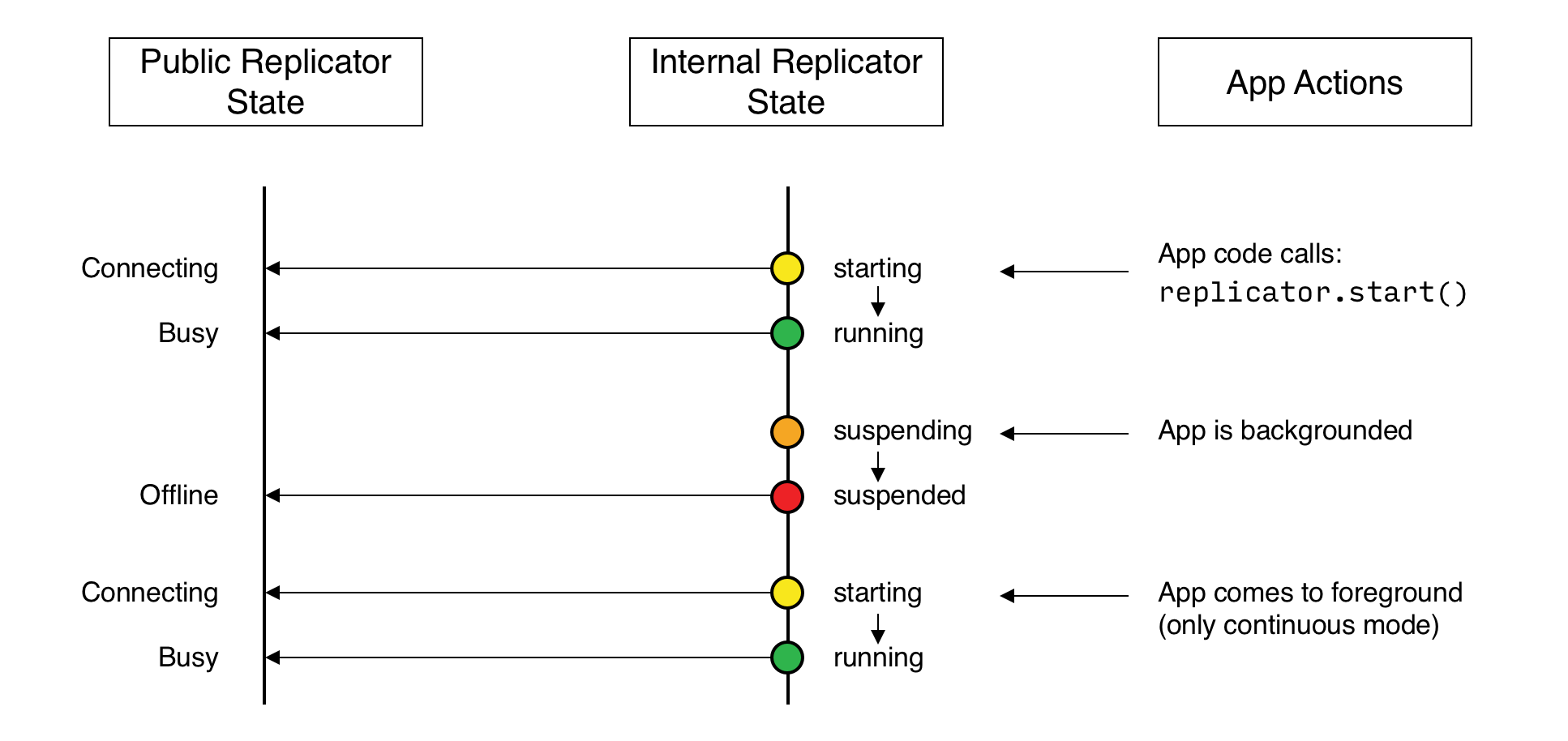
Additionally, on iOS, an app already in the background may be terminated. In this case, the Database and Replicator instances will be null when the app returns to the foreground. Therefore, as preventive measure, it is recommended to do a null check when the app enters the foreground, and to re-initialize the database and replicator if any of those is null.
On other platforms, Couchbase Lite doesn’t react to OS backgrounding or foregrounding events and replication(s) will continue running as long as the remote system does not terminate the connection and the app does not terminate. It is generally recommended to stop replications before going into the background otherwise socket connections may be closed by the OS and this may interfere with the replication process.
Monitor Document Changes
You can choose to register for document updates during a replication.
When to Use Document Listeners
-
Track which specific documents are syncing
-
Detect replication conflicts
-
Handle document-level replication errors
-
Monitor deleted documents during sync
Document Replication Data Structure
interface DocumentReplicationRepresentation {
  isPush: boolean;              // true = push, false = pull
  documents: ReplicatedDocument[];
}

interface ReplicatedDocument {
  id: string;                   // Document ID
  scopeName: string;            // Scope name
  collectionName: string;       // Collection name
  flags: string[];              // ['DELETED', 'ACCESS_REMOVED']
  error?: { message: string };  // Present if replication failed
}
Document Flags:
-
'DELETED'- Document was deleted -
'ACCESS_REMOVED'- User lost access to document
For example, the code snippet in Example 15 registers a listener to monitor document replication performed by the replicator referenced by the variable replicator. It prints the document ID of each document received and sent. Stop the listener as shown in Example 16.
Example 15. Register a document listener
import { ListenerToken } from '@couchbase/couchbase-lite-react-native';

const token: ListenerToken = await replicator.addDocumentChangeListener((replication) => {
    const direction = replication.isPush ? "Push" : "Pull";
    console.log(`${direction}: ${replication.documents.length} documents`);

    for (const document of replication.documents) {
        if (document.error === undefined) {
            console.log(`  Doc ID: ${document.id}`);

            if (document.flags.includes('DELETED')) {
                console.log("  Successfully replicated a deleted document");
            }
        } else {
            console.error(`  Error: ${document.error.message}`);
        }
    }
});

// Start the replicator
await replicator.start(false);
Example 16. Stop document listener
// Remove listener using new API
await token.remove();|
Deprecated
The |
Document Access Removal Behavior
When access to a document is removed on Sync Gateway (see: Sync Gateway’s Sync Function), the document replication listener sends a notification with the AccessRemoved flag set to true and subsequently purges the document from the database.
Documents Pending Push
|
|
You can check whether documents are waiting to be pushed in any forthcoming sync by using either of the following API methods:
-
Use the
Replicator.pendingDocumentIds()method, which returns a list of document IDs that have local changes, but which have not yet been pushed to the server. -
Use the
Replicator.isDocumentPending()method to quickly check whether an individual document is pending a push.
Example 17. Use Pending Document ID API
// TodoStop
Stopping a replication is straightforward. It is done using stop(). This initiates an asynchronous operation and so is not necessarily immediate. Your app should account for this potential delay before attempting any subsequent operations.
You can find further information on database operations in Databases.
Example 18. Stop replicator
// Remove the change listener
await token.remove()

// Stop the replicator
await replicator.stop()
Here we initiate the stopping of the replication using the stop() method. It will stop any active change listener once the replication is stopped.
Error Handling
When replicator detects a network error it updates its status depending on the error type (permanent or temporary) and returns an appropriate HTTP error code.
The following code snippet adds a Change Listener, which monitors a replication for errors and logs the the returned error code.
Example 19. Monitoring for network errors
replicator.addChangeListener((change) => {
    const error = change.status.getError();
    if (error) {
        console.log(`Error code :: ${error.code}`);
    }
});
For permanent network errors (for example, 404 not found, or 401 unauthorized): Replicator will stop permanently, whether setContinuous is true or false. Of course, it sets its status to STOPPED
For recoverable or temporary errors: Replicator sets its status to OFFLINE, then:
* If `setContinuous=true` it retries the connection indefinitely
* If `setContinuous=false` (one-shot) it retries the connection a limited number of times.
The following error codes are considered temporary by the Couchbase Lite replicator and thus will trigger a connection retry.
* `408`: Request Timeout
* `429`: Too Many Requests
* `500`: Internal Server Error
* `502`: Bad Gateway
* `503`: Service Unavailable
* `504`: Gateway Timeout
* `1001`: DNS resolution error
Load Balancers
Couchbase Lite uses WebSockets as the communication protocol to transmit data. Some load balancers are not configured for WebSocket connections by default (NGINX for example); so it might be necessary to explicitly enable them in the load balancer’s configuration (see Load Balancers).
By default, the WebSocket protocol uses compression to optimize for speed and bandwidth utilization. The level of compression is set on Sync Gateway and can be tuned in the configuration file (replicator_compression).
Troubleshooting
Logs
As always, when there is a problem with replication, logging is your friend. You can increase the log output for activity related to replication with Sync Gateway - see Example 21.
Example 21. Set logging verbosity
import { LogSinks, LogLevel, LogDomain } from '@couchbase/couchbase-lite-react-native';

// Verbose / Replicator and Network
await LogSinks.setConsole({
  level: LogLevel.VERBOSE,
  domains: [LogDomain.REPLICATOR, LogDomain.NETWORK]
});|
Enable VERBOSE logging only during development or debugging. Avoid using it in production builds. |
For more on troubleshooting with logs, see: Using Logs.
Authentication Errors
If Sync Gateway is configured with a self signed certificate but your app points to a ws scheme instead of wss you will encounter an error with status code 11006 - see: Example 22
Example 22. Protocol Mismatch
CouchbaseLite Replicator ERROR: {Repl#2} Got LiteCore error: WebSocket error 1006 "connection closed abnormally"If Sync Gateway is configured with a self signed certificate, and your app points to a wss scheme but the replicator configuration isn’t using the certificate you will encounter an error with status code 5011 - see: Example 23