User Configuration
- how-to
Fleet Manager maintains its own list of users who can access the telemetry. This list can be set up directly within Fleet Manager or configured through LDAP.
| You can only see the User Configuration page if you have administrative access to Fleet Manager. |
Managing Users in Fleet Manager
-
Sign in to Fleet Manager as an administrator.
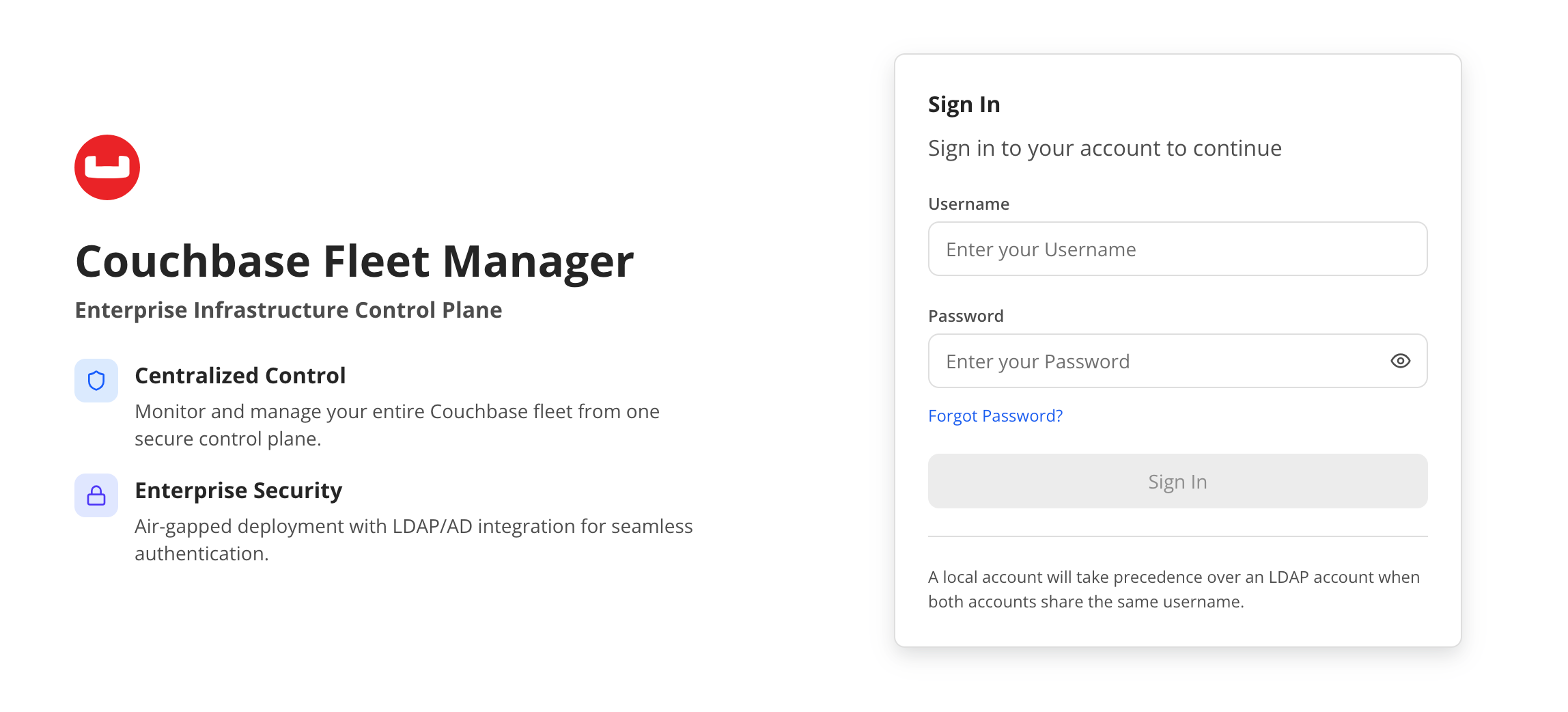 Figure 1. Sign-in screen
 -
Select Users from the side menu.
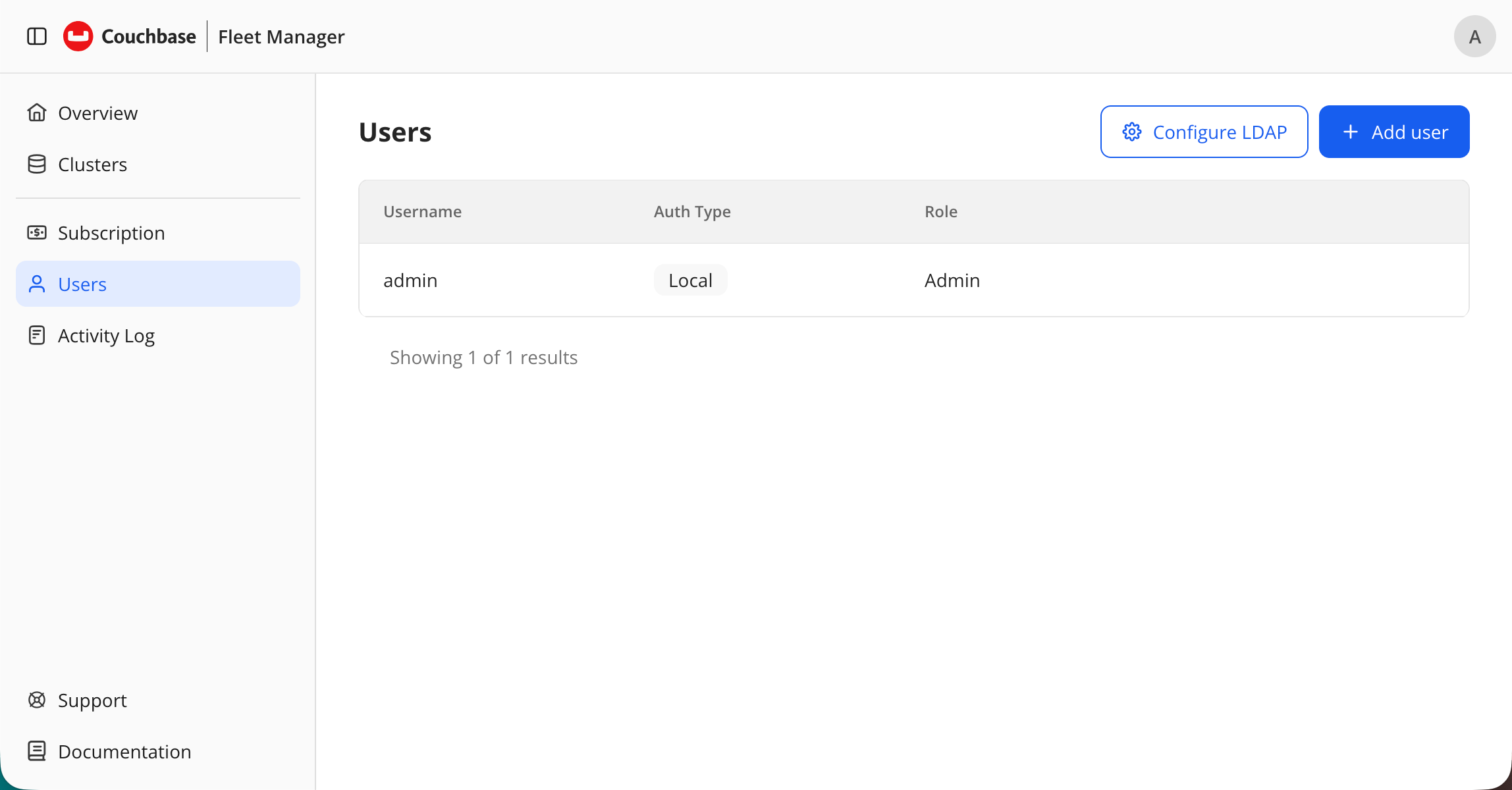 Figure 2. User list
 -
Click the + Add User button.
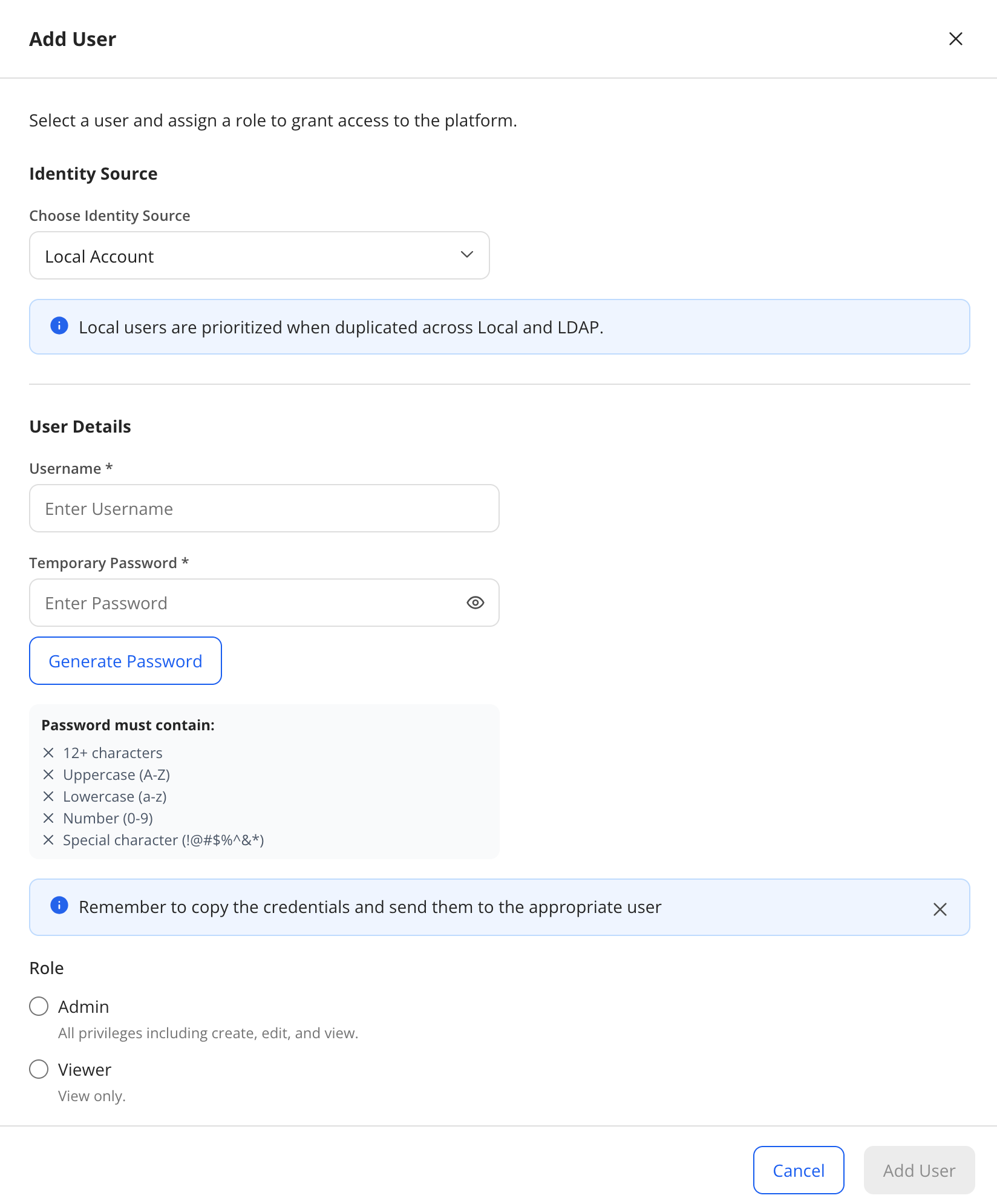 Figure 3. Add user
 -
For the
Identity Sourceyou can selectLocal Accountwhich is managed by Fleet Manager, or your ownLDAP[1] service. Make sure that you have selectedLocal Account.If you want to use your LDAP service to manage Fleet Manager users, then see the Managing Users through LDAP section below.
-
Enter a name for the new user (Make sure that the name is unique to your Fleet Manager installation.)
-
Enter a password for the new user. (Fleet Manager requests a new password when the new user logs on for the first time.) The new password must contain:
-
Twelve or more characters.
-
At least 1 upper case character.
-
At least 1 lower case character.
-
At least 1 numeric character (0–9)
-
At least 1 special character (!@#$%^&*)
-
-
Select whether the user can access Fleet Manager as a
Viewer(a user who’s not permitted to change Fleet Manager’s settings) or anAdmin(a user who can change Fleet Manager’s setting, including adding additional users.)
Managing Users through LDAP
Fleet Manager supports LDAP, meaning that you can manage your Fleet Manager users through your existing LDAP directory.
-
Sign in to Fleet Manager as an administrator.
-
Select Users from the side menu.
-
Click on the Configure LDAP button.
-
You’re now presented with the configuration screen for your LDAP service:
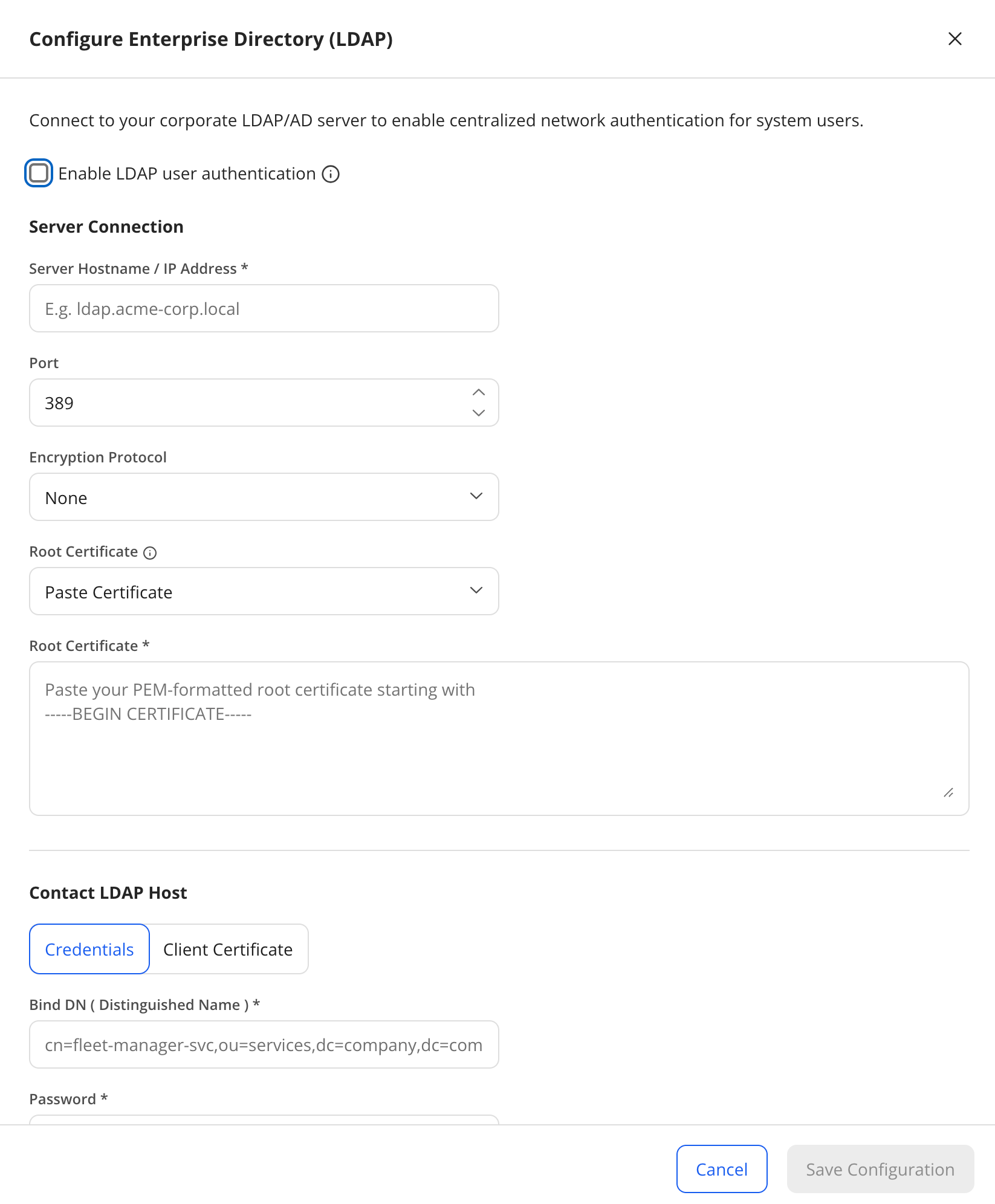 Figure 4. LDAP configuration
 -
Make sure that
Enable LDAP user authenticationis selected. -
Fill in the LDAP hostname or IP address for your LDAP service. (You may need to ask your systems administrator for this information.)