Tagging Clusters
- how-to
Tagging your clusters makes it easier to identify and group them.
Overview
You can label the clusters that form your Couchbase network. This makes it easier to attach meaningful names to your clusters and group them by functional areas (such as HR, Finance, and so on).
Tagging Your Clusters
-
When you have loaded a new subscription document into your portal(see Managing Subscriptions), return to the Overview screen. Near the top of the page, you’ll see a button for tagging clusters:
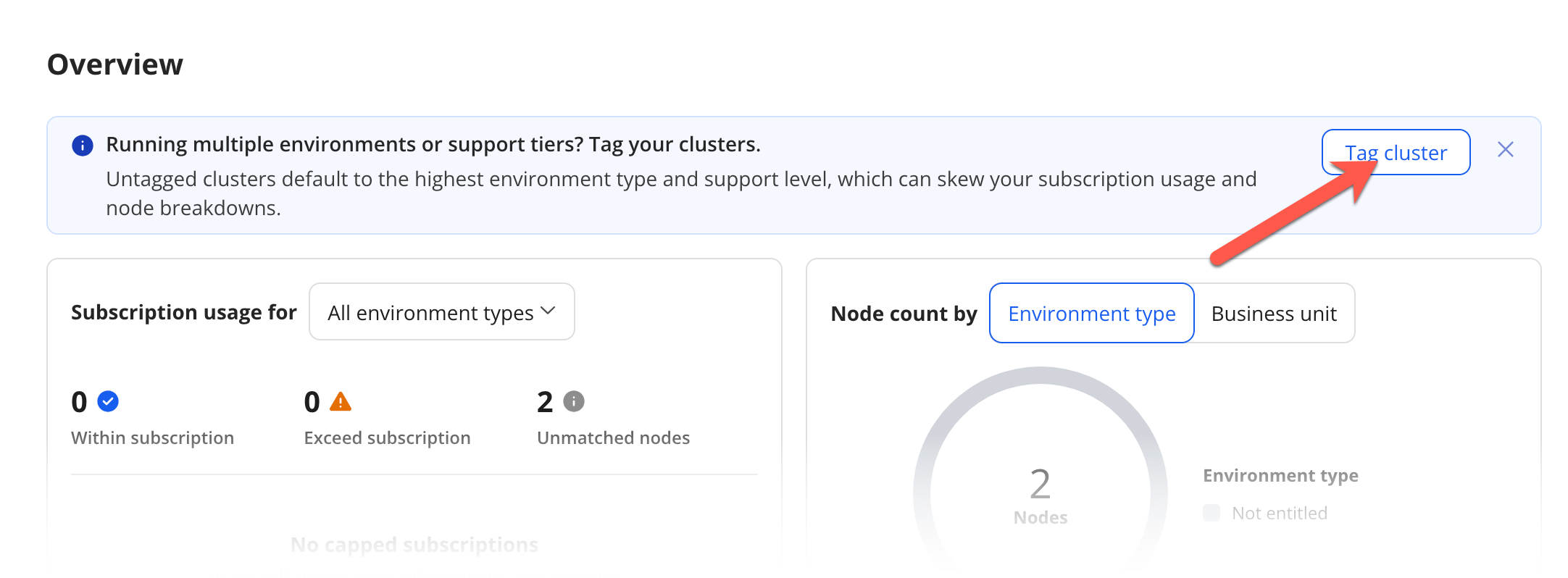 Figure 1. The Tag Cluster button
If the button is not shown, you can still reach the cluster tagging function by selecting Clusters from the main menu. -
Click on the Tag Cluster button. This takes you to the Clusters screen.
-
Click on the cluster you want to tag from the displayed list. This takes you to the Cluster details screen:
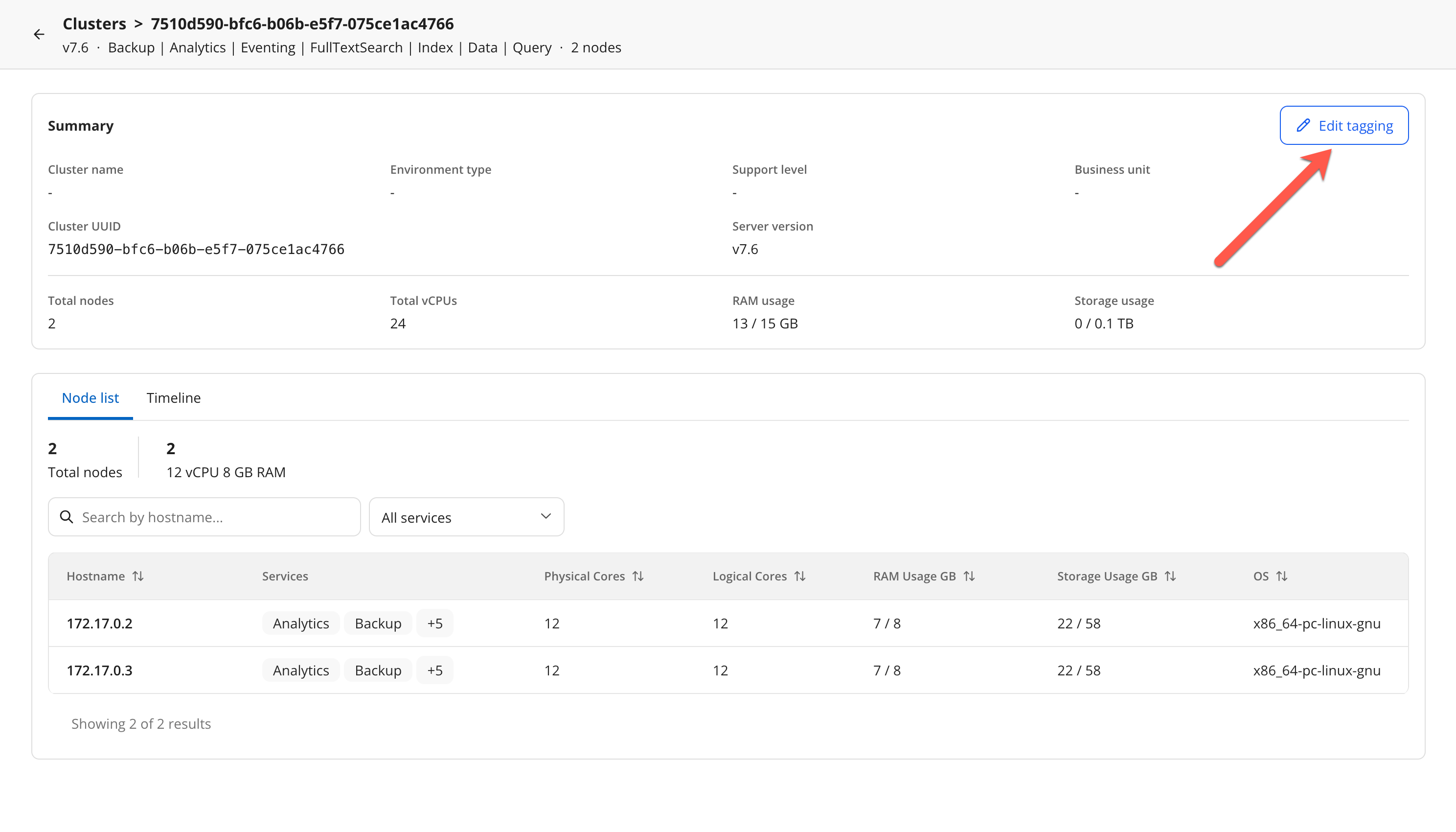 Figure 2. Cluster details screen
 -
Click on the Edit tagging button.
-
From the Tag Cluster screen, you can add details for your cluster:
Cluster name Give your cluster a name that makes it easier to identify in reports and alerts. (For example,
mainorbackup)Environment type Select the environment type from a list of configurable values. (For example,
developmentorproduction.)The environment type of the cluster must match classificationgiven in your subscription file. This ensures that Fleet Manager can match your subscription to your usage. Otherwise, you may see unmatched subscription errors. For more information, see Managing SubscriptionsBusiness unit A string that can be used to group the clusters into a business function.
MarketingorFinance, for example. -
Check that your clusters match against the information in the subscription file.
|
Subscriptions incorrect?
If the subscription information is still incorrect after you have tagged your clusters, then contact your Couchbase account manager or contact Couchbase Support. |