Installing Fleet Manager
- how-to
A step-by-step guide to installing the Fleet Manager Telemetry Collector and the web portal.
Overview
Fleet Manager comprises 2 discrete parts (see the architecture diagram here: Fleet Manager architecture):
-
telemetry collection
-
The web portal
Prerequisites
You must have a running Couchbase platform from which Fleet Manager can receive telemetry. See Couchbase installation options for information about installing Couchbase.
Fleet Manager is distributed as a Docker image containing both the web application and a bundled Couchbase Server Enterprise instance that serves as the portal’s data store.
Make sure that Docker is installed and running on your system.
Installation
-
Contact your Couchbase Account Manager or Couchbase Support to obtain the Couchbase Fleet Manager software.
-
Follow the installation instructions supplied with the software to install and start Fleet Manager.
-
View the portal from your web browser, using:
https://<ip-address>:443. This takes you to the initial sign-in screen.The default SSL certificate for Fleet Manager is self-signed 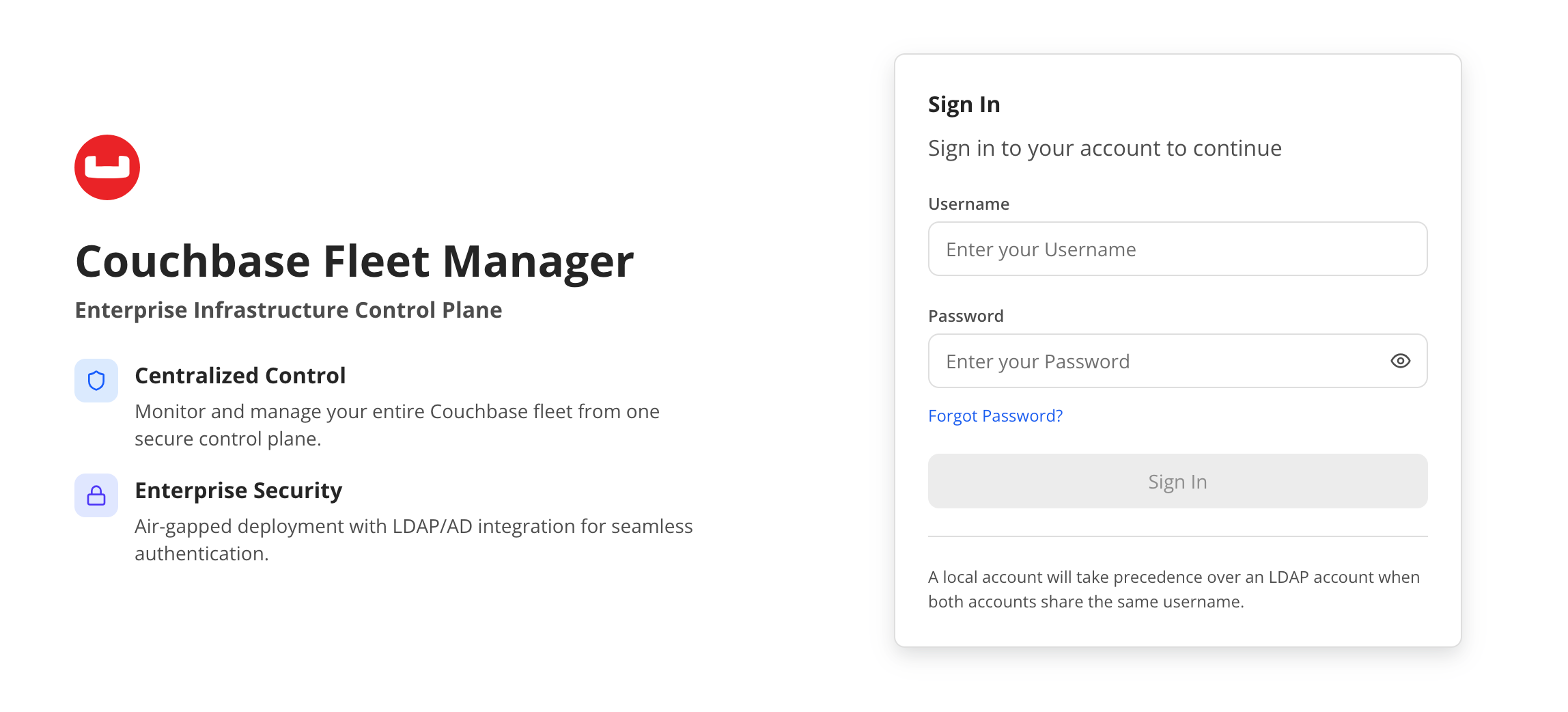 Figure 1. Signing in.
 -
Enter the signing credentials:
Username adminPassword Fl33tm@n@gerThis takes you to another screen where you can change the administrator password. You must change the administrator password before you can proceed. The new password must contain:
-
Twelve or more characters.
-
At least 1 upper case character.
-
At least 1 lower case character.
-
At least 1 numeric character (0–9)
-
At least 1 special character (!@#$%^&*)
-
Once you have done this, Fleet Manager presents you with the Overview screen.
Start Telemetry Collection
Telemetry collection is available in the following Couchbase versions:
-
Couchbase Server
7.6.12 -
Couchbase Server
8.0.3+
| Make sure you’re running these versions on all your clusters to make use of Fleet Manager. |
To start the telemetry collection, you need to set up a Domain Name Service (DNS) address (couchbase.fleetmanager.internal) mapped to the IP address of your Fleet Manager installation.
-
Find the IP address of Fleet Manager’s host machine.
-
Set up a new domain for this address by adding it to the network’s DNS with the name:
couchbase.fleetmanager.internal
You may need the assistance of your network’s system administrator to add the new domain address.
|
Once the address is set up, it may take up to 2 hours for Fleet Manager to receive the telemetry. If you have not received telemetry after 2 hours, contact Couchbase Support |
Next Steps
For Fleet Manager to start tracking your usage entitlements, you need to import a subscriptions document.