Managing Subscriptions
- how-to
Overview
The Subscriptions page shows a complete record of your license and support entitlements across your Couchbase clusters. The Subscriptions document contains 1 or more subscriptions, each of which details your support level and license limitations for that subscription.
Fleet Manager checks subscription entitlements by comparing your running tagged clusters with the subscriptions document uploaded to Fleet Manager. The portal alerts you if you’re running Couchbase services that fall outside your subscriptions.
The Subscriptions File
Before you can begin monitoring your entitlements, you must first load a subscription file into Fleet Manager.
The file encodes your subscribed entitlements, which Fleet Manager uses to display your consumed and contracted entitlements.
| The subscription file does not contain any information related to pricing. |
Getting the Subscriptions File
If you have a Couchbase Account Manager, then contact them to get your subscription file.
If you do not have an account manager, then contact Couchbase Support.
| You should not attempt to edit or change your subscription file. |
Installing the Subscription File
-
Use your web browser to log into Fleet Manager.
-
From the navigation menu, select Subscriptions to open the Subscriptions screen.
-
Click on the Subscriptions tab.
-
Click on the Replace Subscription button.
-
Import your entitlement document by dragging the subscriptions document into the window.
-
If the document is valid, your subscription details are displayed in the window.
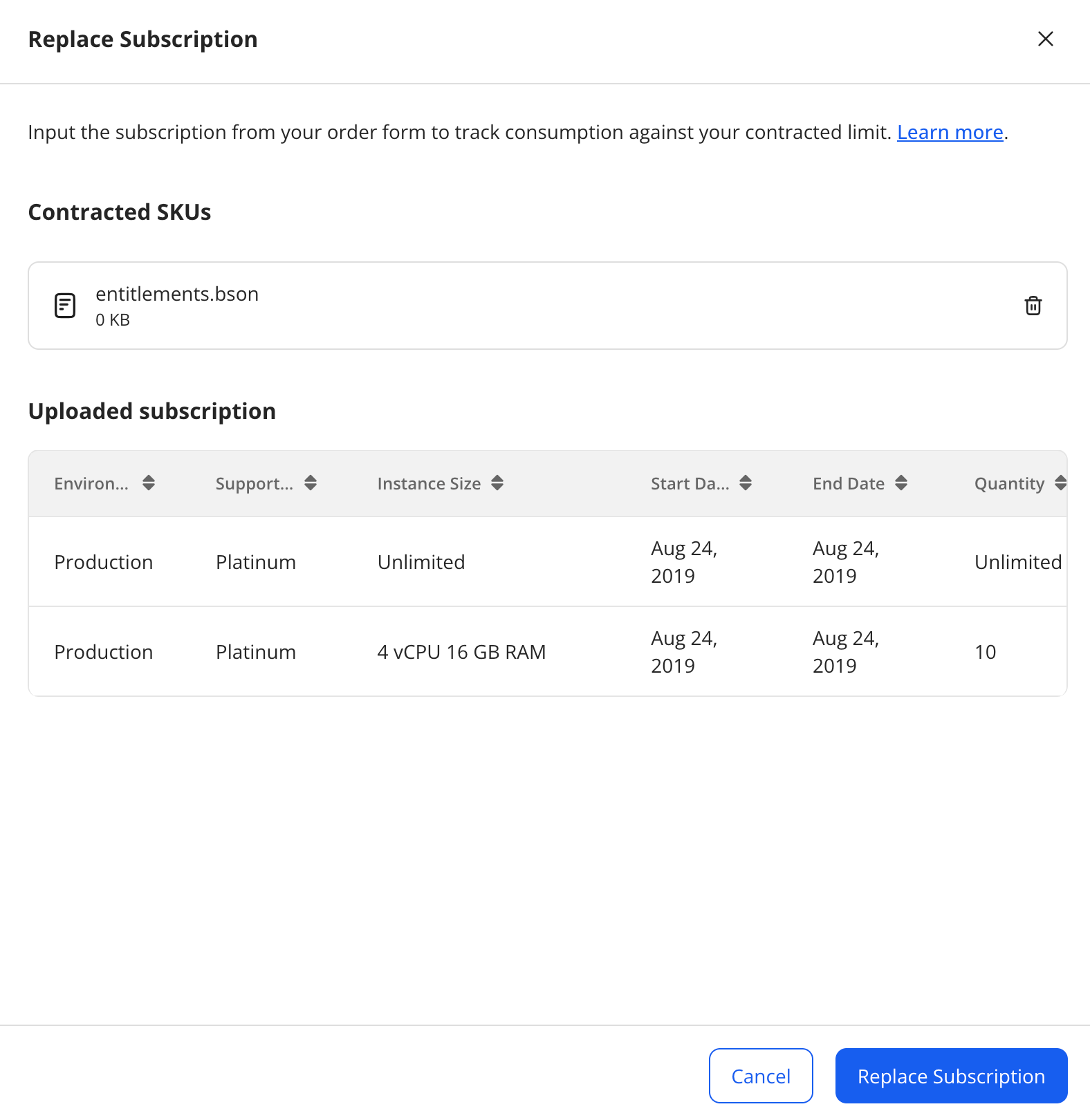 Figure 1. Replace Subscriptions screen
 -
Click on the Replace Subscription button to load the subscriptions document.
-
The Subscriptions screen is shown with your new subscriptions.
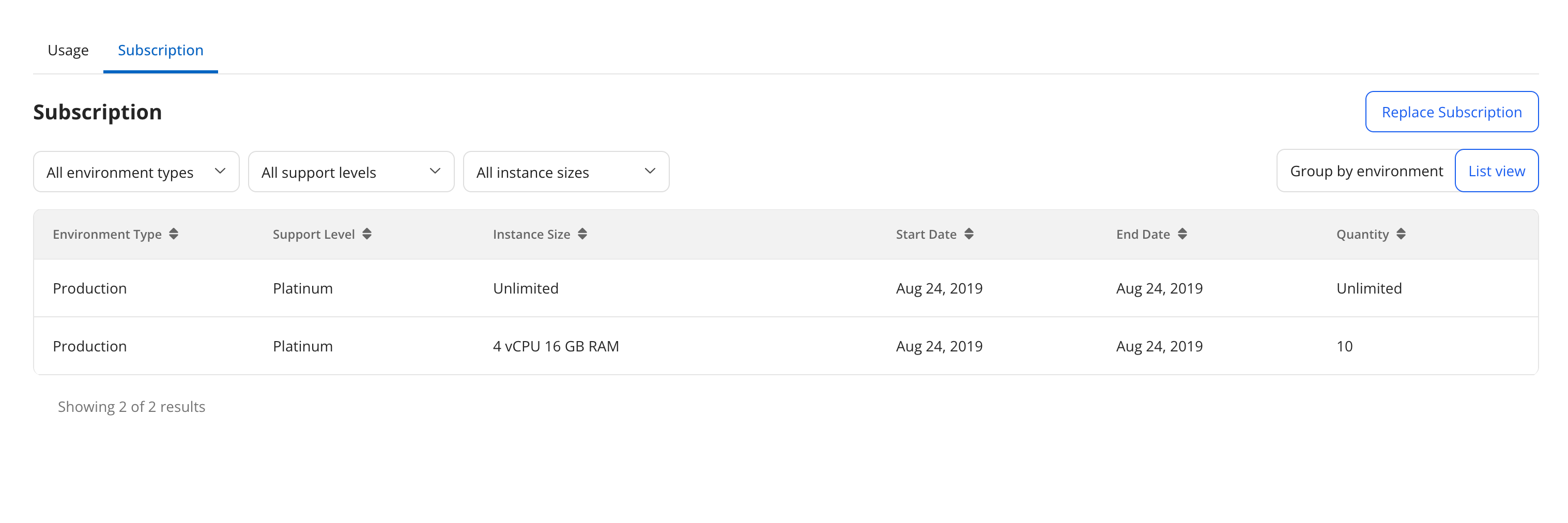 Figure 2. Fleet Manager Subscriptions page
 -
If you have a contract, then verify that the listed subscription information matches the subscription information in the contract. (Check against the products purchased, the purchase dates, and the number of licenses).
Updating Your Subscription File
You can replace the subscription file (you may have received a contract renewal, for example), at any time by running through the same process shown in Installing the Subscription File.
Mismatched Subscription Information
If subscription information does not match your contract, then contact your account manager or Couchbase Support.
|
Tagging your clusters
The |
|
Fleet Manager does not store or transmit any data related to pricing. Furthermore, telemetry is not transmitted back to Couchbase. |