Quickstart with Golang and the Gin Web Framework
Quickstart app to build a REST API using Couchbase Capella in Go using the Web Framework. Discover how to program interactions with Couchbase via the Data and Query services.
After you have navigated through signing up to Capella, if Go is entered as your chosen language, you will be pointed to a clonable quickstart app on GitHub. If you were not, you can still find it here.
Often, the first step developers take after creating their database is to create a REST API that can perform Create, Read, Update, and Delete (CRUD) operations for that database. The quickstart project is designed to teach you and give you a starter project (in Go using the Gin Web Framework) to generate such a REST API. After you have loaded the travel-sample bucket in your database, you can run this application which is a REST API with Swagger documentation so that you can learn:
-
How to create, read, update, and delete documents using Key-Value operations. KV operations are unique to Couchbase and provide super fast (under millisecond) operations.
-
How to write simple parametrized SQL++ queries using the built-in travel-sample bucket.
This documentation — and a number of other useful developer tutorials — can be found on the Couchbase Developer Portal.
Prerequisites
To run this prebuilt project, you will need:
-
A Couchbase Capella cluster with the travel-sample bucket loaded.
To run this tutorial using a self-managed Couchbase cluster, please refer to the Running Self Managed Couchbase Cluster section.
-
The Travel Sample Bucket — pre-loaded in Capella Free Tier, or see Importing Data with the Capella UI.
App Setup
We will walk through the different steps required to get the application running:
-
Cloning Repo
$ git clone https://github.com/couchbase-examples/golang-quickstart.git -
Navigate to the Project Directory
$ cd golang-quickstart -
Install Dependencies
Any dependencies will be installed by running the
go runcommand, which installs any dependencies required from thego.modfile.
Setup Database Configuration
To learn more about connecting to your Capella cluster, please follow the instructions. Specifically, you need to do the following:
-
Create the database credentials to access the travel-sample bucket (Read and Write) used in the application.
-
Allow access to the Cluster from the IP on which the application is running.
All configuration for communication with the database is read from the environment variables. We have provided a convenience feature in this quickstart to read the environment variables from a local file, .env in the source folder.
Create a copy of .env.example and rename it to .env.
Add the values for the Couchbase connection:
CONNECTION_STRING=<connection_string>
USERNAME=<user_with_read_write_permission_to_travel-sample_bucket>
PASSWORD=<password_for_user>
The connection string expects the couchbases:// part.
Running The Application
|
Running from a Development Machine
Couchbase — including Capella — is designed to run in a LAN-like environment. For development, connecting to a remote cloud instance from a local laptop instead of an application server in the same region, may require you to adjust some timeouts. If you have problems, refer to the constrained network environments section of the docs. |
Directly on Your Local Machine
At this point, we have installed the dependencies, loaded the travel-sample data and configured the application with the credentials. The application is now ready and you can run it.
# Execute this command in the project's root directory
go run .
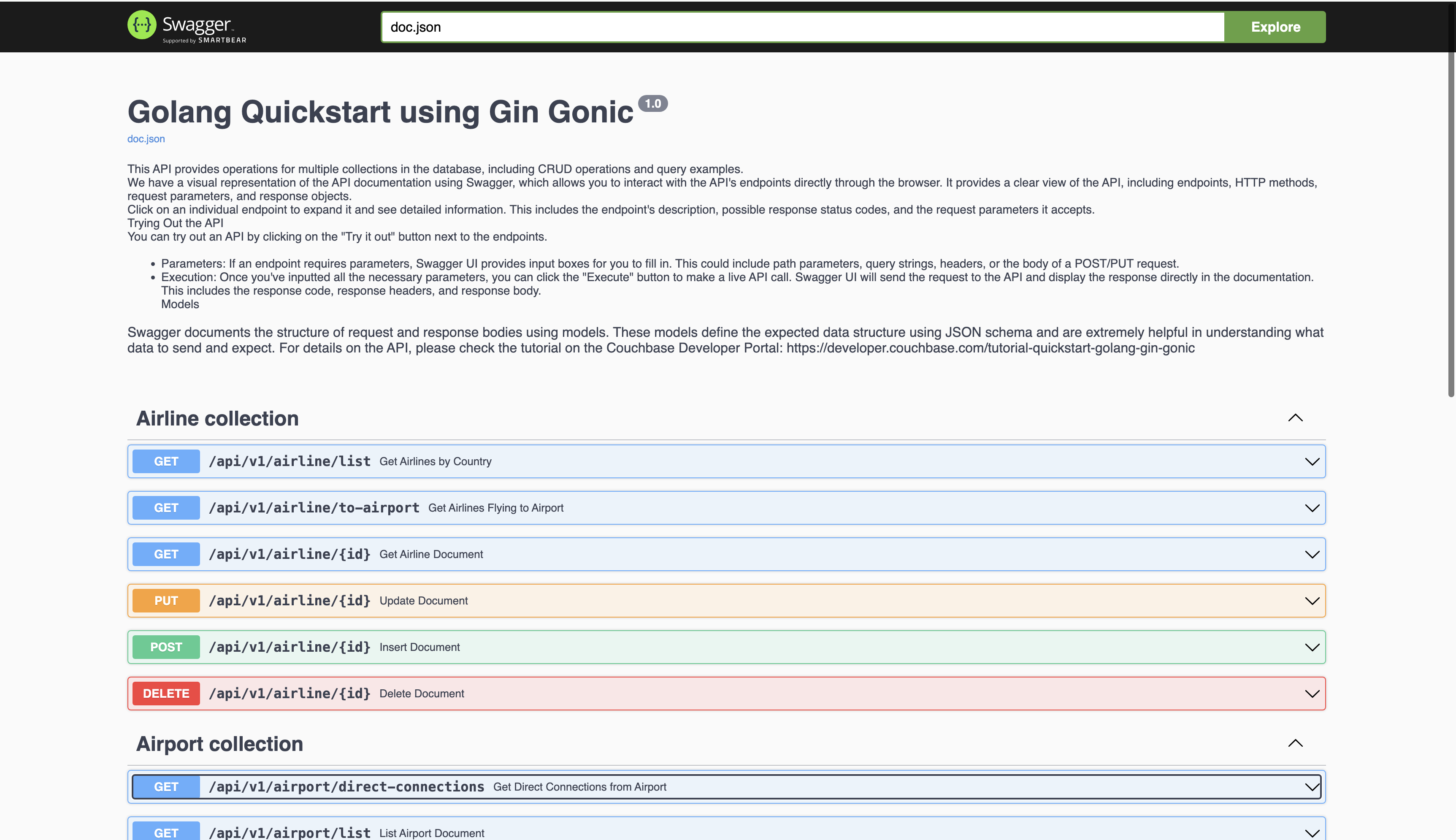
The application will run on port 8080 of your local machine (http://localhost:8080). You will find the Swagger documentation of the API which you can use to try the API endpoints.
Using Docker
If you prefer to run this quick start using Docker, we have provided the Dockerfile which you can use to build the image and run the API as a container.
-
Build the Docker image
$ docker build -t couchbase-gin-gonic-quickstart . -
Run the Docker image
$ docker run -it --env-file .env -p 8080:8080 couchbase-gin-gonic-quickstartThe .envfile has the connection information to connect to your Capella cluster. With the--env-file, docker will inject those environment variables to the container. The application is now running and you can launch your browser and go to the Swagger documentation to test the APIs.
Verifying the Application
Once the application starts, you can see the details of the application on the logs.

The application will run on port 8080 of your local machine — http://localhost:8080.
You will find the interactive Swagger documentation of the API if you go to the URL in your browser.
Swagger documentation is used in this demo to showcase the different API endpoints and how they can be invoked.
More details on the Swagger documentation can be found in the Swagger Documentation.
Data Model
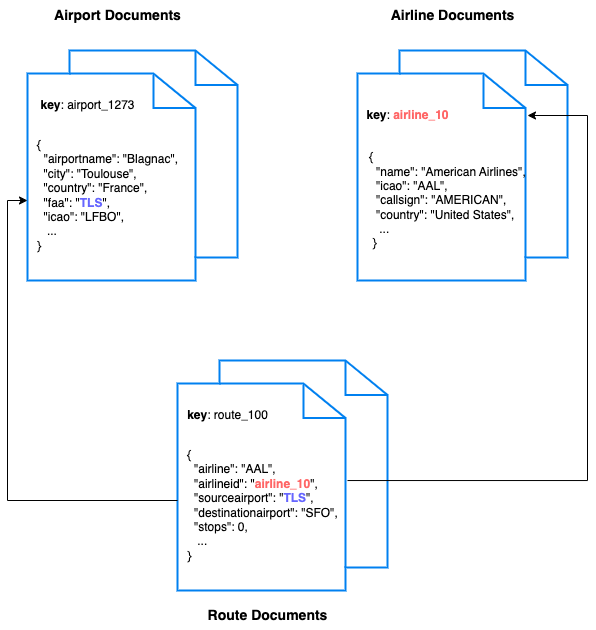
For this quickstart, we use three collections, airport, airline and routes that contain sample airports, airlines and airline routes respectively.
The routes collection connects the airports and airlines as seen in the figure below.
We use these connections in the quickstart to generate airports that are directly connected and airlines connecting to a destination airport.
Note that these are just examples to highlight how you can use SQL++ queries to join the collections.
Reviewing the Code
To begin this tutorial, clone the repo and open it up in the IDE of your choice. Now you can learn about how to create, read, update, and delete documents in Couchbase Server.
Code Layout
├── controllers
│   ├── airline_controller.go
│   ├── airport_controller.go
│   └── route_controller.go
├── db
│   ├── db.go
├── errors
│   ├── errors.go
├── models
│   ├── collection_models.go
├── routes
│   ├── route.go
├── service
│   ├── airline.go
│   ├── airport.go
│   └── route.go
├── go.mod
├── main.go
├── Dockerfile
└── test
    ├── airline_test.go
    ├── airport_test.go
    ├── main_test.go
    └── route_test.go
We have separated out the code into separate files by the entity (collection) in the controllers and service folder. The tests are similarly separated out by entity in the tests folder.
In main.go a couchbase cluster is initialized using the InitializeCluster function from the db package.
// Initialize the cluster
cluster := db.InitializeCluster()
The Couchbase connection is established in the InitializeCluster function defined in db.go.
There, we call the Connect method defined in the SDK to create the Database connection.
In our application, we have the same bucket (travel-sample) and scope that is used by all the APIs.
We initialise this scope and return it in the GetScope function.
The collection will change depending on the API route.
// Configure cluster options
clusterOpts := gocb.ClusterOptions{
  Authenticator: gocb.PasswordAuthenticator{
    Username: username,
    Password: password,
  },
}

// Sets a pre-configured profile called "wan-development" to help avoid latency issues
if err := clusterOpts.ApplyProfile(gocb.ClusterConfigProfileWanDevelopment); err != nil {
  panic(err)
}

// Connect to the Couchbase cluster
cluster, err := gocb.Connect(connectionString, clusterOpts)
if err != nil {
  panic(err)
}
In main.go we then fetch the scope from the GetScope function defined in the db.go by passing the cluster initialised.
We then initialise the service and controller for all the collections.
The instances of the collections are then passed to the SetupCollectionRoutes function from the routes package.
This function sets up the HTTP routes and their corresponding handlers.
// Initialize the scope
scope := db.GetScope(cluster)

// Create service instances
airlineService := services.NewAirlineService(scope)
airportService := services.NewAirportService(scope)
routeService := services.NewRouteService(scope)

// Create controller instances
airlineController := controllers.NewAirlineController(airlineService)
airportController := controllers.NewAirportController(airportService)
routeController := controllers.NewRouteController(routeService)

// Pass to  Controllers struct to hold controller instances
controllers := routes.Controllers{
 AirlineController: airlineController,
 AirportController: airportController,
 RouteController:   routeController,
}

// Setup routes and pass the Controllers struct
routes.SetupCollectionRoutes(router, controllers)
Airport Entity
For this tutorial, we will focus on the airport entity. The other entities are similar.
We will be setting up a REST API to manage airport documents.
-
POST Airport -– Create a new airport.
-
GET Airport -– Read specified airport.
-
PUT Airport –- Update specified airport.
-
DELETE Airport -– Delete airport.
-
Airport List -– Get all airports. Optionally filter the list by country.
-
Direct Connections — Get a list of airports directly connected to the specified airport.
For CRUD operations, we will use the Key-Value operations that are built into the Couchbase SDK to create, read, update, and delete a document. Every document will need an ID (similar to a primary key in other databases) to save it to the database. This ID is passed in the URL. For other end points, we will use SQL++ to query for documents.
Airport Document Structure
Our profile document will have an airportname, city, country, faa code, icao code, timezone info, and the geographic coordinates. For this demo, we will store all airport information in one document in the airport collection in the travel-sample bucket.
{
  "airportname": "Sample Airport",
  "city": "Sample City",
  "country": "United Kingdom",
  "faa": "SAA",
  "icao": "SAAA",
  "tz": "Europe/Paris",
  "geo": {
    "lat": 48.864716,
    "lon": 2.349014,
    "alt": 92
  }
}
POST Airport
To insert a new airport document, locate the InsertDocumentForAirport method within the airport_controller file found in the controllers package.
This expects a POST request with the airport ID (id) specified in the URL path and the airport data provided in the request body.
We extract this airport ID from the URL, parse the request data, and call the CreateAirport method from the AirportService.
// InsertDocumentForAirport method in controllers/airline_controller.go
docKey := context.Param("id")
data := models.Airport{}
if err := context.ShouldBindJSON(&data); err != nil {
  context.JSON(http.StatusBadRequest, cError.Errors{
    Error: "Error, Invalid request data: " + err.Error(),
  })
  return
}

err := ac.AirportService.CreateAirport(docKey, &data)
context.JSON(http.StatusCreated, data)
The CreateAirport method calls the Insert method for the collection defined in the Couchbase SDK.
The insert method takes the key (id) by which the document is referenced and the content to be inserted into the collection.
// CreateAirport in service/airport.go
func (s *AirportService) CreateAirport(docKey string, data *models.Airport) error {
	_, err := s.scope.Collection(s.collectionName).Insert(docKey, data, nil)
	if err != nil {
		return err
	}
	return nil
}
If the document id already exists in the database, we get an error, ErrDocumentExists from the SDK and return the status as 409.
GET Airport
To fetch a airport document, locate the GetDocumentForAirport method within the airport_controller file found in the controllers package.
This expects a GET request with the airport document ID (id) specified in the URL path.
We extract this airport document ID from the URL and call the GetAirport method from the AirportService.
// GetDocumentForAirport in controllers/airport_controller.go
docKey := context.Param("id")
airportData, err := ac.AirportService.GetAirport(docKey)
The GetAirport method calls the Get method defined for collections in the Couchbase SDK.
We fetch the document based on the key by which it is stored.
If the document retrieval was successful, it decodes the content of the document into a models.Airport struct using the Content method.
// GetAirport in service/airport.go
func (s *AirportService) GetAirport(docKey string) (*models.Airport, error) {
	getResult, err := s.scope.Collection(s.collectionName).Get(docKey, nil)
	if err != nil {
		return nil, err
	}

	var airportData models.Airport

	if err := getResult.Content(&airportData); err != nil {
		return nil, err
	}

	return &airportData, nil
}
If the document is not found in the database, we get an error, ErrDocumentNotFound from the SDK and return the status as 404.
PUT Airport
To update a airport document, locate the UpdateDocumentForAirport method within the airport_controller file found in the controllers package.
This expects a PUT request with the airport ID (id) specified in the URL path and the airport data to be updated provided in the request body.
We extract this airport ID (id) from the URL, parse the request data, and call the UpdateAirport method from the AirportService.
// UpdateDocumentForAirport in controllers/airport_controller.go
docKey := context.Param("id")
data := models.Airport{}
if err := context.ShouldBindJSON(&data); err != nil {
  context.JSON(http.StatusBadRequest, cError.Errors{
    Error: "Error while getting the request: " + err.Error(),
  })
  return
}
err := ac.AirportService.UpdateAirport(docKey, &data)
The UpdateAirport method calls the Upsert method for the collection defined in the Couchbase SDK.
The upsert method takes the key (id) by which the document is referenced and the content to be updated into the collection.
// UpdateAirport in service/airport.go
func (s *AirportService) UpdateAirport(docKey string, data *models.Airport) error {
	_, err := s.scope.Collection(s.collectionName).Upsert(docKey, data, nil)
	if err != nil {
		return err
	}
	return nil
}
DELETE Airport
To delete a airport document, locate the DeleteDocumentForAirport method within the airport_controller file found in the controllers package.
This expects a DELETE request with the airport document ID (id) specified in the URL path.
We extract this airport document ID from the URL and call the DeleteAirport method from the AirportService.
// DeleteDocumentForAirport in controllers/airport_controller.go
docKey := context.Param("id")
err := ac.AirportService.DeleteAirport(docKey)
The DeleteAirport method calls the Remove method defined for collections in the Couchbase SDK. We delete the document based on the key by which it is stored.

// DeleteAirport in service/airport.go
func (s *AirportService) DeleteAirport(docKey string) error {
	_, err := s.scope.Collection(s.collectionName).Remove(docKey, nil)
	if err != nil {
		return err
	}
	return nil
}
If the document is not found in the database, we get an error, ErrDocumentNotFound from the SDK and return the status as 404.
List Airport
This endpoint retrieves the list of airports in the database. The API has options to specify the page size for the results and country from which to fetch the airport documents.
SQL++ is a powerful query language based on SQL, but designed for structured and flexible JSON documents.
We will use a SQL++ query to search for airports with Limit, Offset, and Country options.
Navigate to the GetAirports method in the airport_controller file found in the controllers package.
This endpoint is different from the others we have seen before because it makes the SQL++ query rather than a key-value operation.
This usually means more overhead because the query engine is involved.
For this query, we are using the predefined indices in the travel-sample bucket.
We can create an additional index specific for this query to make it perform better.
First, we need to get the values from the query string for Limit, Offset, and Country that we will use in our query.
These are pulled from the context.DefaultQuery method for Limit, Offset, and Country respectively.
This end point has two queries depending on the value for the country parameter. If a country name is specified, we retrieve the airport documents for that specific country. If it is not specified, we retrieve the list of airports across all countries. The queries are slightly different for these two scenarios.
We build our SQL++ query using the named parameters specified by a $ symbol for both these scenarios.
A named or positional parameter is a placeholder for a value in the WHERE, LIMIT, or OFFSET clause of a query.
The difference between the two queries is the presence of the country parameter in the query.
Normally for the queries with pagination, it is advised to order the results to maintain the order of results across multiple queries.
// GetAirports in controllers/airport_controller.go
country := context.DefaultQuery("country", "")
limit, err := strconv.Atoi(context.DefaultQuery("limit", "10"))
if err != nil {
  limit = 10
}
offset, err := strconv.Atoi(context.DefaultQuery("offset", "0"))
if err != nil {
  offset = 0
}

// Construct the query with named params
		if country != "" {
			query = `
				SELECT airport.airportname,
					airport.city,
					airport.country,
					airport.faa,
					airport.geo,
					airport.icao,
					airport.tz
				FROM airport AS airport
				WHERE airport.country=$country
				ORDER BY airport.airportname
				LIMIT $limit
				OFFSET $offset;
			`
			params = map[string]interface{}{
				"country": country,
				"limit":   limit,
				"offset":  offset,
			}
		} else {
			query = `
				SELECT airport.airportname,
					airport.city,
					airport.country,
					airport.faa,
					airport.geo,
					airport.icao,
					airport.tz
				FROM airport AS airport
				ORDER BY airport.airportname
				LIMIT $limit
				OFFSET $offset;
			`
			params = map[string]interface{}{
				"limit":  limit,
				"offset": offset,
			}
		}
// Use the method to execute the query and return the results
queryResult, err := ac.AirportService.QueryAirport(query, params)
The QueryAirport method calls the Query method defined in the Scope by the Couchbase SDK.
If the query is executed successfully, it iterates over the result set using queryResult.Next() and deserializes the data.
The method returns a slice of models.Airport containing the result documents obtained from the query.
// QueryAirport in service/airport.go
func (s *AirportService) QueryAirport(query string, params map[string]interface{}) ([]models.Airport, error) {
	queryResult, err := s.scope.Query(query, &gocb.QueryOptions{NamedParameters: params})
	if err != nil {
		return nil, err
	}
	var document models.Airport
	var documents []models.Airport

	if queryResult == nil {
		return nil, err
	}

	for queryResult.Next() {
		err := queryResult.Row(&document)
		if err != nil {
			return nil, err
		}
		documents = append(documents, document)
	}
	return documents, nil
}
Direct Connections
This endpoint fetches the airports that can be reached directly from the specified source airport code.
This also uses a SQL++ query to fetch the results simlar to the List Airport endpoint.
The method returns a slice of models.Destination containing the result documents obtained from the query.
Let us look at the query used here:
query := `
SELECT DISTINCT route.destinationairport
FROM airport AS airport
JOIN route AS route ON route.sourceairport = airport.faa
WHERE airport.faa = $airport AND route.stops = 0
ORDER BY route.destinationairport
LIMIT $limit
OFFSET $offset
`

params := map[string]interface{}{
  "airport": airport,
  "limit":   limit,
  "offset":  offset,
}

// Use the method to execute the query and return the results
queryResult, err := ac.AirportService.QueryDirectConnectionAirport(query, params)
The QueryDirectConnectionAirport method returns a slice of models.Destination containing the result documents obtained from the query.
We are fetching the direct connections by joining the airport collection with the route collection and filtering based on the source airport specified by the user and by routes with no stops.
Running Tests
We have defined integration tests using the standard go testing package for all the API end points.
The integration tests use the same database configuration as the application.
For the tests, we perform the operation using the API and confirm the results by checking the documents in the database.
For example, to check the creation of the document by the API, we would call the API to create the document and then read the same document from the database and compare them.
After the tests, the documents are cleaned up by calling the DELETE endpoint.
cd test
go test -v
Appendix
Extending API by Adding New Entity
If you would like to add another entity to the APIs, these are the steps to follow:
-
Create a new collection in the Couchbase scope: You can create new collections using the SDK or via the Couchbase Server interface.
-
Define the New Route: Navigate to the
route/routes.gofolder and create the new route. -
Controller Configuration: Develop a new file in the controllers folder, mirroring the existing structures (e.g.,
airport_controller.go). Craft the corresponding method within this file to manage the new entity. -
Service Layer Implementation: Generate a new file in the service folder, modeling it after the existing service files (e.g.,
airport.go). Construct the service logic pertinent to the operations involving the new entity. -
Add Tests: Add the tests for the new routes in a new file in the test folder similar to
airport_test.go.
Following these steps ensures a systematic and organized approach to expanding the API functionality with a new entity.
Running Self Managed Couchbase Cluster
If you are running this quickstart with a self-managed Couchbase cluster, you need to load the travel-sample data bucket in your cluster and generate the credentials for the bucket.
-
Follow Couchbase Installation Options for installing the latest Couchbase Database Server Instance. You need to update the connection string and the credentials in the
.envfile in the source folder.
| Couchbase Server must be installed and running prior to running the app. |
Swagger Documentation
Swagger documentation provides a clear view of the API including endpoints, HTTP methods, request parameters, and response objects.
Click on an individual endpoint to expand it and see detailed information. This includes the endpoint’s description, possible response status codes, and the request parameters it accepts.
Trying Out the API
You can try out an API by clicking on the "Try it out" button next to the endpoints.
-
Parameters: If an endpoint requires parameters, Swagger UI provides input boxes for you to fill in. This could include path parameters, query strings, headers, or the body of a
POST/PUTrequest. -
Execution: Once you’ve inputted all the necessary parameters, you can click the "Execute" button to make a live API call. Swagger UI will send the request to the API and display the response directly in the documentation. This includes the response code, response headers, and response body.