Auto-Compaction
The auto-Compaction settings control if and when Couchbase Server compacts data files and view indexes.
Understanding Auto-Compaction
Auto-compaction reclaims disk space by removing stale and deleted data from on-disk storage files. By default, Couchbase Server performs auto-compaction on all Couchbase buckets. You can override the auto-compaction settings on a per-bucket basis. You can also change the default auto-compaction settings which apply to all buckets that do not have overrides.
Auto-compaction settings affect on-disk data, and therefore do not apply to Ephemeral buckets.
Users with the Full or Cluster administrator roles can configure compaction settings using the Couchbase Server Web Console, the command line tools, or the REST API.
In Couchbase Server Enterprise Edition, auto-compaction does not apply to memory-optimized index storage. Also, unlike Couchbase Server Community Edition, it does not have settings for configuring the auto-compaction of Global Secondary Indexes using standard index storage. See Standard Index Storage for information.
Configure Auto-Compaction with the UI
You can override the global auto-compaction settings for a bucket either when you create or edit it using the Couchbase Server Web Console.
Configure Auto-Compaction for a New Bucket
To configure auto-compaction for an new bucket:
-
In the main menu, click Buckets. . Click ADD BUCKET
-
In the Add Data Bucket dialog, enter a name and select other options for your new bucket. Under Bucket Type, you must select Couchbase to be able to edit the auto-compaction settings. You cannot set the auto-compaction settings for Ephemeral buckets.
-
Click Advanced bucket settings to expand the dialog.
-
Under Auto-Compaction, select Override the default auto-compaction settings?. The dialog expands again, and displays auto-compaction settings available for this bucket. The fields you see depend on the storage backend you selected:
 Figure 1. Magma Bucket Auto-Compaction Settings
 Figure 2. Couchstore Bucket Auto-Compaction Settings
See Auto-Compaction Settings for descriptions of the available settings.
Configure Auto-Compaction for an Existing Bucket
To change the auto-compaction settings for an existing bucket:
-
In the Buckets page’s list of buckets, click the entry for the bucket you want to edit.
-
Click Edit.
-
In the Edit Bucket Settings dialog, click Show advanced bucket settings.
-
Under Auto-Compaction, select Override the default auto-compaction settings? if it’s not already selected. The dialog expands to show the Auto-Compaction settings. The settings are the same as those available in the dialog for a new bucket. They depend on the storage backend used by the bucket.
See Auto-Compaction Settings for descriptions of the available settings.
Configure Default Auto-Compaction Settings
To set the default the auto-compaction settings that apply to all buckets that do not override them:
-
In the main menu, click Settings.
-
In the Settings page, click the Auto-Compaction tab.
See Auto-Compaction Settings for descriptions of the available settings.
Auto-Compaction Settings
The default auto-compaction settings page appears as follows:
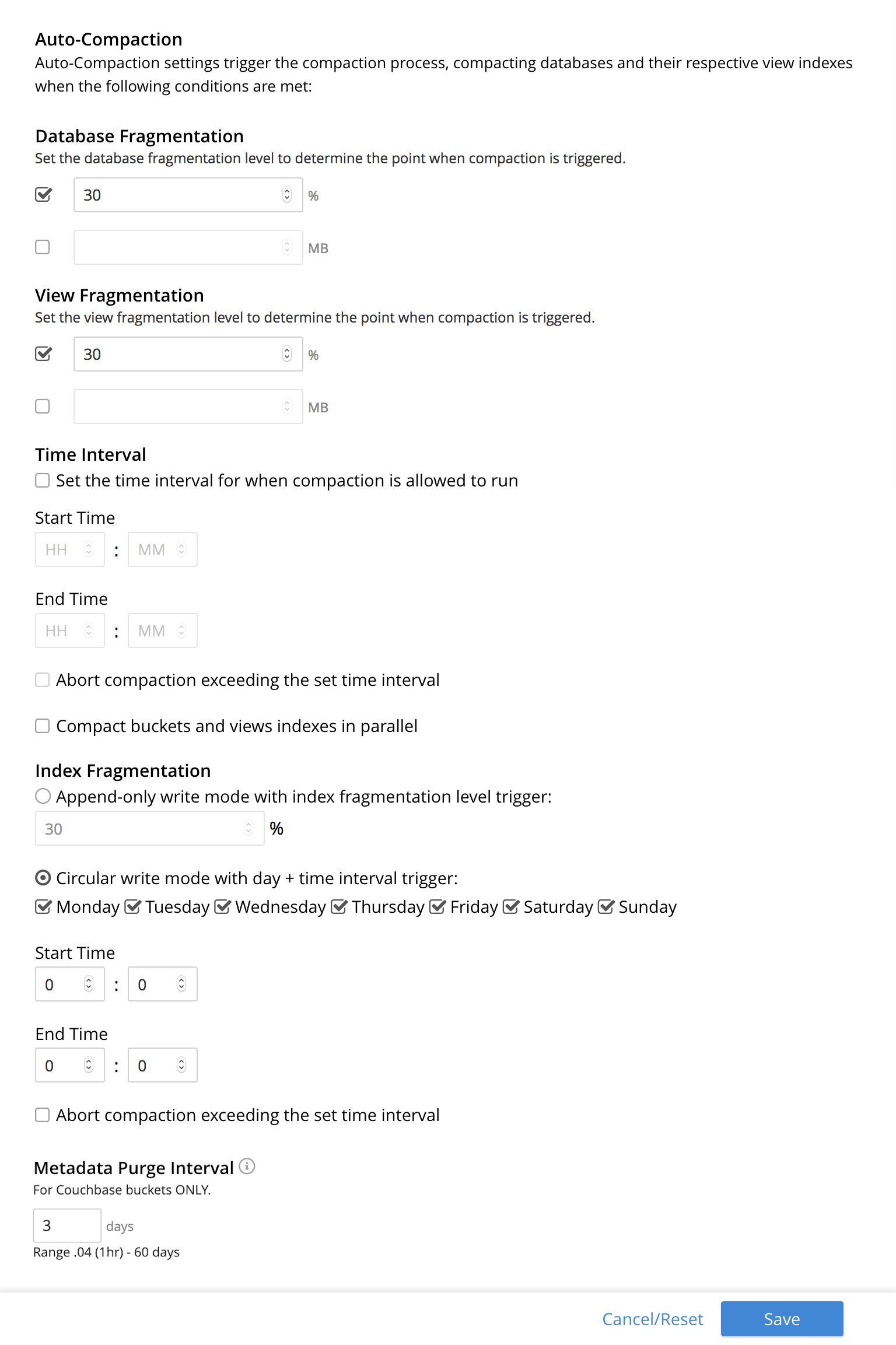
The auto-compaction settings for individual buckets is similar to the default settings page, but the available fields depend on the bucket’s storage-backend.
| The Couchbase Server Community Edition auto-compaction settings contains fields to control Index Fragmentation. Couchbase Server Enterprise Edition does not have these settings. |
All of the auto-compaction settings are conditions which must be met to trigger the auto-compaction process. The following sections describe the settings in both the default auto-compaction settings and the individual bucket settings dialogs.
Database Fragmentation
When database-fragmentation reaches the point specified by means of this interface. You can specify the fragmentation-level as a percentage (the upper field, selected by checking the adjacent checkbox); or as a number of megabytes (the lower).
View Fragmentation
The View Fragmentation panel appears as follows:
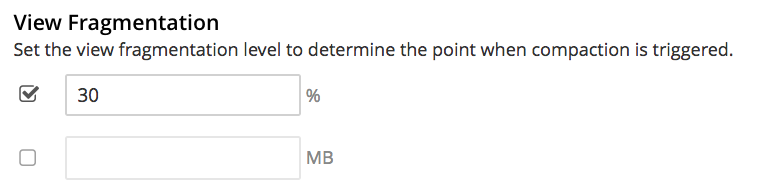
Compaction is triggered when view-fragmentation reaches the point specified by means of this interface. You can specify the fragmentation-level as a percentage (the upper field, selected by checking the adjacent checkbox); or as a number of megabytes (the lower).
Time Interval
The Time Interval section lets you limit he thours where Couchbase Server can compact Couchstore buckets. This setting only appears for buckets using the Couchstore storage engine. It does not appear for Magma buckets.
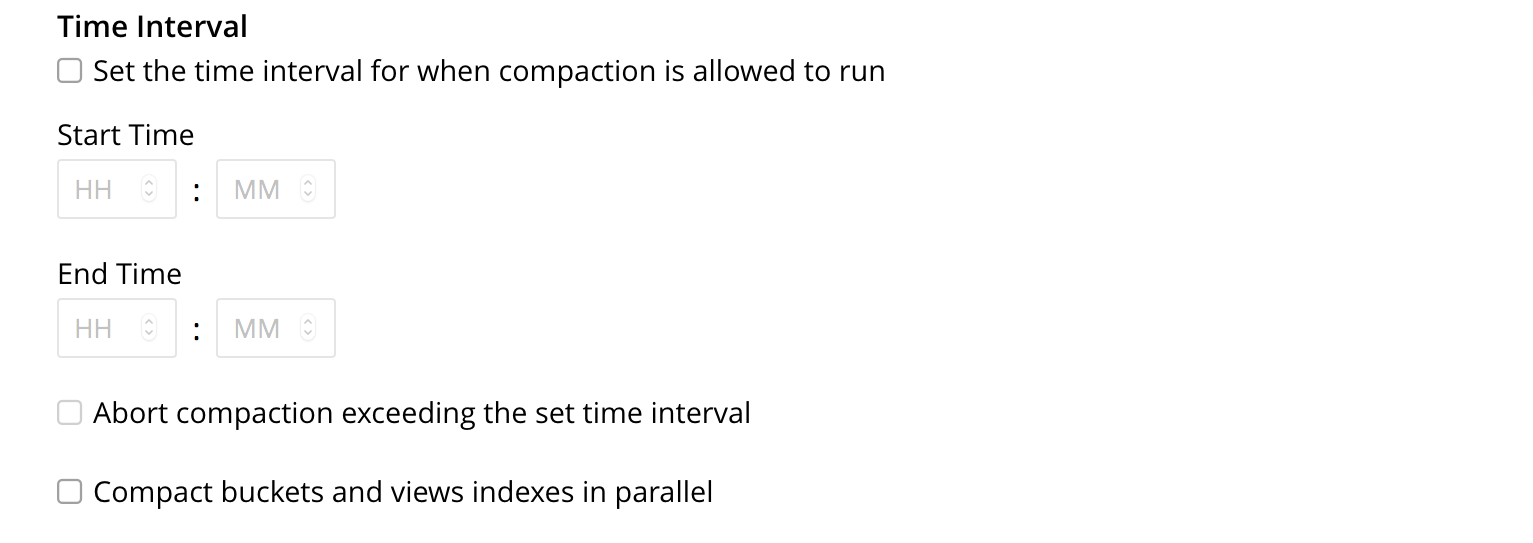
To set a time-interval during which compaction is permitted to run, check the checkbox at the top of the pane. Then, add a start and an end time into the interactive fields. Note that each left-hand field specifies the hour-of-the-day; while each right-hand specifies the minute-of-the-hour.
Checkboxes are provided to allow you to specify: first, that compaction can be aborted if the specified time is exceeded; secondly, that database and view compaction are executed simultaneously (implying a heavier processing and disk I/O load, during the compaction-process).
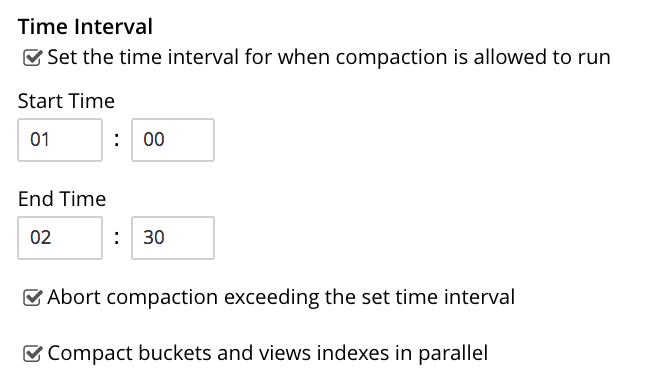
For example, the following, completed Time Interval pane specifies that compaction should run between 1:00 am and 2:30 am; should be aborted if not completed in time; and should feature parallel compaction of database and indexes:
Index Fragmentation
The Index Fragmentation settings are only available in Couchbase Server Community Edition. It provides settings that cannot be overridden at individual bucket-level.
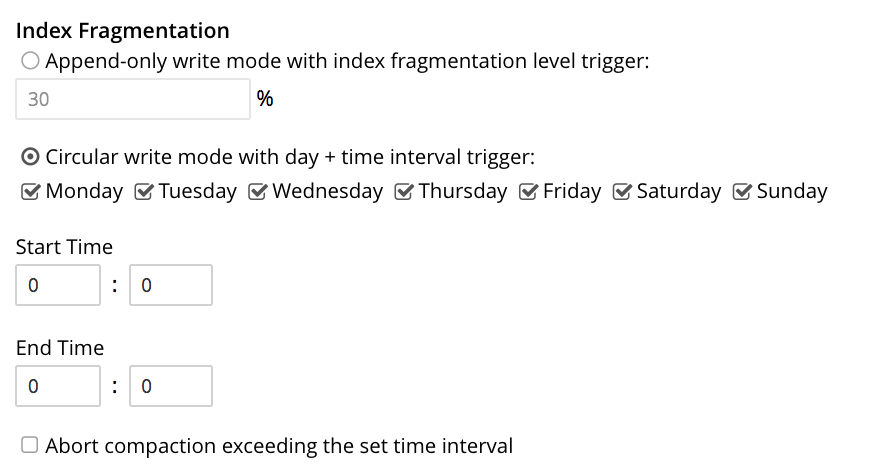
This interface sets the write-strategy and trigger-point for compaction.
Select from the following options:
-
Append-only write mode with index fragmentation level trigger. Turns on append only writes for index-storage, and triggers the compaction-job based on the fragmentation-level of each index file. Check the checkbox, then specify a fragmentation-level as a percentage, in the interactive text-field.
-
Circular write mode with day + time interval trigger. Turns on writes with circular reuse for index-storage, and triggers the compaction-job based on a time-interval. To specify when compaction is permitted to run, select appropriate days of the week, by checking the appropriate checkboxes; then, select the start-time on each of those days; and optionally, an end-time.
Optionally, select the Abort compaction if run time exceeds the set time interval if you want Couchbase Server to abort compaction if it exceeds the end-time you set.
| whenever you change the compaction settings for the index, the system starts the global secondary index process on all the nodes. |
See Standard Index Storage for information about append-only and circular write modes.
Metadata Purge Interval
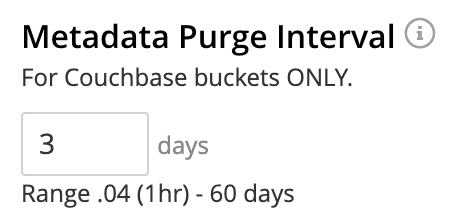
Sets the frequency of the metadata (or tombstone) purge interval, for Couchbase buckets only. The default value is 3 days.
The panel appears as follows:
Tombstones are records of expired or deleted items.
They include key and metadata.
Tombstones are used in Couchbase Server to provide eventual consistency of data between clusters.
The specified number of days will elapse before tombstones for expired or deleted items are permanently removed.
The default value is 3 days.
The permitted range of values is 0.04 to 60 (where 0.04 equals one hour, and 1 equals one day.
|
If you set this value too low, you may see inconsistent results in Views queries, such as deleted items appearing in a result set. You may also see inconsistent items across clusters, if XDCR has been set up between the clusters. If the metadata purge interval is set too low, it can also cause severe issues with transactions, especially for ephemeral buckets. If you set this value too high, it delays Couchbase Server from reclaiming disk space. |
The Metadata Purge Interval panel on this screen establishes a default purge interval for Couchbase buckets only. Therefore:
-
If a Couchbase bucket is left at its default setting, any change made here to the default value duly changes the frequency of metadata purges for that bucket.
-
If a Couchbase bucket has already been given a customized setting, no change made here to the default value has any effect on the frequency of metadata purges for that bucket. For information on providing customized settings, see Create a Bucket and Edit a Bucket.
-
Neither the default nor the customized frequency of metadata purges for any Ephemeral bucket is affected by changes made here. Note that although the default interval for Ephemeral buckets is, as with Couchbase buckets,
3, only per bucket interval-changes can be made, for Ephemeral buckets: the default interval for Ephemeral buckets cannot be changed globally.
For more information, see Storage Properties.
Configure Auto-Compaction with the CLI
To configure auto-compaction with the CLI, use the setting-compaction command.
/opt/couchbase/bin/couchbase-cli setting-compaction \
--cluster 10.143.192.101 \
--username Administrator \
--password password \
--compaction-db-percentage 30 \
--compaction-db-size 1024 \
--compaction-view-percentage 30 \
--compaction-view-size 1024 \
--compaction-period-from 00:00 \
--compaction-period-to 06:00 \
--enable-compaction-abort 1 \
--enable-compaction-parallel 0 \
--metadata-purge-interval 3 \
--gsi-compaction-mode circular \
--compaction-gsi-interval Monday,Wednesday,Friday \
--compaction-gsi-period-from 06:00 \
--compaction-gsi-period-to 09:00 \
--enable-gsi-compaction-abort 1
The compaction-related flags correspond to the UI fields described above in Database Fragmentation and View Fragmentation; and also to the associated Time Interval fields. The GSI compaction mode is specified as circular; and other gsi-related flags correspond to the fields in the lower part of the Time Interval panel, which correspond to index compaction. Parallel compaction is disabled, with the --enable-compaction-parallel flag; and GSI compaction is enabled to abort, with the --enable-gsi-compaction-abort flag.
Configure Auto-Compaction with the REST API
To return current auto-compaction settings by means of the REST API, use the /settings/autoCompaction method.
curl -i -X GET -u Administrator:password \
http://127.0.0.1:8091/settings/autoCompaction
If successful, this returns a JSON document containing the current settings. Formatted, this might appear as follows:
{
  "autoCompactionSettings": {
    "parallelDBAndViewCompaction": false,
    "magmaFragmentationPercentage": 50,
    "databaseFragmentationThreshold": {
      "percentage": 30,
      "size": 1073741824
    },
    "viewFragmentationThreshold": {
      "percentage": 30,
      "size": 1073741824
    },
    "indexCompactionMode": "circular",
    "indexCircularCompaction": {
      "daysOfWeek": "Monday,Wednesday,Friday",
      "interval": {
        "fromHour": 6,
        "toHour": 9,
        "fromMinute": 0,
        "toMinute": 0,
        "abortOutside": true
      }
    },
    "indexFragmentationThreshold": {
      "percentage": 30
    }
  },
  "purgeInterval": 3
}
See Getting Auto-Compaction Settings, for more information.
To modify auto-compaction settings, use the /controller/setAutoCompaction method:
curl -i -X POST http://10.143.192.101:8091/controller/setAutoCompaction \
-u Administrator:password \
-d databaseFragmentationThreshold[percentage]=30 \
-d magmaFragmentationPercentage[percentage]=30 \
-d databaseFragmentationThreshold[size]=1073741824 \
-d viewFragmentationThreshold[percentage]=30 \
-d viewFragmentationThreshold[size]=1073741824 \
-d allowedTimePeriod[fromHour]=0 \
-d allowedTimePeriod[fromMinute]=0 \
-d allowedTimePeriod[toHour]=6 \
-d allowedTimePeriod[toMinute]=0 \
-d allowedTimePeriod[abortOutside]=true \
-d parallelDBAndViewCompaction=false \
-d purgeInterval=3.0 \
-d indexCompactionMode=circular \
-d indexCircularCompaction[daysOfWeek]=Monday,Wednesday,Friday \
-d indexCircularCompaction[interval][fromHour]=6 \
-d indexCircularCompaction[interval][fromMinute]=0 \
-d indexCircularCompaction[interval][toHour]=9 \
-d indexCircularCompaction[interval][toMinute]=0 \
-d indexCircularCompaction[interval][abortOutside]=true
This example establishes fragmentation thresholds and sizes for database and view, and specifies the time-period during which compaction should occur. It specifies that compaction be aborted if it should overrun this time-period. Parallel compaction for database and view is switched off. The tombstone purge interval is set to 3 days; and circular standard compaction is specified for particular days and hours.
See Setting Auto-Compaction, for more information.